Congregation Settings
Use Administration > Settings to maintain congregation-wide settings.
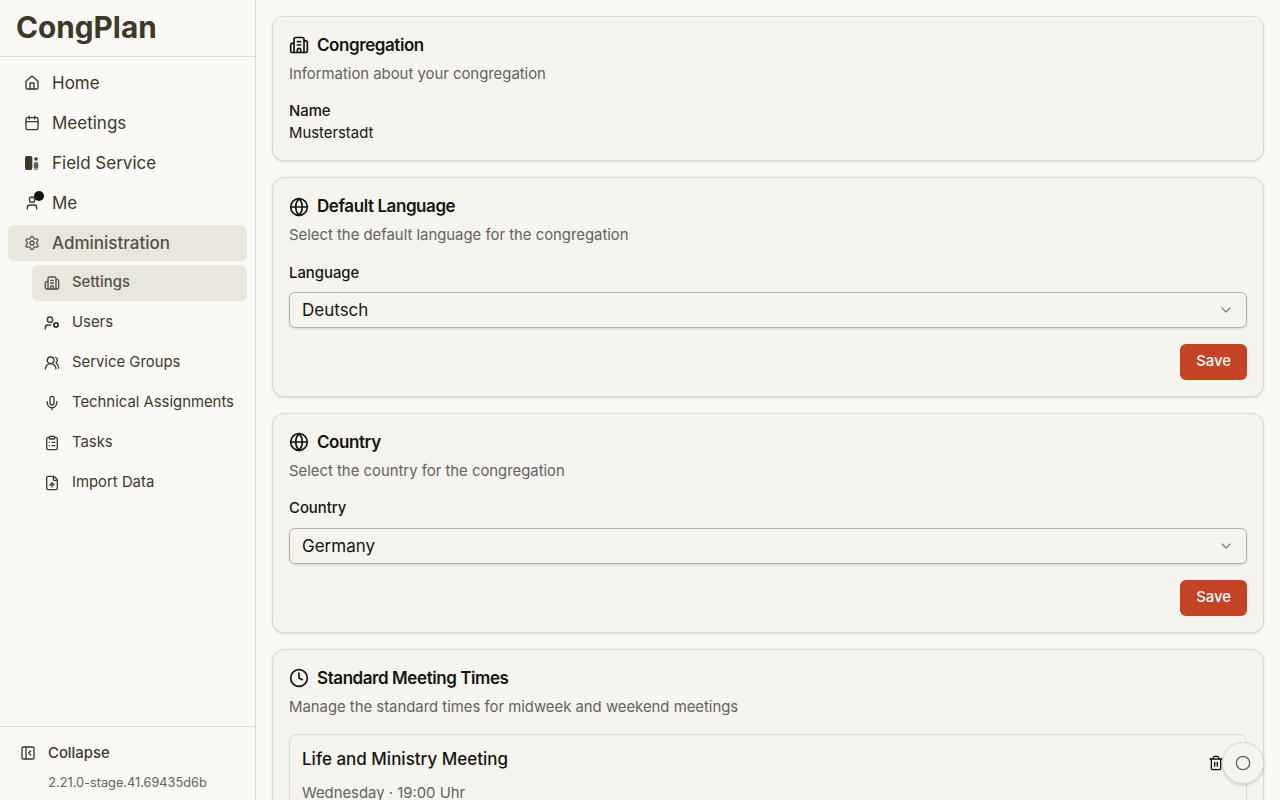
Congregation
Maintain:
- Congregation name
- Default language for congregation-wide notifications and terminology
- Country, which can affect available fields and formatting
Users can still choose their personal UI language under User > Settings.
Default Meeting Times
Configure the regular meeting times for midweek and weekend meetings:
- Day of week
- Start time
- Valid-from date
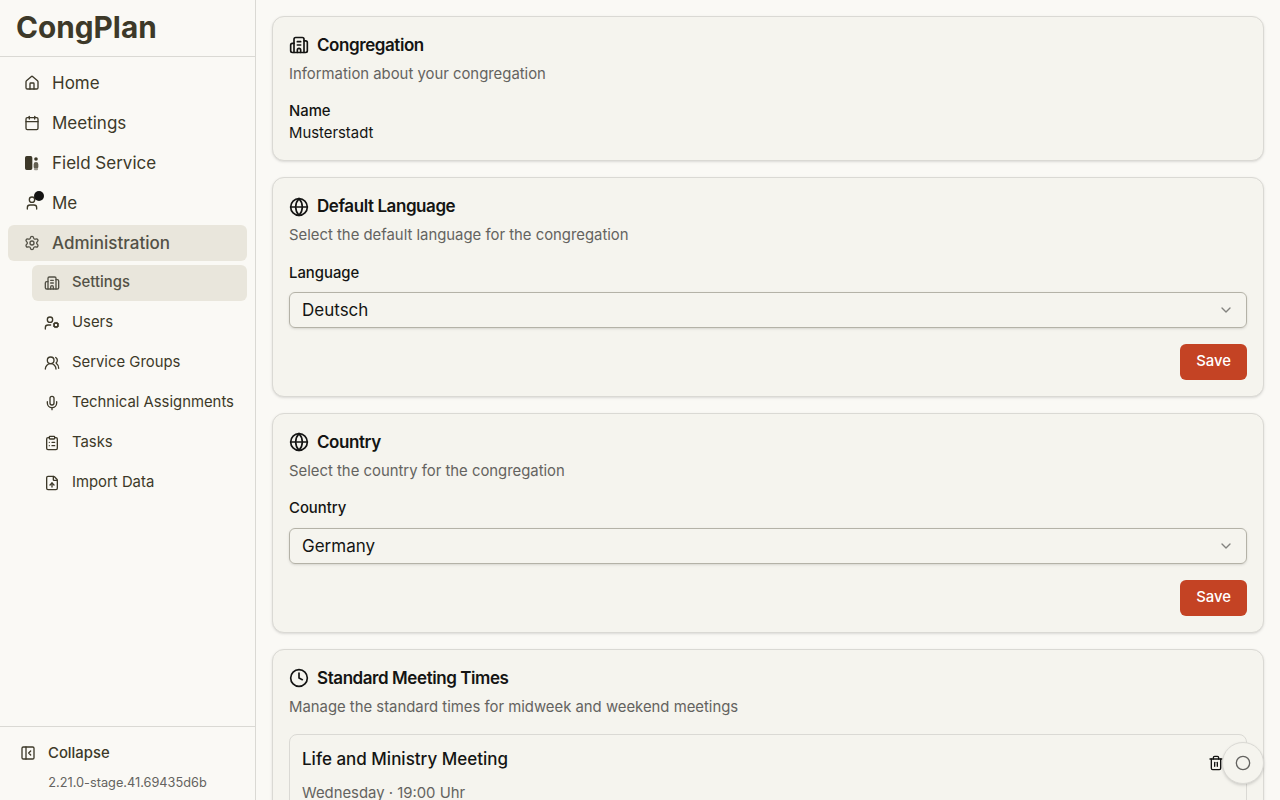
Future meeting-time changes can be entered with a future valid-from date.
Delegation
Delegation switches allow assigned responsible users to maintain limited data:
- Chairmen can edit assignments in their meetings
- Field service leaders can edit their meetings
The field service option is about the assigned leader of a specific field service meeting. It is not the same as being a group overseer.
Delegation keeps everyday corrections close to the responsible person without granting full administration access. Use it when a chairman or field service leader should adjust their own context, but not the whole congregation setup.
Roles and Permissions
Permissions determine which pages, actions, and user details a publisher can access. A user only works inside their own congregation, and role-specific controls appear only where the permission allows the action.
Review permissions when a user cannot see a planning page, a public-witnessing location, a user detail, or an edit button. The missing control is often intentional rather than a loading problem.
Notifications
Administrators can trigger congregation-wide assignment notifications after schedule changes.
Notifications are useful after visible schedule updates, but they should be triggered after the plan has been reviewed. This prevents sending avoidable corrections for changes that were still pending.
Support Problem Reports
Where enabled, the settings page can allow support problem reports. Users then see a Report problem action in the app. A report is only sent after confirmation and can include recorded browser steps or a screenshot.
Problem reports may contain visible names, assignments, or screen state. Use this only for support and avoid entering unnecessary sensitive data before recording.