Registration & Login
CongPlan uses passkeys and personal invite/device setup links. There is no email-and-password login.
Registering a New Congregation
If your congregation is not yet on CongPlan:
- Open my.congplan.app
- Select Register New Congregation
- Enter your name, congregation name, country, and language
- Complete the setup shown in the app
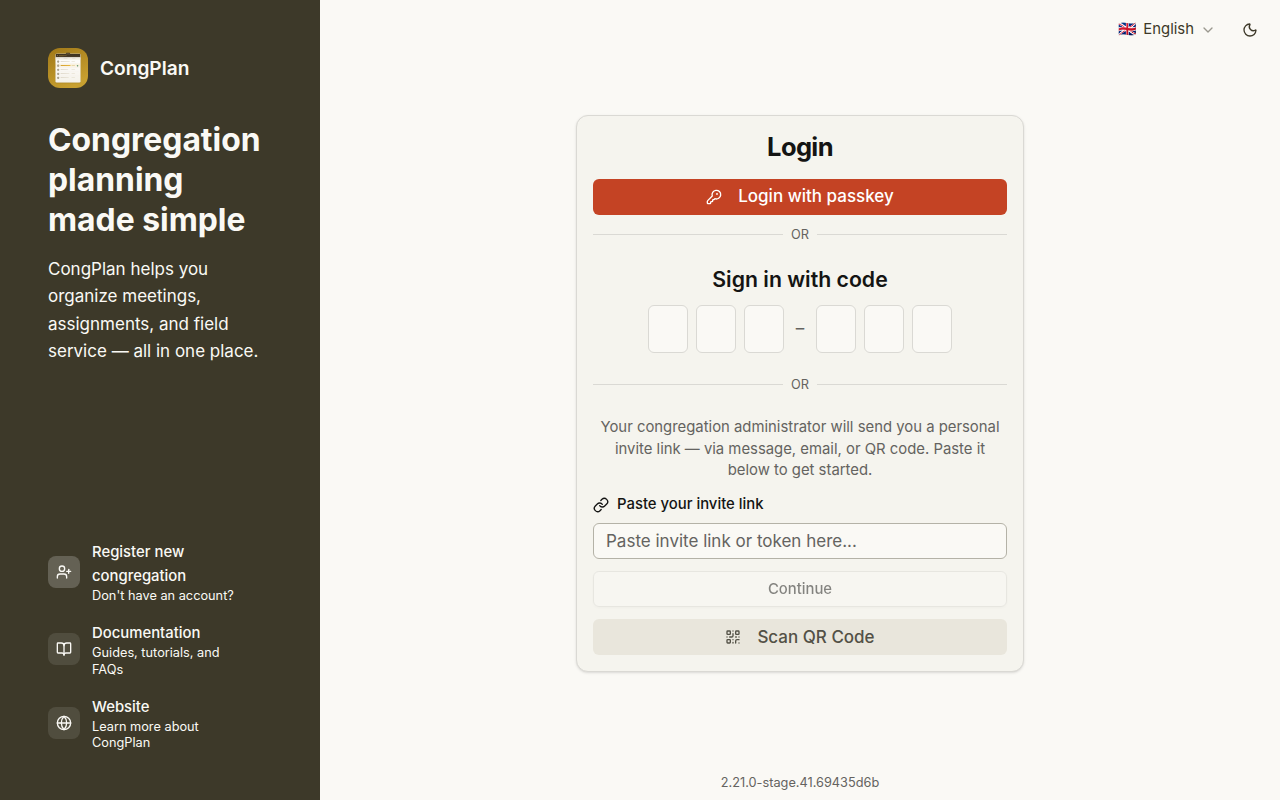
Only one person needs to register the congregation. Other publishers join by invitation.
Logging In
The login page offers:
- Passkey sign-in — Use your device, password manager, fingerprint, face recognition, or device PIN
- Invite link or token — Used for first login or when an administrator issues a new invite
- QR code / setup flow — Used when setting up another device
Joining by Invite
If your congregation already uses CongPlan, an administrator creates your user record and sends a personal invite.
- Open the invite link
- Confirm that the displayed name and congregation are correct
- Create or register a passkey
- Continue into the app
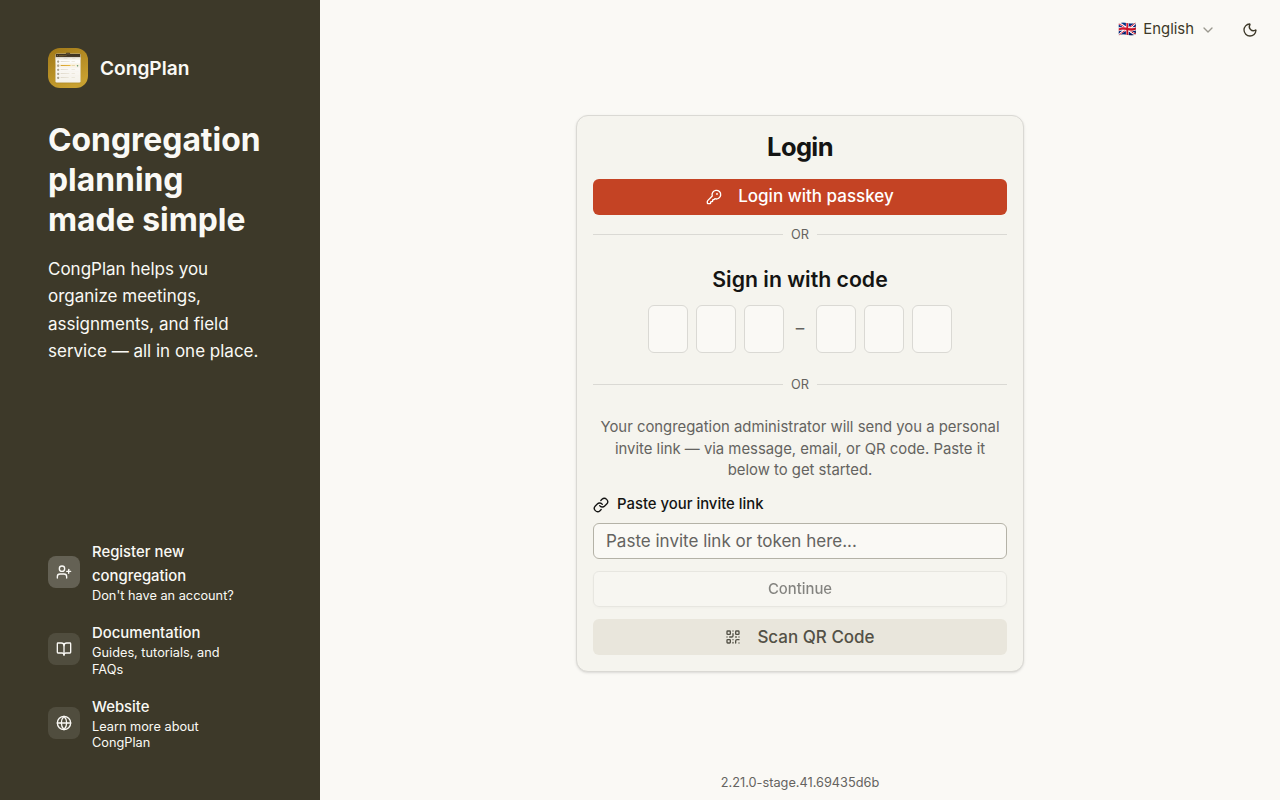
Invite and setup links are personal. Do not forward them to another person.
Setting Up Another Device
After you already have access, you can set up another phone, tablet, or desktop from User > Settings > Security. The app can show a setup link, QR code, or one-time code.
This is different from creating a new user: it only gives your existing account access on another device.
Lost Device or Passkey
If you can no longer sign in, ask an administrator to create a new invite or device setup link for your account.
Next Steps
After login, continue with Installation and First Steps.