Installation
CongPlan runs in the browser and can be installed as a Progressive Web App (PWA).
Requirements
- Current browser: Chrome, Edge, Safari, or Firefox
- Internet connection for loading data and making changes
- Passkey-capable device or password manager
Accessing CongPlan
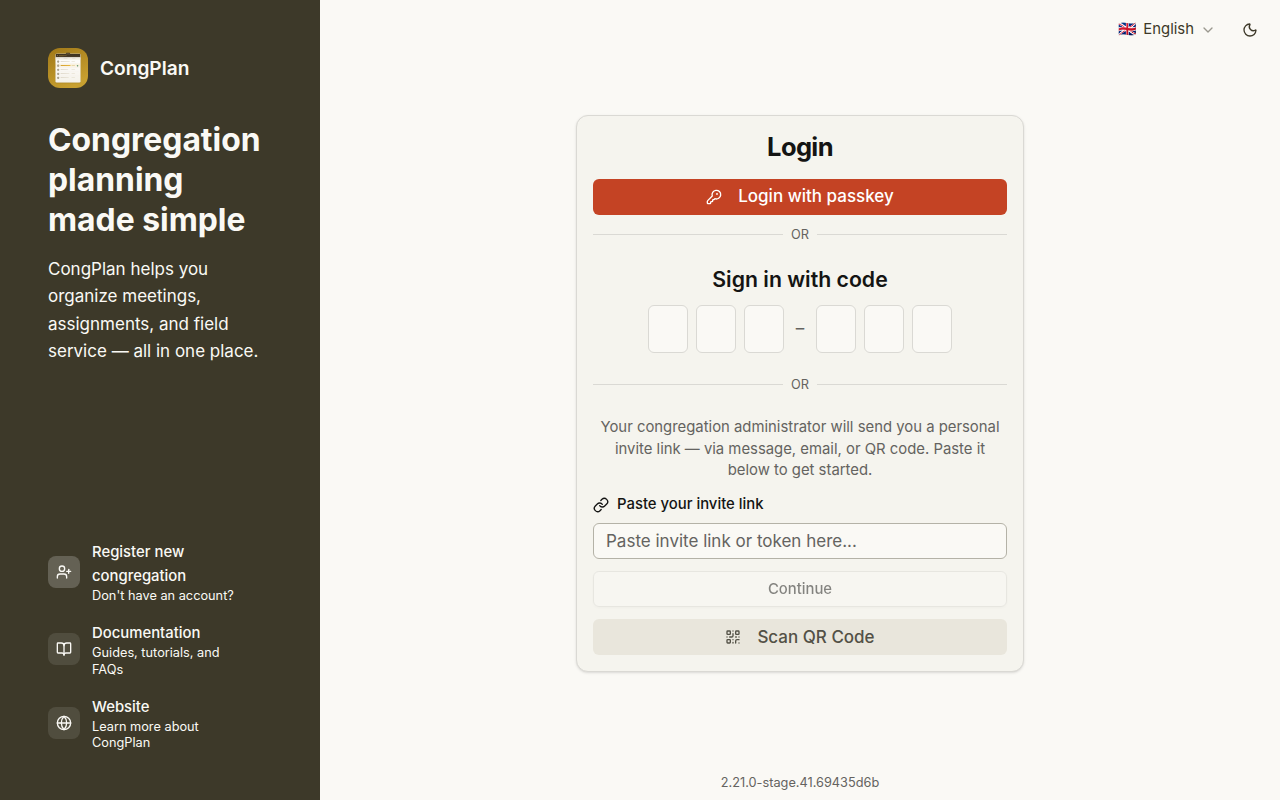
Open my.congplan.app and sign in with your passkey or personal invite/setup link.
Install as PWA
Installing CongPlan gives it its own app icon and a cleaner mobile experience. Push notifications are also more reliable when the app is installed.
iPhone or iPad
Use Safari:
- Open my.congplan.app in Safari
- Tap Share
- Select Add to Home Screen
- Confirm with Add
- Open CongPlan from the new home-screen icon
Android
Use Chrome or another browser with PWA support:
- Open my.congplan.app
- Open the browser menu
- Select Install app or Add to Home screen
- Confirm the installation
Desktop
Chrome and Edge show an install icon in the address bar when PWA installation is available. Firefox and Safari on desktop can still use CongPlan in the browser.
Recommended Mobile Flow
For a new mobile device:
- Install CongPlan as a PWA from the browser
- Open the installed app from the home screen
- Use your passkey or device setup link/QR code
If setup fails in the installed app, open the same setup link in the browser and try again.
Offline Use
CongPlan may show data that was already loaded before the connection was lost. Creating or changing assignments, tasks, users, public-witnessing signups, or settings requires an internet connection.
Next Steps
Continue with First Steps.