Field Service
The Field Service area covers field service meetings and links into public witnessing.
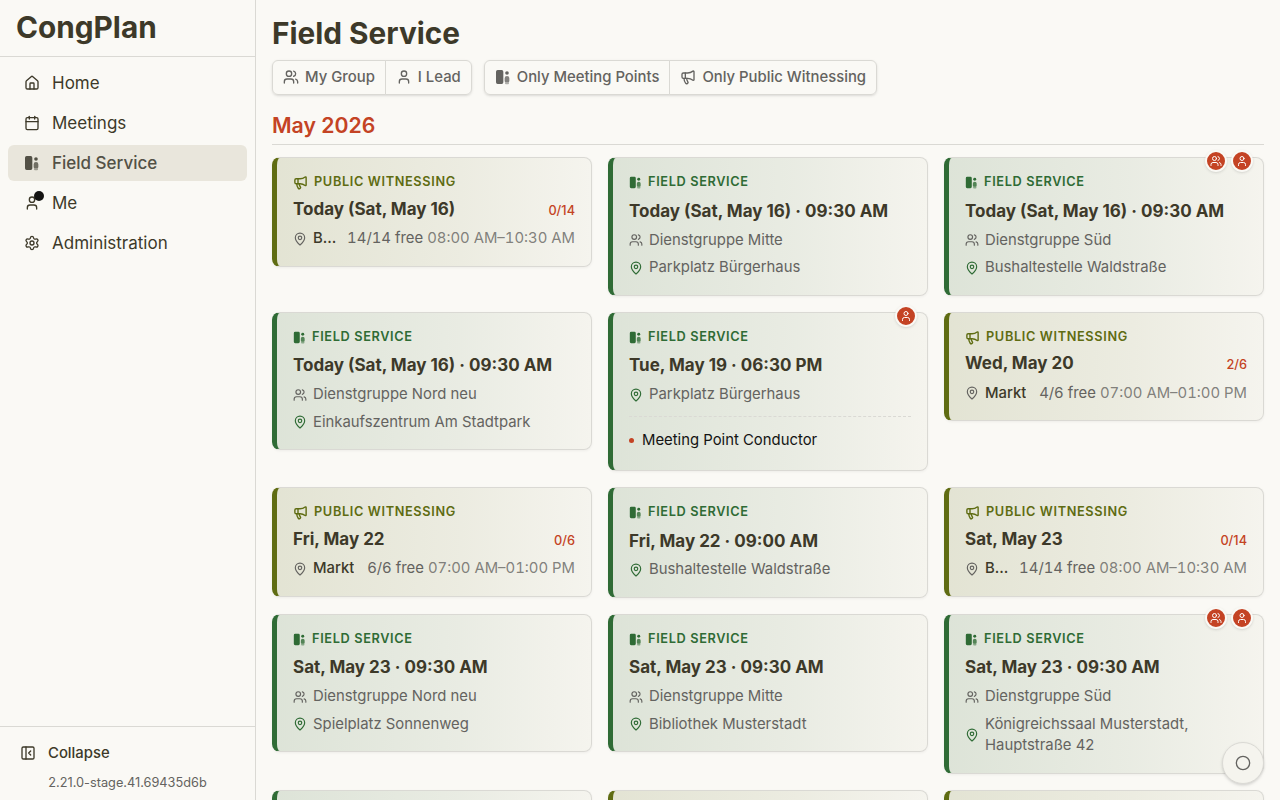
Field Service Meetings
Field service meetings are short meetings before field service. They are separate from the regular midweek and weekend meetings and are usually connected to a service group.
Each field service meeting card shows:
- Date and time
- Field Service heading
- Leader
- Meeting point with map link where available
- Service group
Where to Find Field Service Meetings
Field service meetings can appear in:
- Home — In the dashboard preview
- Field Service — Main field service list
- Meetings — When shown together with other congregation events
- User > Plan — When you are part of the meeting
This makes field service part of the same planning surface as meetings and public witnessing. A publisher can check the personal plan first, while coordinators can still maintain leaders, meeting points, and service-group context in the field-service area.
Editing Field Service Meetings
Users with the relevant permissions can create and manage field service meetings. Delegation settings can also allow assigned field service leaders to edit their own meetings, such as meeting point, time, or assignment details.
Avoid mixing these terms:
- Leader — Person leading a specific field service meeting
- Group overseer — Person responsible for a service group
- Service group — The group connected to the meeting
Meeting Series
For recurring field service meetings, a series can create repeated meetings with shared timing and meeting-point data. Individual meetings can still be adjusted separately when needed.
Series are useful when a service group follows a stable rhythm. Individual adjustments stay possible so a temporary change does not require rebuilding the whole pattern.
Public Witnessing
Public witnessing uses its own day and planning views. See Public Witnessing for publisher use and Public Witnessing Planning for planner/admin use.
Mobile Views by Role
Field service is visible to publishers in everyday use. Additional controls appear only when the user has the corresponding coordination or administration permissions.
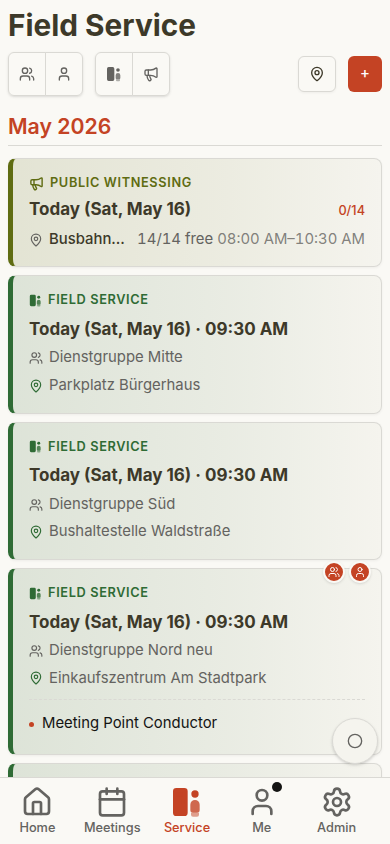
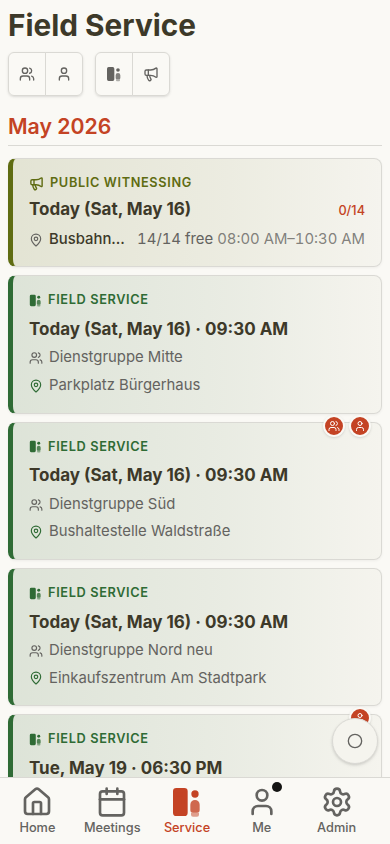
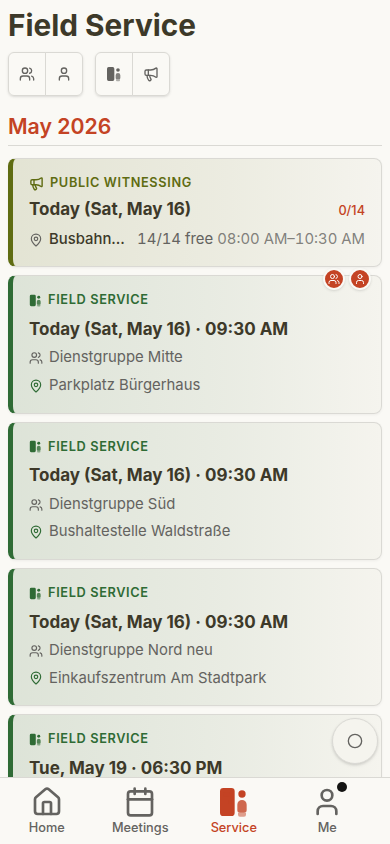
See Role-Based Mobile Gallery for the full role comparison.