Me & Settings
The Me area keeps personal planning and device settings one level deep. The old settings overview no longer exists: each row opens its own page.
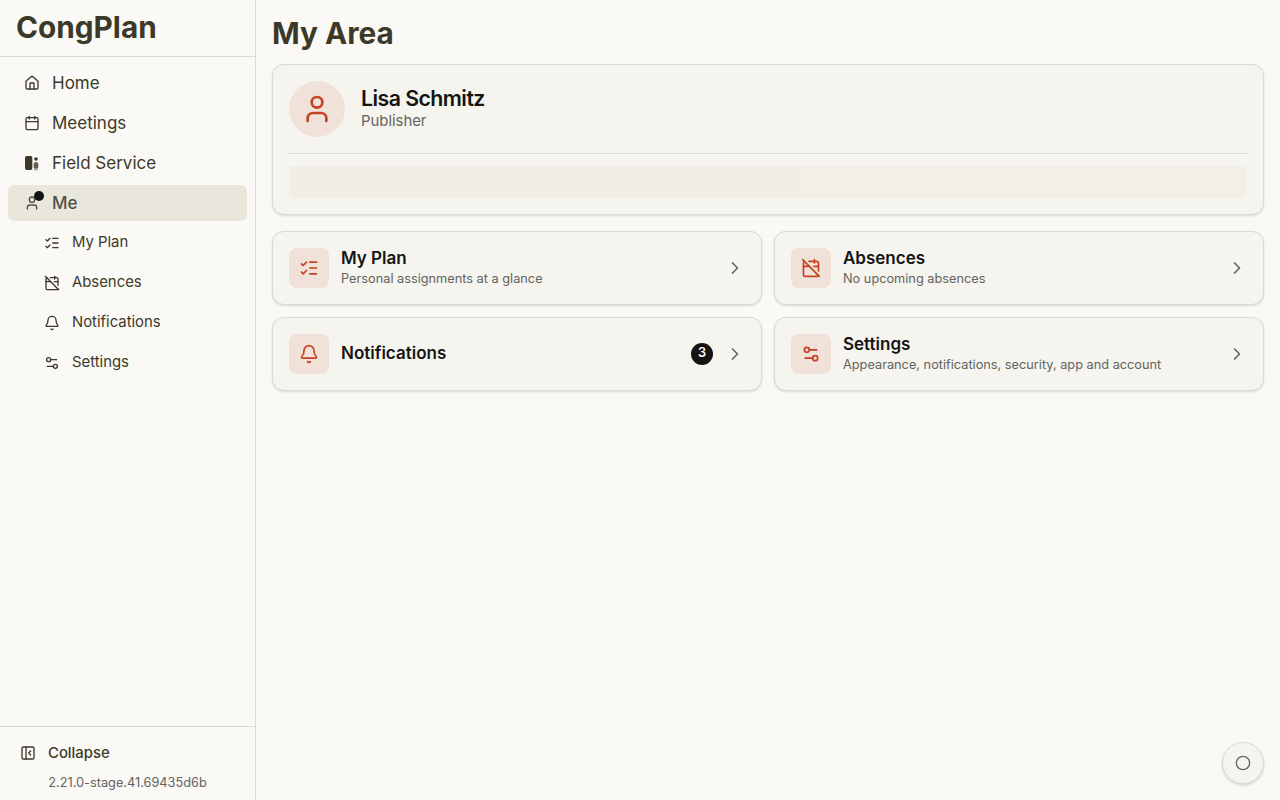
Direct Personal Hub
The header shows your name and relevant congregation information. The rows are grouped into three sections:
- Planning — My Plan, absences, and hand over & take over
- Settings — Language, appearance, notifications, login & passkey, My Devices, and account
- System — App and sync state, integrations, and feedback
Each row includes a short current-state summary, such as the active language,
notification state, passkey state, or number of devices. A bare old
/user/settings bookmark returns to Me; old links to a specific settings
section still open the matching direct page.
Absences
Absences have their own page. See Absences for recording periods when you are not available, how absences steer suggestions and planning, and who may record an absence for someone else.
Settings
Open Me, then choose the setting itself. There is no intermediate Settings page.
Appearance
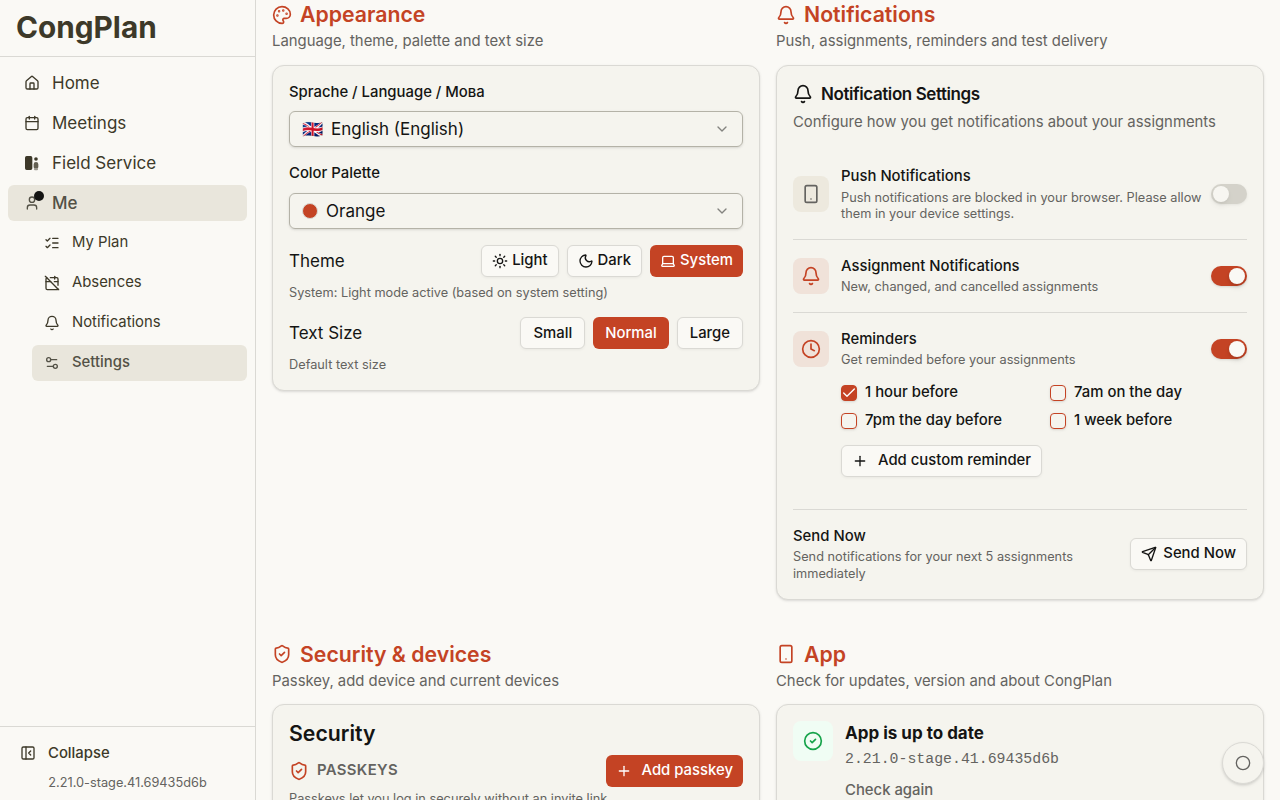
- Language — Your personal UI language
- Color palette — Visual accent color
- Theme — Light, dark, or system setting
- Text size — Adjusted reading size
Notifications
The Notifications row opens the notification center. Its gear button opens notification preferences. Push notifications require browser support, a secure connection, and permission from the device.
CongPlan can use notifications for new assignments, changed assignments, and reminders. Browser and operating-system restrictions still apply, so an installed PWA on a supported device gives the most app-like result.
Login & Passkey
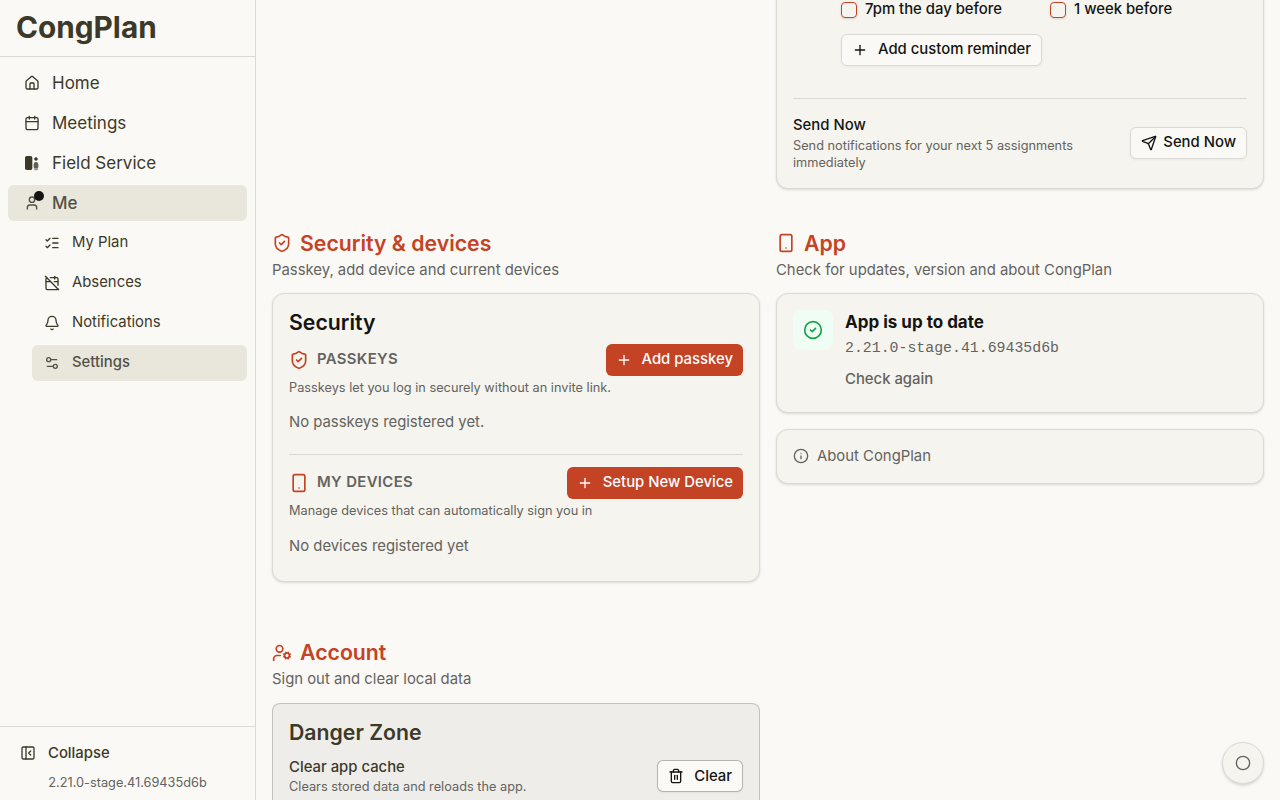
- Passkeys — Manage passkeys used for password-free sign-in
- My Devices — Create a seven-day setup link and a six-digit code valid for no more than 24 hours, or review and remove device access
Signing in with a passkey, registering a new passkey, or completing Confirm with passkey confirms the current session. Full administrative pages and sensitive user master-data changes need that confirmation. A link or code login still works for normal planning and ordinary Edit permissions.
Account, Sync, and Integrations
- Account — Data export, account actions, and sign out
- Sync — Sync log, storage footprint, and manual re-sync
- Integrations — MCP access and personal tokens, where enabled
Setup Assistant
When notifications or a passkey still need attention, CongPlan opens a setup assistant once on that user and device. It offers Enable notifications and Set up passkey. You can skip it; a Continue setup link stays on the dashboard until both items are settled.
For an administrator, the passkey card also explains that administrative tasks remain unavailable until a passkey is set up.
Passkeys are tied to your device or password manager. If you lose access, ask an administrator for a new invite or device setup link.
Offline and Local Data
CongPlan is a web app that can keep already loaded data visible when the connection is temporarily unavailable. Creating or editing assignments, tasks, public-witnessing signups, users, or settings requires a connection so changes can be validated and synchronized for the congregation.
If a page cannot load fresh data, CongPlan should show a clear empty or offline state instead of leaving you with an unexplained blank page.