User Management
Open Congregation → Users (in the Organisation section) to manage publishers, qualifications, permissions, invitations, and device setup.
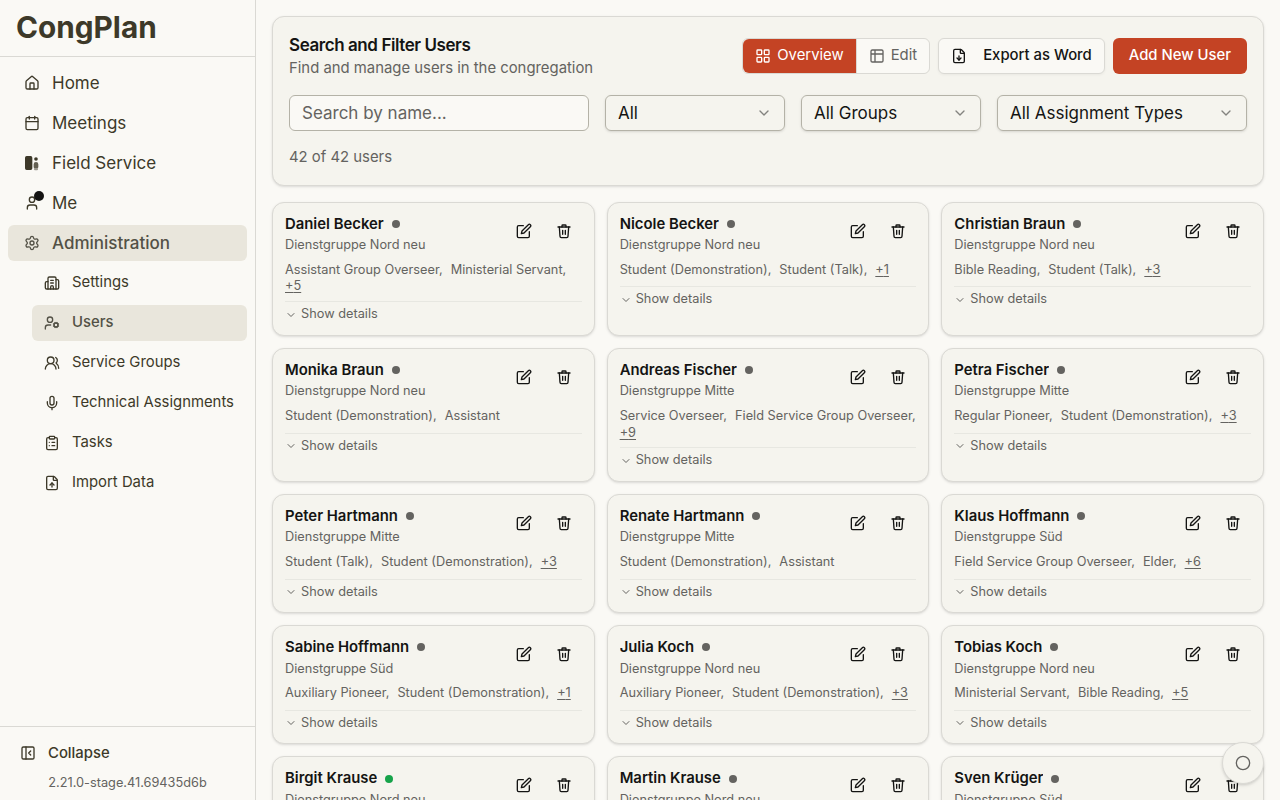
User Overview
The users page offers search, filters, and two management modes. Depending on screen size and your saved preference, users appear as cards or in an edit matrix (desktop only, requires the edit permission).
Common actions:
- Search by name
- Filter by gender, field service group, theocratic enrollment, or a specific assignment
- Export users as a Word document
- Add a new user
- Click a person's name to open their detail page
Person Detail Page
Clicking a person's name — from the user list, the command palette, or an assignment-history entry — opens their detail page. It always shows the same five cards, in this order:
- Profile — display name, active/inactive status, and theocratic congregation roles, including the status-dependent Group Overseer / Group Servant title for a field service group lead (see Field Service Groups). With the Users (full details) permission you additionally see contact details and sign-in activity ("last online" or "never signed in"). Without it, these fields show a restricted-view note instead of appearing empty.
- Permissions (read-only) — the person's permissions, grouped into View and Edit, or a note that they hold full administrator rights. Requires Users (full details) to see at all.
- Registered Devices — the same device management previously reached from inside the edit sheet, moved here so reviewing devices no longer requires opening edit mode. Requires the Users edit permission.
- Absences — record and review this person's absences. Visible to anyone who may manage this person's absences: full user editors, a holder of the narrow Absences permission (see Permissions), or — for their own group — that field service group's overseer/servant or assistant.
- Assignments — the assignment timeline, with a range selector (the last 3, 6, or 12 months, or the next 8 weeks).
A viewer without the needed permission always sees an explicit restricted-view note on a card, never an empty one — a missing permission and missing data are never confused.
Sign-In and Invitation Status
The user overview and the person detail page both surface account access at a glance:
- Sign-in activity — when the person last signed in, or that they have never signed in.
- Invitation status — for an open invite, how long it stays valid; once redeemed, when; if expired or revoked, that state, together with an action to send a new one.
Editing a User
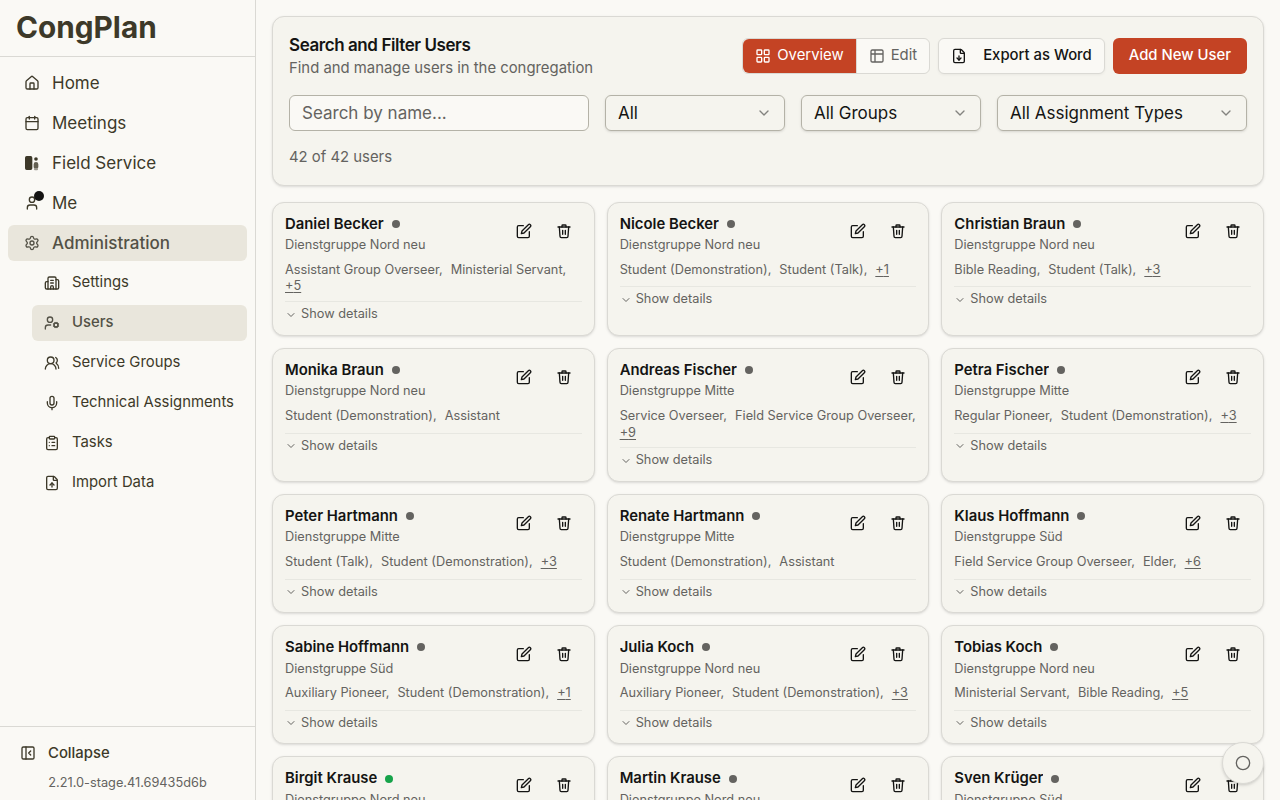
Open the edit sheet from the ✎ button on a card, from a person's detail page, or from the desktop edit matrix. The sheet groups fields into:
- Personal information (name, gender, contact details)
- Baptism and field service reporting status
- Theocratic enrollments and congregation roles
- Assignment eligibility for meetings, technical assignments, and field service, including Public witnessing
- Foreign-language group membership, if that feature is enabled
- Permissions
Field service group membership, leadership, and the group itself are managed on the Field Service Groups page, not in this sheet.
Active/inactive status is a visible control near the bottom of the sheet, with a clear status badge; anonymizing or deleting a person are rare, destructive actions in the ⋮ menu in the sheet's header.
Permissions and Eligibility
CongPlan separates eligibility from permissions:
- Eligibility controls what a publisher may be assigned to, for example public witnessing or specific meeting parts.
- Permissions control what a user may view or manage, for example users, settings, tasks, technical assignments, or public-witnessing planning.
The field-service marks Conductor and Location are planning aids, not permissions. Conductor feeds the conductor picker; Location feeds the At a publisher's home picker. Both open on Designated; All still allows any other active publisher to be selected and saved.
For public witnessing:
- Public witnessing assignment eligibility lets a publisher see and sign up for eligible public-witnessing shifts.
- The Public Witnessing edit permission lets an organiser maintain plans, locations, shifts, and signups — including signing other people up, even publishers without app access.
When you remove an assignment qualification, CongPlan checks assignments from today onward before saving. If that person is still assigned in a meeting, technical duty, field service role, public-witnessing shift, or outgoing talk, Affected future assignments lists the date, item, and qualification being removed. Existing assignments stay in place; confirm Save anyway only after noting what you must reassign. CongPlan checks the list again before the final save if another planner changes it meanwhile.
Passkeys and User Master Data
Normal Edit permissions take effect immediately, even when the person has not set up a passkey. Full administrator rights are different: they become available only after the person has a passkey and confirms it in the current session. The user editor shows a warning when you grant full administrator rights to a person who has no passkey yet.
A person with the Users edit permission can add, edit, delete, and anonymize users. Sensitive user changes also require a passkey-confirmed session. CongPlan asks for confirmation when you add a publisher, delete or anonymize one, or change a person's name, display name, gender, family head, baptism details, email address, or phone numbers. Changing active status, qualifications, field service group, theocratic enrollments, congregation roles, or Bethel reporting data does not require this extra step.
If confirmation is needed:
- In Confirm with passkey, choose Login with passkey.
- Complete the device's passkey prompt. The form or confirmation underneath stays open.
- Run the original Save, Delete, or Anonymize action again.
If the account has no passkey, Set up passkey opens Me > Login & passkey. Registering one confirms the current session immediately; return to the user action and run it again.
Permission Presets
The edit sheet's Quick select offers ready-made permission presets. See Permissions for the full list of presets, the individual permissions, and what each one grants.
Change History
The person detail footer shows when the record was last modified. A user editor also sees who changed it and can open View all changes in a sheet without leaving the person page.
Invites and Device Setup
To let a user start using CongPlan:
- Create or open the user
- Generate an invite or setup link
- Share the link directly with the person, or let them scan the QR code
Invite links are personal. A device setup link gives an existing user access on another device; it is not a new account.
Approving Access Requests
A publisher who has no invitation can request access from the device they want to use (login page → I don't have access yet). The app creates a message with an approval link, which the publisher sends to you in any messenger.
- Open the approval link. It needs the Users edit permission and a passkey-confirmed session; the app asks for the passkey first if necessary
- The page shows who is asking, the device, the request time, and how long the link stays valid
- Under Assign a person, choose the user record this device belongs to. The list contains only people of your own congregation; if the person does not exist yet, create them in user management first and then return to the link
- Select Approve access or Decline
The waiting device is signed in the moment you approve. A decided link can be opened again and shows who approved or declined it and when. The approval link is valid for 12 hours and works once. Both decisions appear in the audit log.
Deactivating and Reactivating Users
If a publisher should no longer access CongPlan, deactivate them instead of deleting their historical planning data. Deactivating and reactivating are visible actions with a clear status badge, not something buried in a menu.
A deactivated user:
- Cannot sign in.
- Keeps their past assignments, visible for history and planning context.
- No longer appears as a member, Group Overseer, Group Servant, or assistant of any field service group, and no longer counts toward that group's member total.
- Sorts to the bottom of the users list.
Reactivating restores all of this immediately.