Congregation Settings
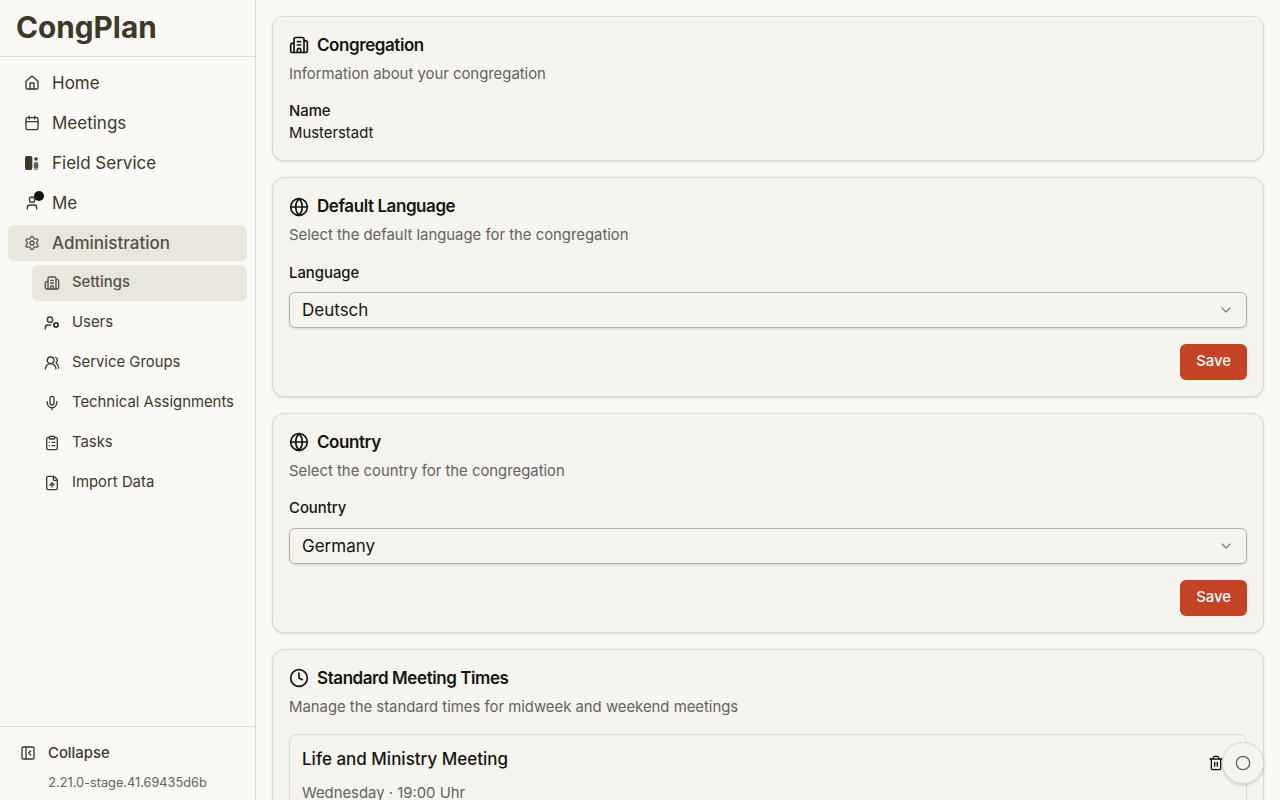
Use Congregation > Organisation > Settings to open the settings hub. The hub sorts every congregation-wide setting into five groups. Each group is a tile with a short summary of its current values and opens its own page.
The Five Groups
Depending on your permissions, the hub shows:
- Congregation — congregation details, default language, and country
- Meetings & calendar — meeting times, calendar feed time zone, draft mode, and public holidays
- Who can do what — the four delegation switches
- Sharing & printing — the public schedule page and the filename for printouts
- Additional features — foreign-language groups, the feedback button, and the MCP interface (full administrators only)
Users with settings visibility can read the applicable pages. Who can do what appears only for users who may edit settings, and editing remains permission-gated on every page.
Finding a Setting
You do not need to know which group a setting belongs to. Type into the Search settings … field at the top of the hub: it finds single settings by their name, their description, or everyday words such as "holiday", "QR code", or "PDF". Each result shows its group and current value. Choosing a result opens the right page, scrolls to the setting, and highlights it briefly.
The same entries are also part of the app-wide search: tap the magnifier or press ⌘K (macOS) or Ctrl+K (Windows/Linux), then type the name of the setting. See Command Palette. Both searches list only the settings you are allowed to open.
Congregation
Maintain:
- Congregation details — name, city, and contact information
- Default language — for congregation-wide notifications and terminology
- Country — which can affect available fields and formatting
Users choose their personal UI language under Me > Language.
Meetings & Calendar
Configure the regular meeting times for midweek and weekend meetings:
- Day of week
- Start time
- Valid-from date
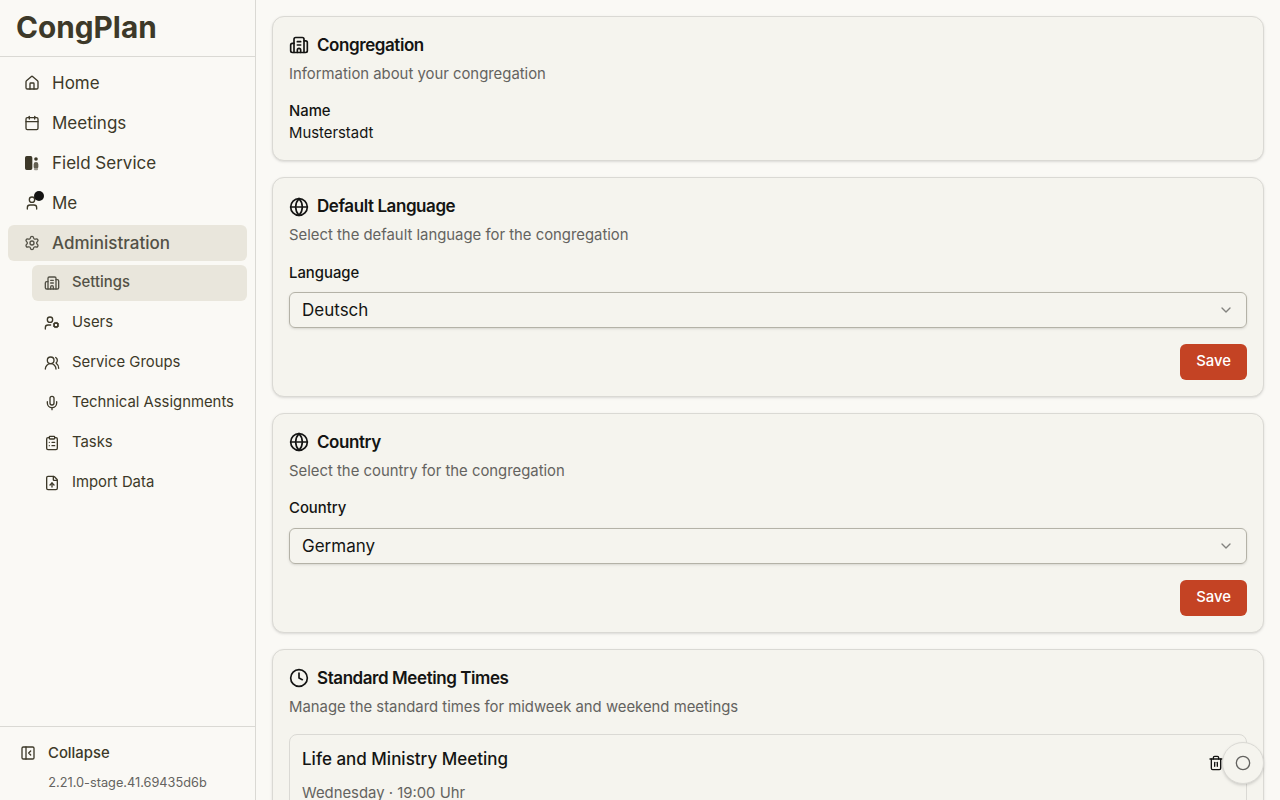
Future meeting-time changes can be entered with a future valid-from date.
The same page also holds:
- Calendar feed time zone — decides on which calendar day all-day entries, such as field service meetings and absences, fall in the calendar subscription.
- Draft mode — while it is on, newly added meetings are visible only to people with edit permission and trigger no notifications until they are published. See Meetings.
- Public holidays — marks public holidays in the calendar and shows a hint on meetings and field service meeting points that fall on a holiday.
Who Can Do What
Delegation switches let assigned responsible users maintain specific planning data:
- Chairmen can edit assignments in their meetings
- Field service conductors can edit their meeting points
- Group overseers or group servants can manage group absences
- Publishers can maintain their own recurring unavailability
The hub tile names the roles whose switch is on, for example On: Chairmen, Field service conductors.
The field service option is about the assigned conductor of one meeting point. The group-absence option is separate: it gives the overseer or servant and their assistant access to active publishers in their own field service group from Me > Absences. The last option lets every publisher record their own recurring unavailability.
The chairman option has a wider privacy effect: while it is enabled, every person assigned as chairman of at least one meeting can see all absences in the congregation, without a meeting or date limit. Review that visibility before enabling the option.
These switches do not grant full administration access. They grant the stated editing route and, for chairmen, the congregation-wide absence visibility described above.
Sharing & Printing
Public Schedule Page
Use the Public schedule page to enable an anonymous QR page for the congregation's current week and next two weeks.
The page shows meeting times and field service meeting points without login. Show program details adds the full meeting program in section blocks, shortened assignment names, technical duties, field service leaders, and tasks. A separate option controls whether foreign-language group meetings are included.
Turning the page off does not invalidate an already printed QR code. Use Renew link when an old public link should stop working immediately. See Public Schedule Page for the complete workflow and privacy checklist.
Filename for Printouts
Filename for printouts controls how a download from the Print Center is named. Leave it empty to keep the default name. The filename hint in the Print Center links straight to this setting.
Additional Features
- Foreign-language groups — off by default. Turn them on when part of the congregation meets and serves in another language. See Congregation Groups.
- Feedback button — shows a feedback button to everyone in the congregation, so they can report problems. A report is only sent after confirmation and can include recorded browser steps or a screenshot.
- MCP interface — full administrators only. Lets granted users connect an AI assistant. See AI Assistant.
Problem reports may contain visible names, assignments, or screen state. Use this only for support and avoid entering unnecessary sensitive data before recording.
Roles and Permissions
Permissions determine which pages, actions, and user details a publisher can access. A user only works inside their own congregation, and role-specific controls appear only where the permission allows the action.
Review permissions when a user cannot see a planning page, a public-witnessing location, a user detail, or an edit button. The missing control is often intentional rather than a loading problem.
Congregation-Wide Messages
Congregation Settings no longer has a Communication page. A full administrator can send a one-off congregation-wide message from the Announcements page's ⋮ menu with Send Notification. Assignment notifications remain part of their planning workflows instead of a congregation-wide channel setting.