Public Schedule Page
The public schedule page is an anonymous /p/{token} page for a congregation's current week and two-week preview. It is meant for a QR code on the bulletin board or another controlled congregation notice area, so visitors can see meeting times and field service meeting points without signing in.
It is different from the personal calendar subscription: the public page is one congregation-wide link, while the ICS subscription is a private feed for one signed-in user.
Open the Setting
Open Congregation > Organisation > Settings > Sharing & printing and find Public schedule page.
Users with settings visibility can see the settings page. Changing the public page, printing a fresh QR code, or renewing the link requires permission to edit settings.
What Visitors See
The page shows:
- the current week, plus navigation for the next two weeks
- published midweek and weekend meetings; drafts stay private
- field service meetings with time and location
- a map link when coordinates are available for a field service meeting point
- cancelled meetings as cancelled, not hidden
Weeks run from Monday to Sunday in the congregation's time zone. The public page renders in the congregation language, not in the visitor's browser language.
Program
By default, the public page shows no names. Enable Show program details only if the congregation wants the page to include the published program.
The program is grouped into the same meeting sections visitors recognize in
the app. It can include themes, shortened assignment names, technical duties,
field service conductors, and linked tasks. Congregation colors keep the public
page recognizable. Names are shortened to first name plus surname initial,
such as Maria S.. Contact details, internal notes, user IDs, assignments
outside the public week plan, and private user data are not shown.
Foreign-language group meetings need their own opt-in. Turning on Show program details does not publish them automatically.
Link and QR Code
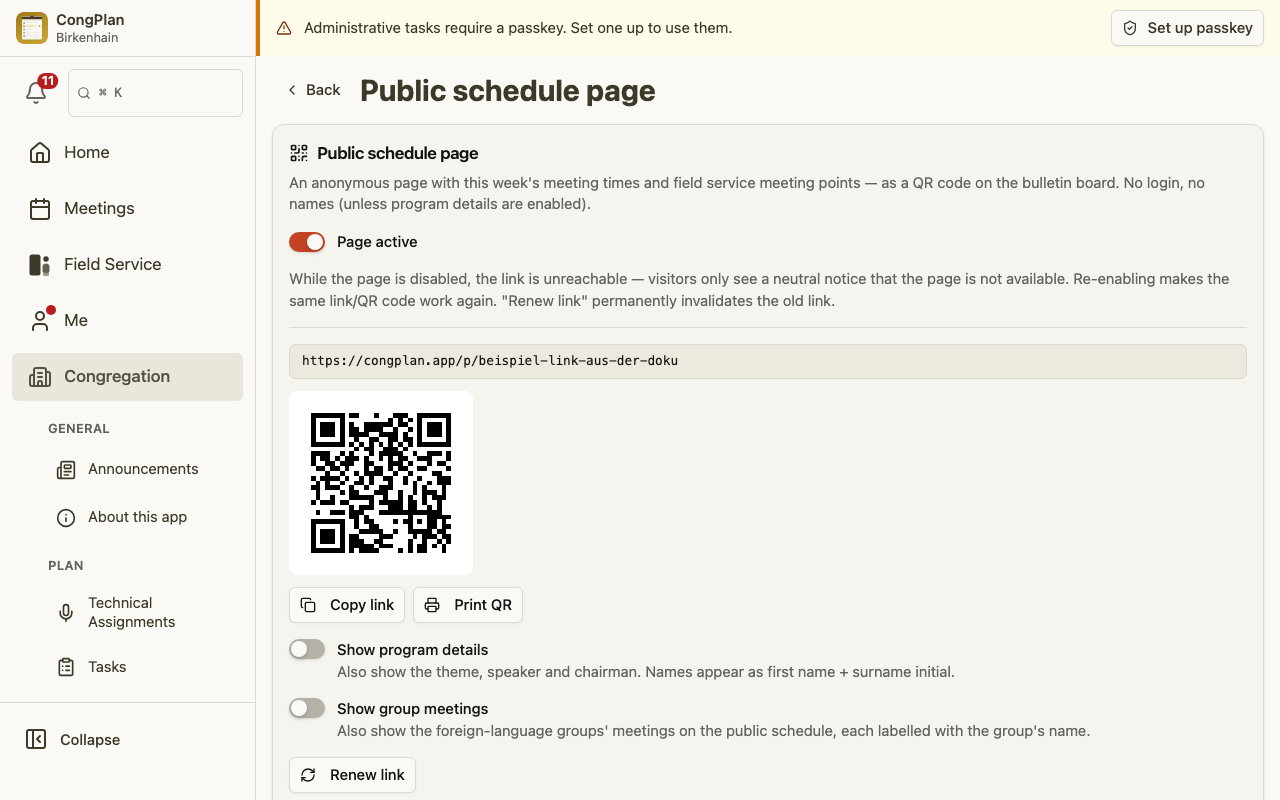
When the page is enabled for the first time, CongPlan creates a public link and shows its QR code. For newly created and renewed links, CongPlan stores the token alongside its verification hash, so Copy link and Print QR remain available when you return to the page.
An older link created before this re-display support may no longer have its full token available. Renew that legacy link once if CongPlan cannot show or print it.
Disable or Renew
Turning the page off stops the public page while it is disabled, but it does not rotate the token. A QR code that was already printed can work again if the page is turned back on.
Use Renew link when an old QR code or shared link should stop working immediately, such as after it was shared too widely. Renewing creates a new token, invalidates the old link right away, and shows a fresh QR code to print.
Privacy Checklist
Before printing the QR code:
- Keep Show program details off unless names and assignments on the public page are intended.
- Print the QR code only for the congregation notice area where it belongs.
- Renew the link if a QR code was shared too widely or printed with the wrong settings.
- Review the page after schedule changes, especially if meeting times, field service meeting points, or program details were updated.