Activity Log
Congregation > System > Activity Log shows what has been changed in your congregation. Every entry answers four questions: when it happened, who did it, what kind of change it was, and which object it affected.
The log is there so a planning question can be settled with a fact instead of a guess — who moved that assignment, when a setting was switched, why a shift is suddenly gone.
Who can open it
The Activity Log is not part of the default view access. It needs at least one Edit permission, or Admin. A person with view-only permissions does not see the entry in the navigation and cannot open the page.
Beyond that, the log narrows itself per person: you only ever see the areas your own Edit permissions cover. This filtering happens on the server, so an area you may not see is genuinely absent from the result, not merely hidden in the browser.
| Your Edit permission | Entries it makes visible |
|---|---|
| Meetings | Meetings and meeting parts |
| Technical Assignments | Technical assignments and their templates |
| Field Service Meetings | Field service meetings |
| Field Service Groups | Field service groups |
| Users | Users and absences |
| Tasks | Tasks and task exceptions |
| Settings | Congregation settings and foreign-language groups |
| Public Witnessing | Plans, locations, shifts, and sign-ups |
| Outgoing public talks | Outgoing talk assignments and the talk outline catalogue |
| Circuit overseer visit | The circuit overseer visit |
| Announcements | Announcements |
| Admin | Everything above, plus registered devices and passkeys |
Two of these rules are deliberate and worth knowing:
- Meetings. The meeting history spans midweek and weekend together and cannot be split per meeting type, so reading it needs the full Meetings Edit permission. The narrower planner permissions for a single meeting type do not open it.
- Devices and passkeys. Entries about registered devices and passkeys stay with Admin alone, even for someone who may edit users.
If you follow a link into an area you are not allowed to see, CongPlan says so plainly instead of showing an empty list. See Permissions for what each permission covers.
What is recorded
CongPlan records changes to congregation data. An entry is written when someone
- creates, updates, or deletes an object,
- publishes or cancels something,
- assigns a person or removes an assignment,
- reorders meeting parts,
- signs up for or withdraws from a public witnessing shift,
- changes someone's permissions, or
- imports data or creates it in bulk.
The areas covered are meetings and meeting parts, technical assignments and their templates, field service meetings, field service groups, foreign-language groups, users, absences, tasks and task exceptions, congregation settings, public witnessing plans, locations, shifts and sign-ups, outgoing public talks and the talk outline catalogue, the circuit overseer visit, announcements, and — for administrators — registered devices and passkeys.
Some entries have no person as their author. Changes made by an automatic process, for example the scheduled program generation, are recorded with the automation named in place of a person.
What is not recorded
Knowing the gaps matters as much as knowing the contents:
- Reading is never logged. Opening a page, a plan, or someone's profile leaves no entry. The log answers "who changed this", not "who looked at this".
- Sign-ins and sessions do not appear in the Activity Log.
- Data exports do not appear. Exporting your own data leaves no entry here.
- No technical fingerprint is stored. An entry holds no IP address, no browser, and no device identification.
- No secrets, ever. Passwords, tokens, keys, invite codes, and passkey data are excluded from what an entry may contain. Only an allowlist of fields is captured in the first place.
- Hand-over requests have entries of their own. Sending, taking over, declining and withdrawing a request each write an entry under All hand-overs of the congregation; the assignment that moved also shows up as an assignment change.
- The automation interface keeps its own separate record. A change written through it appears here like any other change, but the record of the interface calls themselves is kept apart and is not shown on this page.
What an entry contains
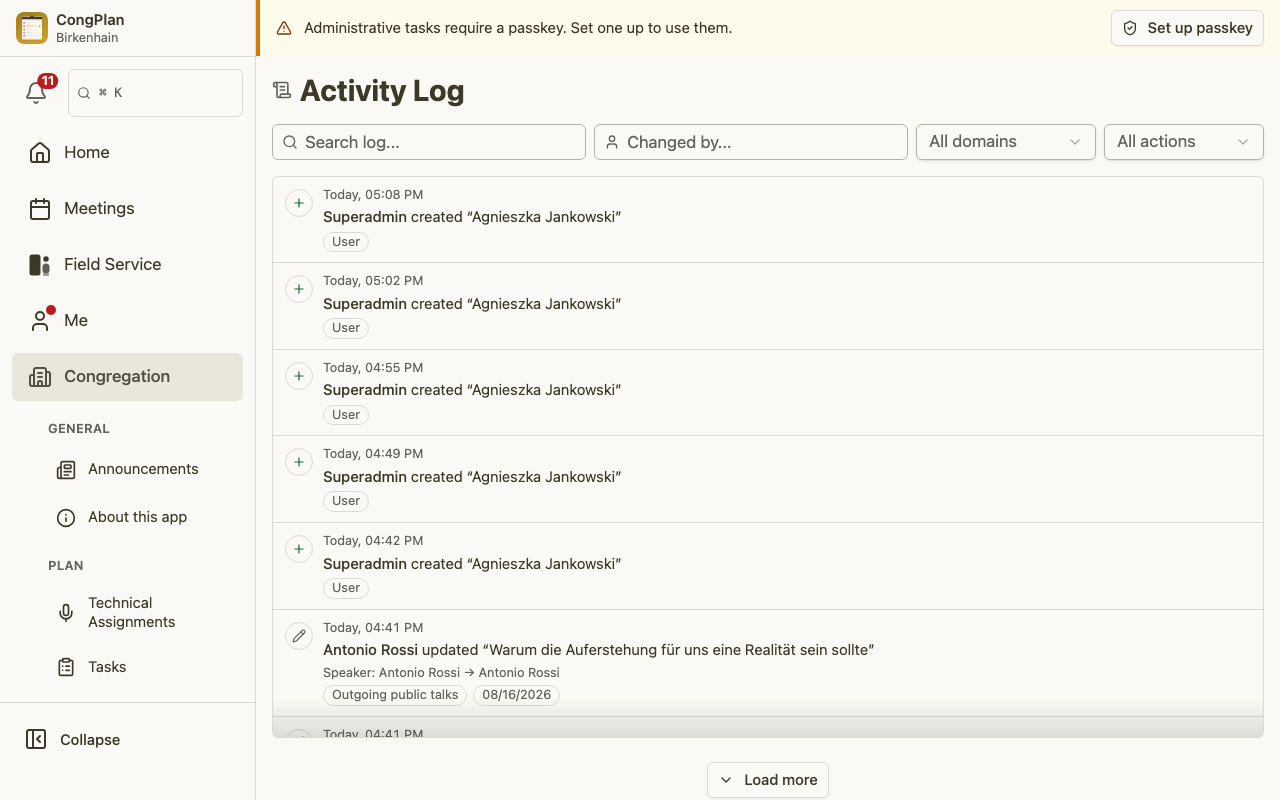
The list shows one readable sentence per change, newest first. Every screen width uses the same one-column layout: timestamp and action icon, who changed what, short changed-field lines, then context chips such as the domain, meeting type, or affected date. Assignment sentences name the person who received the assignment instead of hiding that fact in a separate column.
Selecting a sentence opens the details:
- Metadata — object, author, timestamp, and action, plus the meeting type and the affected date where they apply.
- Affected users — the people this change is about. For an assignment that is the person assigned, not the planner who assigned them.
- Change details — which fields changed, shown as old value → new value.
- Technical details — the raw stored data, for tracing an unclear case.
Filtering and searching
Five filters narrow the list, and they combine:
- Search matches the text of the entries.
- Person. Type at least two letters of a name and CongPlan offers matching people. Picking one sets a person chip. Note what it does: it finds the entries that affect that person, not the entries they performed. People who have been deactivated are still offered, because a historical search should find them.
- Changed by finds entries performed by a selected person or by the System. This is deliberately separate from the affected-person filter.
- Domain limits the list to one area.
- Action limits it to one kind of change, for example only deletions.
Reset filters clears them all at once; the button carries the number of filters currently active. On a phone the domain and action filters sit behind the filter button, while search stays in reach.
The affected-person and changed-by filters are part of the page address, so a filtered view can be bookmarked or passed on. Search, domain, and action last for the current visit.
The list loads in pages. Load more fetches the next, older block of entries.
The history of a single object
You rarely need the whole congregation's log. View change history opens a sheet over the meeting, person, task, announcement, or other detail you are already viewing. The sheet is locked to that object and has no redundant filters. Selecting an entry opens its detail as a sub-view; closing the sheet returns to the object without losing your place.
Old bookmarks and shared /admin/audit-log links remain valid. They open the
same bounded object history on the Activity Log page, with the other filters
hidden until the object filter is removed.
If the object has meanwhile been deleted, or the link points at something CongPlan cannot resolve, the page says so instead of showing an empty history. An object that still exists but was never changed says that too, in its own words.
Last Modified Footer
Meeting, field service meeting, user, task, announcement, outgoing-talk, and circuit-overseer detail views show when the object was last modified. A viewer who may edit that exact object also sees who modified it and can open View all changes. View-only users see the date, but not the editor name or history control.
Data protection
The Activity Log records what people did, so treat it as what it is: a record about persons.
- It never leaves the congregation. Entries are scoped to your congregation; no other congregation can read them.
- Anonymizing a person reaches into the log. The person is removed from the affected people of existing entries, and their name and contact details are replaced in the stored change details. Entries they performed remain, but without the original name.
- Entries are not kept forever. Retention periods are listed once, in Data Privacy — that page is the single source for them, and this page deliberately does not repeat them.