Calendar
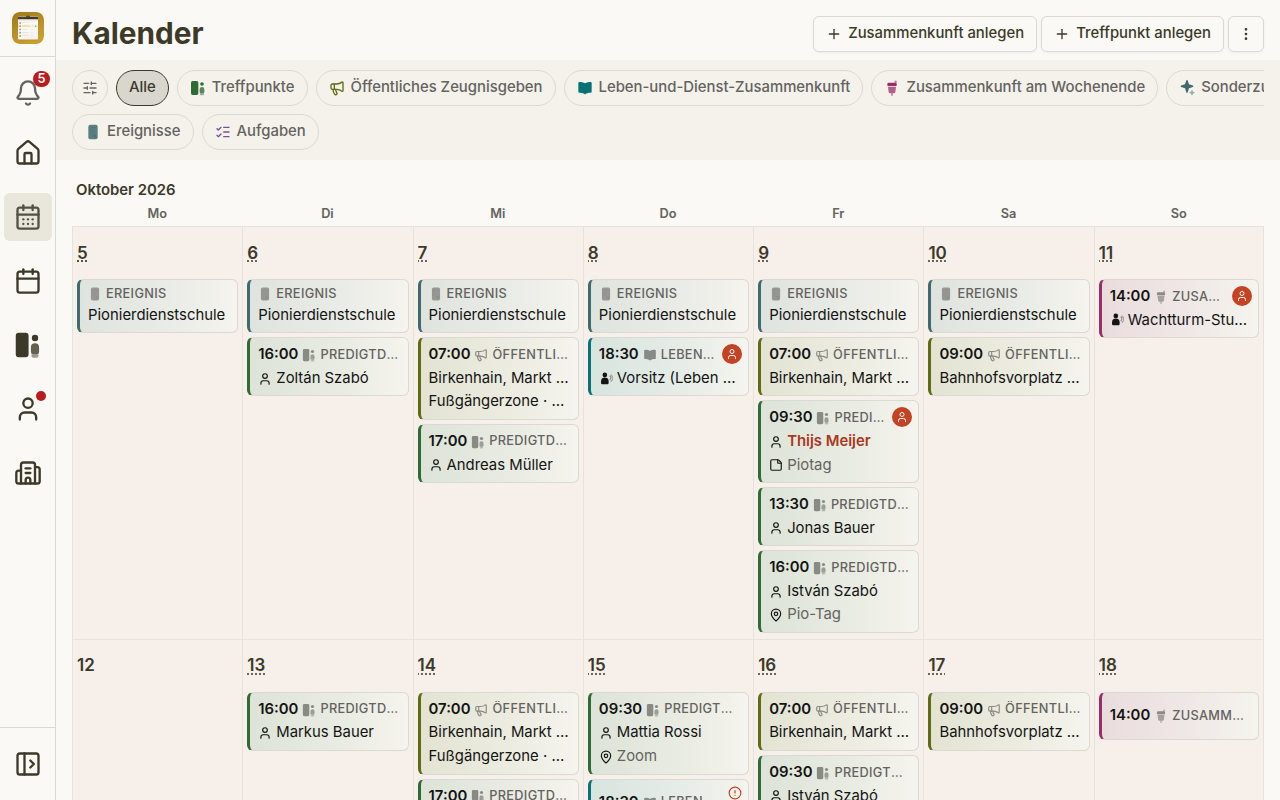
The Calendar shows everything a congregation plans in one grid: meeting points, public witnessing, meetings, events, tasks and public holidays. Planners no longer have to switch between five pages to see what is happening in a week. Absences are deliberately not shown in the calendar.
The screenshots on this page show a sample congregation with the app language set to German.
Who can use the calendar
The calendar is a planning tool. You see it if you hold at least one planning permission: for meetings, tasks, technical assignments, meeting points, public witnessing, events, the circuit overseer visit, absences, users, or full administration. Group planners see it too while congregation groups are switched on. Users without a planning permission do not get the Calendar navigation entry, and Open calendar is hidden for them.
The calendar needs a screen at least 768 pixels wide, such as a tablet or a laptop. On a phone, a link to the calendar leads to the matching area page instead. If you make the window narrower while the calendar is already open, you stay in the calendar. There is no phone calendar yet, and the calendar is meant to become available to everyone later; there is no date for either.
Opening the calendar
- Navigation — choose Calendar in the main navigation.
- From a list page — Meetings, Field Service, Tasks, the circuit overseer visit, Home and My Plan carry an Open calendar button in their header, grouped under View once it folds into the ⋮ menu. It opens the calendar with the chip that matches the page you came from, for example Meeting points when you come from Field Service, and adds a Back to … link back to that page. It is the last button to fold into the ⋮ menu, and it does not appear on a phone, matching the 768-pixel width the calendar itself needs. On a desktop-sized screen, these pages keep their header — and so the button — visible while you scroll.
Tapping Calendar in the navigation a second time while you are already in the calendar resets it to the month view with the chip All.
Month and week
The calendar has two views, Month and Week. You switch between them in the header, or in the ⋮ menu under View, where the active view carries a mark.
- Month — one row per week, one cell per day. Each cell lists the day's entries as tiles.
- Week — one row per week with the seven days side by side, each entry shown as a full card with the details you would otherwise only see after opening it. In a narrow day column, a card shows only the time instead of the full date.
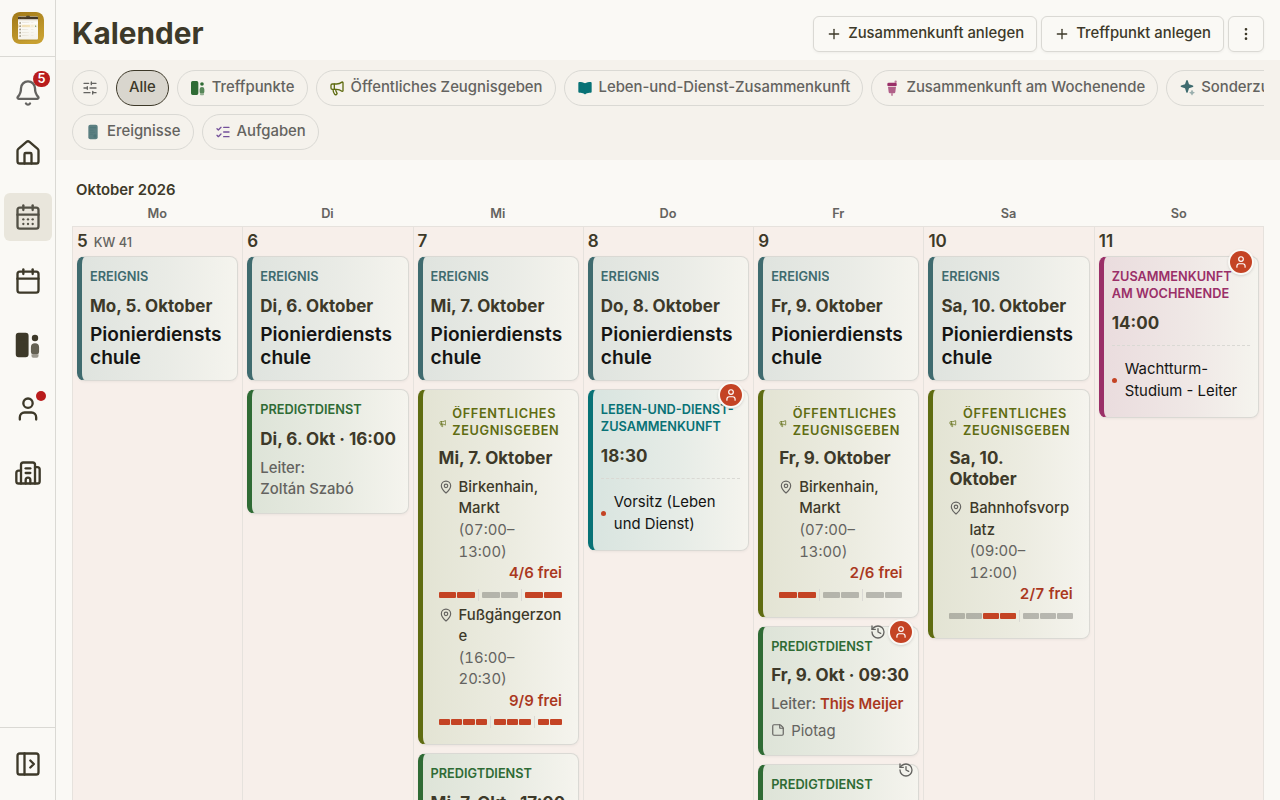
The week view needs room for seven full cards: the calendar area must be at least 896 pixels wide. If it is narrower, the calendar shows the message Week view needs at least 896 pixels of width with a button Go to month view. Collapsing the left navigation often gives you the missing space.
Chips: focus on one kind of entry
Below the title is a row of chips: All, Meeting points, Public witnessing, Life and Ministry Meeting, Weekend Meeting, Special Event, Events and Tasks. All is the default and shows every kind of entry at full strength.
- First click on a chip — that kind of entry stays at full strength, all other entries are dimmed. You keep the overview and still see where your focus lies.
- Second click on the same chip — the other entries disappear. The same switch is in the ⋮ menu as Hide other events.
- Another click — the other entries come back, dimmed again.
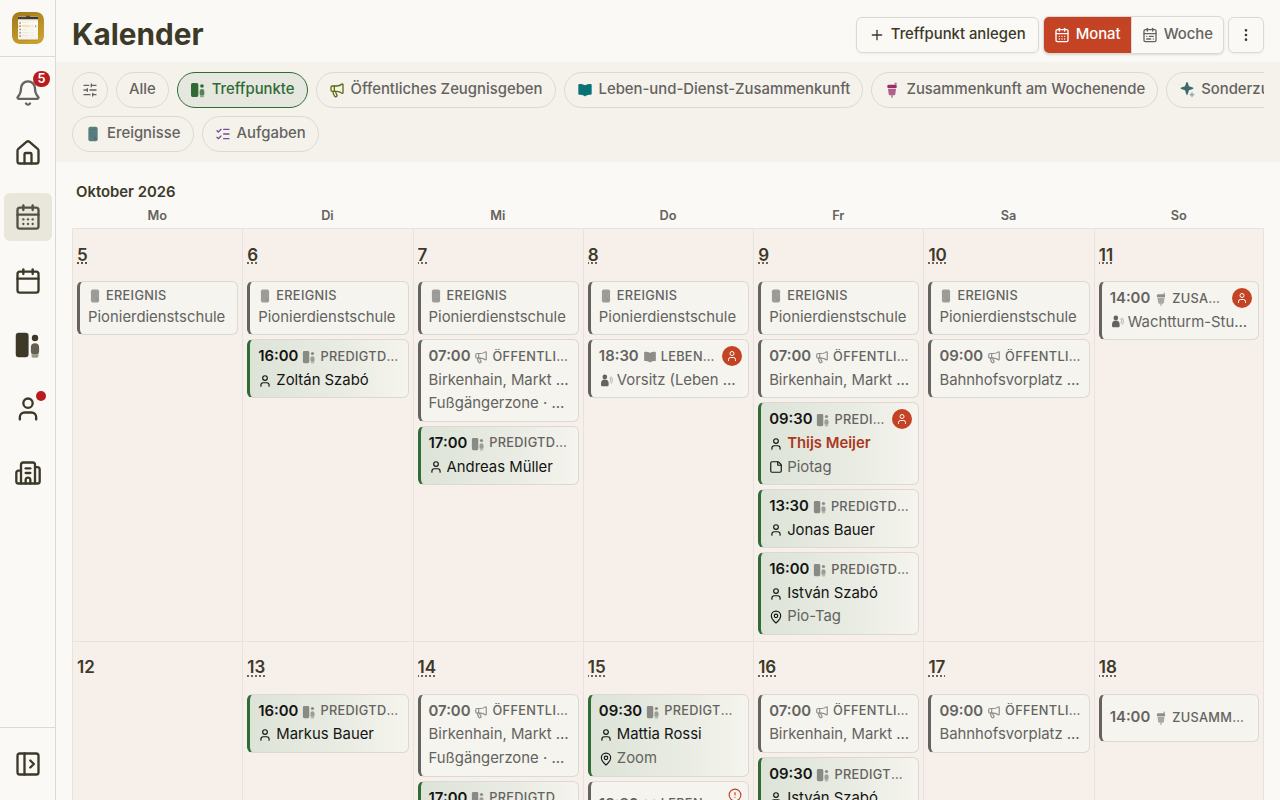
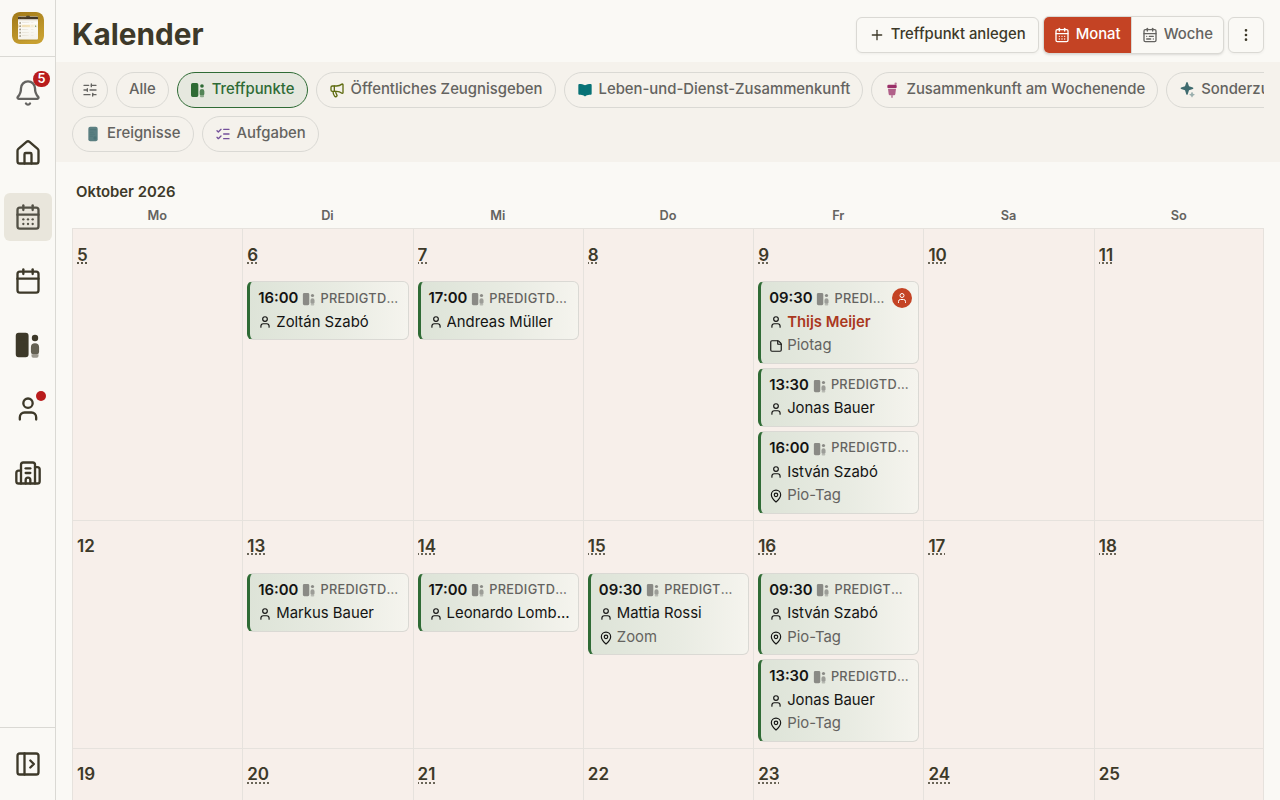
With All there is nothing to hide, so Hide other events is missing from the menu there. Public holidays stay visible in every state.
Only my appointments in the ⋮ menu under Filters narrows the calendar down to the entries that concern you. Filter bar in the same menu shows or hides the row of chips.
The header menu
The ⋮ menu at the top right sorts its entries into fixed groups, in this order: Create · View · Filters · Actions · Help & settings. In the calendar, Create, View and Filters are used:
- Create — Create meeting, Create meeting point, Plan public witnessing, Create event. An entry you have no permission for is greyed out and says You do not have permission for this.
- View — Month or Week, Hide other events (only under a type chip), Show all entries and Filter bar.
- Filters — Only my appointments.
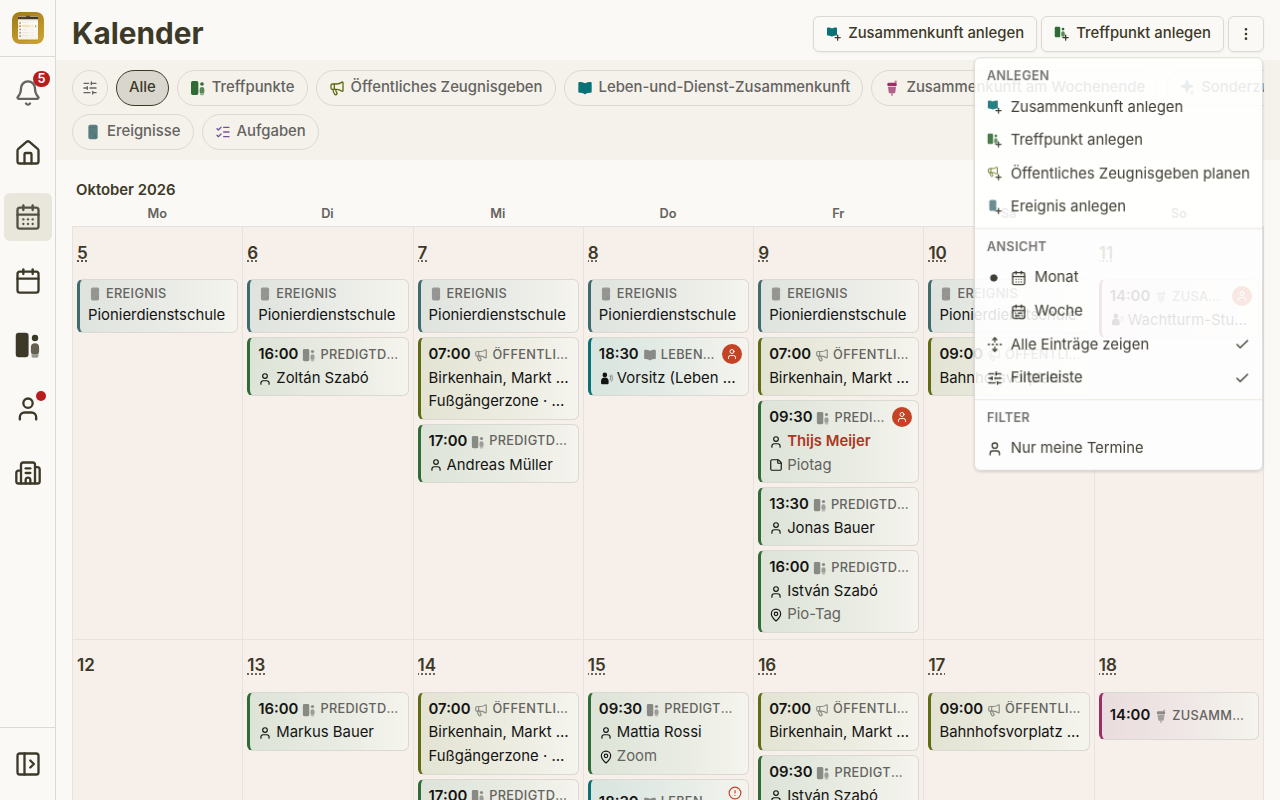
Frequently used entries also appear as buttons in the header bar. Under All, every create entry you are allowed to use is such a button; under a type chip, there is exactly one button that creates that kind of entry. Each create button shows the kind's icon in its type colour with a small plus — the same icon and colour as its filter chip — so the buttons stay distinct without their labels; the day's + menu uses the same glyphs. The bar measures its own width: whatever does not fit is only in the ⋮ menu, which always contains every entry. Two buttons that would show the identical icon never share the bar — both stay in the ⋮ menu instead, where the label tells them apart. In a narrow window, for example a tablet held upright, one button is left in the bar and the rest has folded into the ⋮ menu.
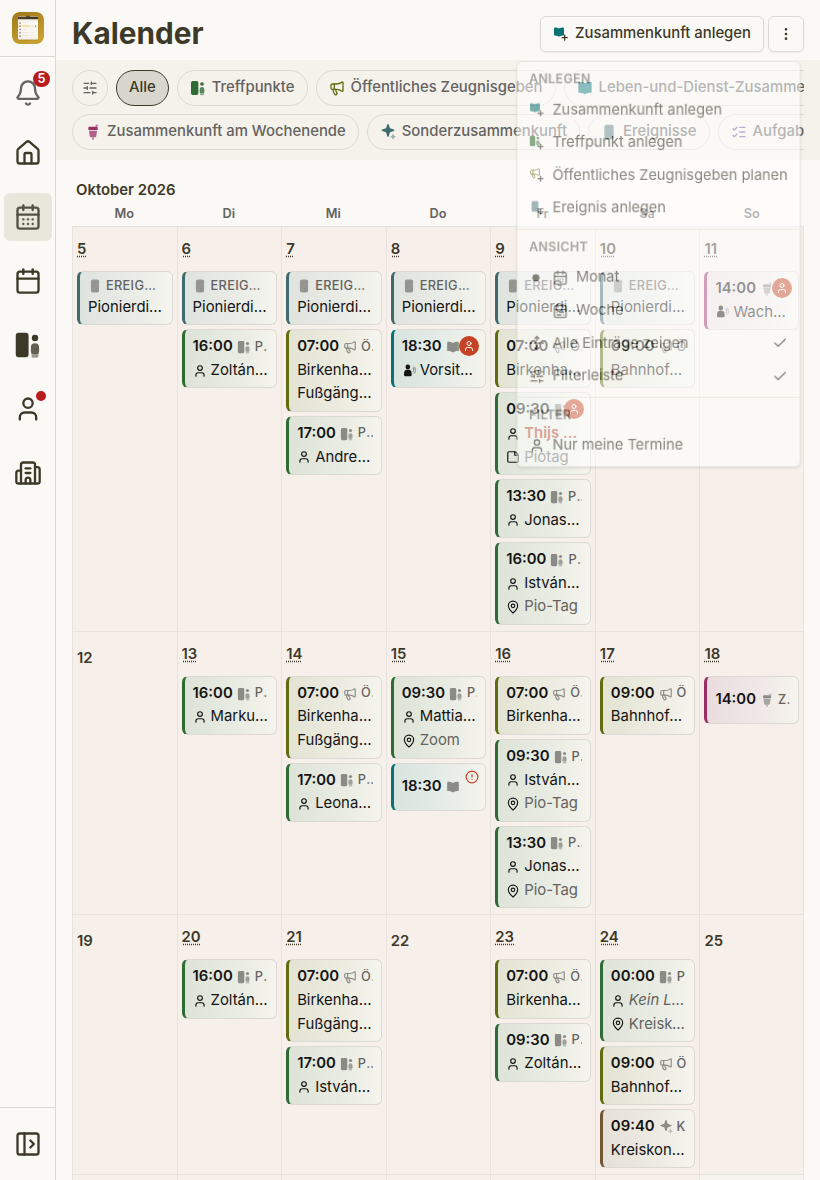
Day cells and the day sheet
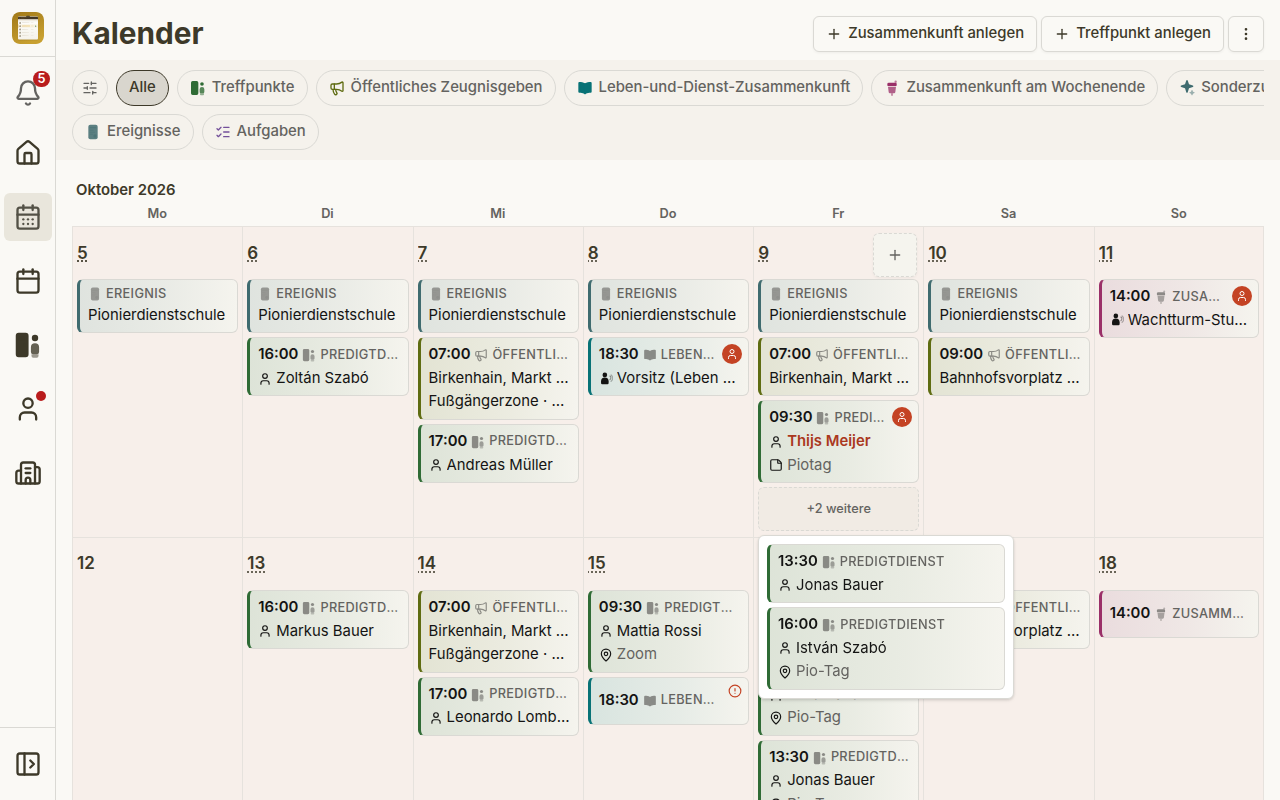
Each day cell lists that day's entries as tiles with time, type and the most important detail, for example the conductor of a meeting point. Tapping a tile opens the entry.
Show all entries is switched on by default: every cell shows all of its tiles, and busy days simply become taller. If you switch it off in the ⋮ menu, a cell shows at most three tiles and below them +N more. A day with exactly four entries still shows all four, because a +1 more would not save any space. +N more opens a small popover with the remaining entries.
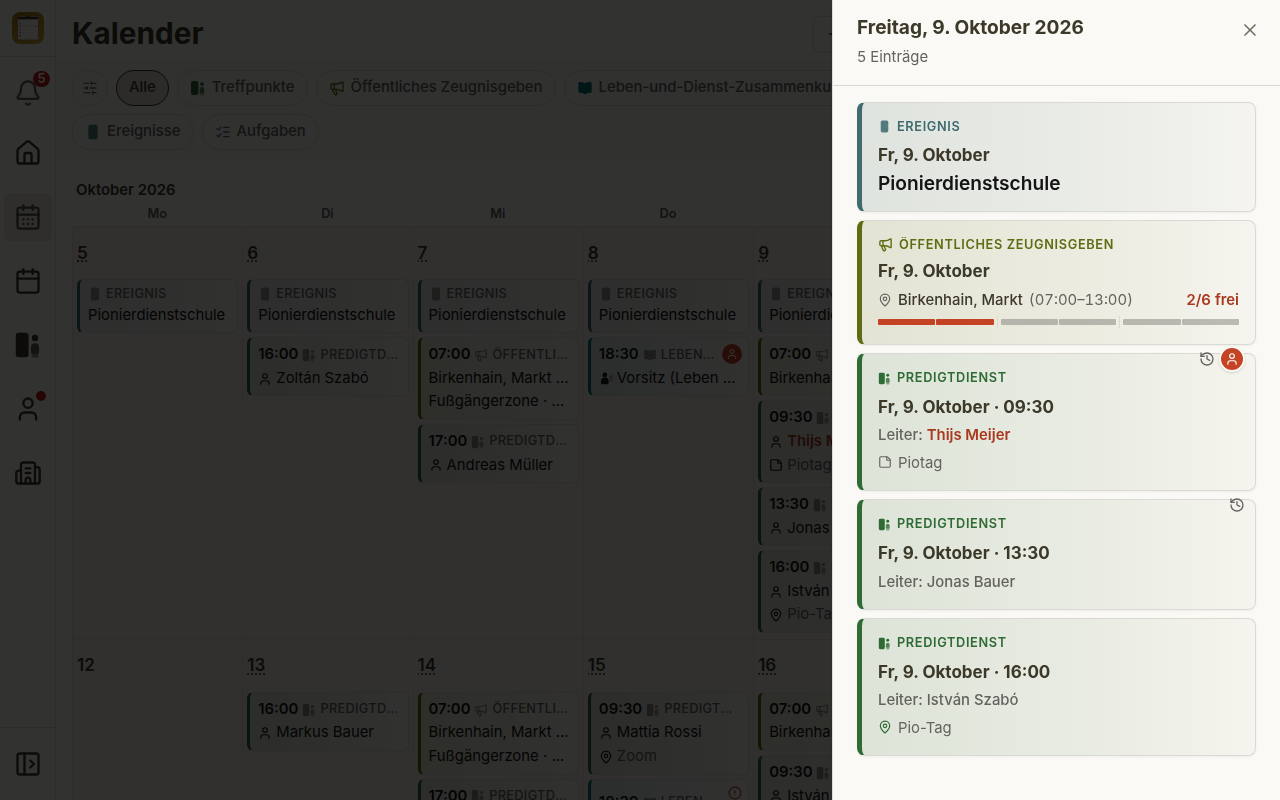
Tapping the day number (it is underlined with dots) opens the day sheet. It lists every entry of that day as a full card, regardless of which chip or filter is active. Meeting point cards name the conductor; if that is you, your name appears in orange. On a public holiday, the sheet names it under the date as Holiday: <name>.
Creating an entry on a day
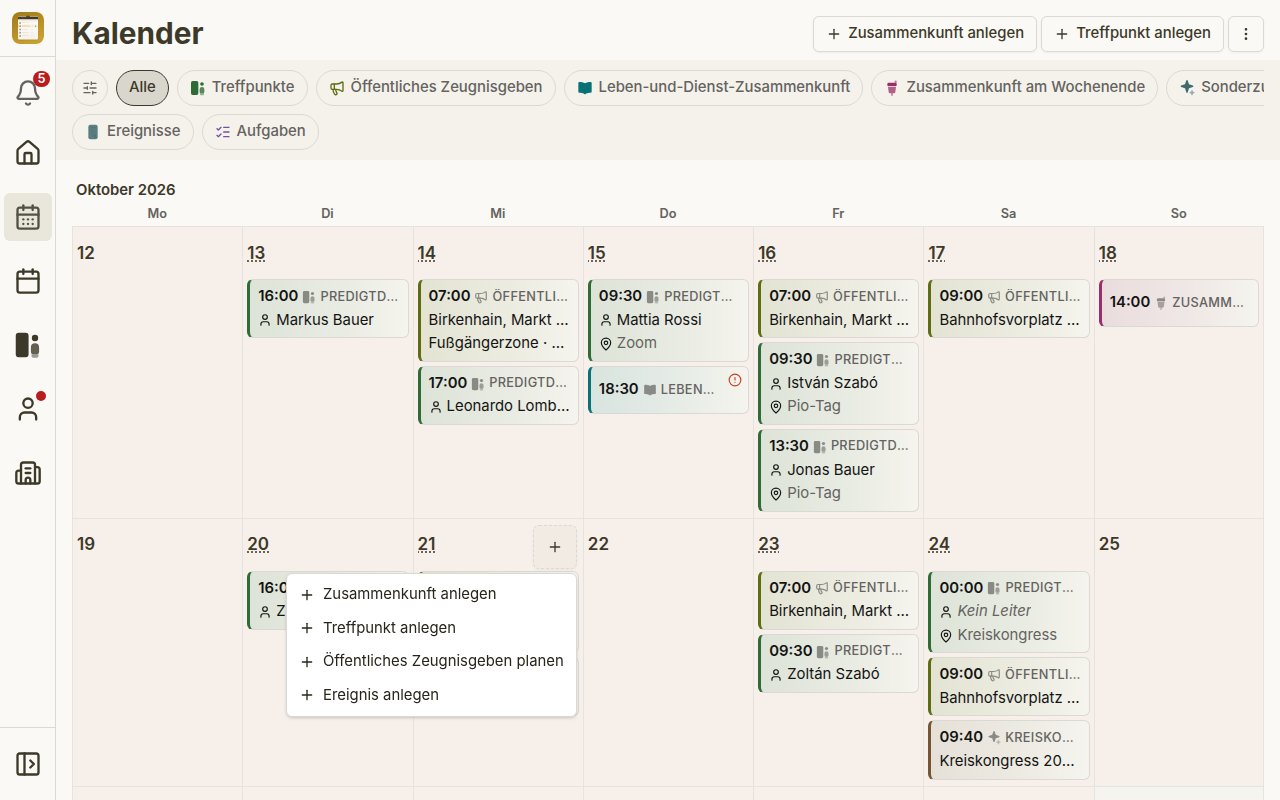
On today and every later day, a small + sits in the corner of the cell. It opens the menu Add appointment with the date of that day already filled in. The kind of entry of the active chip comes first, then Create meeting · Create meeting point · Plan public witnessing · Create event. Meetings, meeting points and events open their creation sheet right in the calendar. Plan public witnessing opens the public-witnessing planner, without a date. Days in the past have no +.
Template tiles: a meeting in one click
For weeks in which a Life and Ministry Meeting or a Weekend Meeting has not been created yet, the calendar shows a template tile on the usual day and time. It has a dashed border and reads Preview — not yet created. One click creates the meeting from the template and takes you to it. While it is being created, a second click has no effect, so no duplicate is created.
Opening Create meeting from the ⋮ menu or the day's + menu instead shows a note: the Life and Ministry Meeting and the Weekend Meeting are not created there, because they already exist as this preview — use Create now on the tile.
Markers on tiles and days
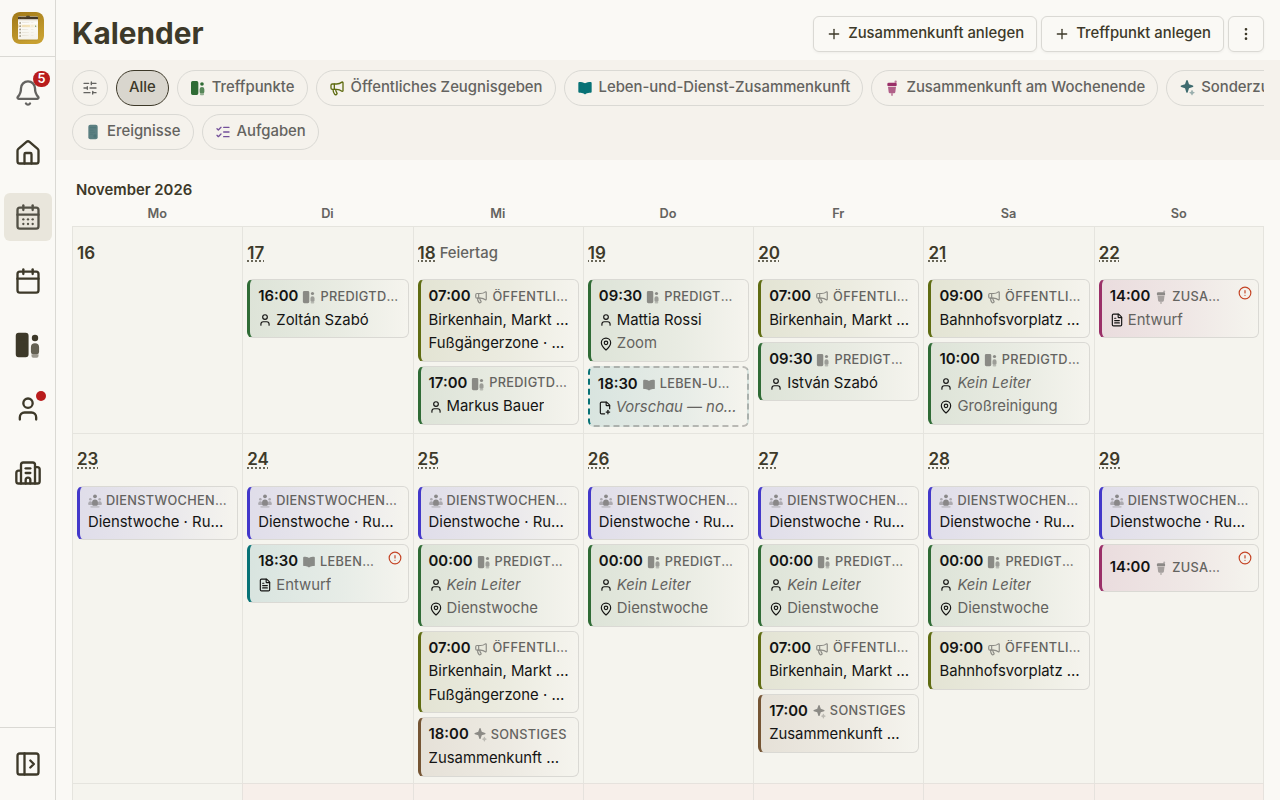
- Today — next to the day number of the current day.
- Holiday — next to the day number of a public holiday; the name appears as a tooltip and in the day sheet. If the holiday is today, both labels stand side by side.
- Draft — a line on meetings that are not published yet. Only people who may edit the meeting see drafts; see Meetings.
- Orange exclamation mark — the meeting still has open assignments. Screen readers announce it as, for example, 1 open programme assignment slot.
- Your assignment — a symbol on entries where you have an assignment. Your own name on a tile is shown in orange, the same colour that marks "yours" everywhere in CongPlan.
What the calendar remembers
On each device, the calendar remembers the chip, the view, Hide other events, Only my appointments and Show all entries. It does not remember the date: it always opens on the current week. Tapping Calendar in the navigation a second time resets it to Month and All.