AI Assistant (MCP)
CongPlan can be connected to an AI assistant through the MCP interface (Model Context Protocol). This lets you ask planning questions in plain language or dictate entries instead of clicking through menus. The assistant reads and writes the same data as the app, so every action runs through the same permission checks, conflict checks, and audit logging.
MCP is an open standard, so the connection works with any MCP-capable assistant. CongPlan exposes a per-congregation MCP endpoint and uses OAuth 2.1 for authorization. If your client supports OAuth, you connect with just the endpoint URL and log in through CongPlan — no token needed. A personal access token is only required for clients without OAuth support, or when you need a static, long-lived credential.
Before You Start
MCP access is off by default. Two steps are needed before you can use it:
- An administrator enables the MCP interface for the congregation (in the admin settings).
- An administrator grants you access so that you may connect an assistant — either via OAuth login or by creating a personal token. If you do not have access yet, you can request it from the MCP screen.
Connecting Your Assistant
CongPlan's MCP endpoint is https://my.congplan.app/api/mcp.
Claude.ai / Claude Desktop
- Open your Claude account settings (labeled Settings or Customize, depending on your plan) and find Connectors > Add custom connector.
- Paste the endpoint URL below. Claude opens a browser to log in through CongPlan and completes the OAuth connection automatically — no token needed.
https://my.congplan.app/api/mcp
Claude Code CLI
# OAuth (recommended): opens a browser to log in to CongPlan
claude mcp add --transport http congplan https://my.congplan.app/api/mcp

# Personal access token (fallback for non-interactive/CI use)
claude mcp add --transport http congplan https://my.congplan.app/api/mcp \
  --header "Authorization: Bearer cpm_your_token_here"
ChatGPT (custom connector)
- In ChatGPT, open Settings and find Connectors (the exact menu wording can vary by plan or app version); choose to add or create a new connector.
- Paste the endpoint URL and complete the OAuth login. No token is needed — ChatGPT connectors support OAuth directly.
Generic mcp.json (Cursor, Windsurf, etc.)
Clients that read their MCP server list from an mcp.json file support either connection type — use OAuth if the client supports it, or a bearer token otherwise:
{
  "mcpServers": {
    "congplan-oauth": {
      "url": "https://my.congplan.app/api/mcp"
    },
    "congplan-token": {
      "url": "https://my.congplan.app/api/mcp",
      "headers": {
        "Authorization": "Bearer cpm_your_token_here"
      }
    }
  }
}
Ask Your Assistant to Configure Itself
Many assistants can set up the connection themselves if you paste in a short instruction:
Add the CongPlan MCP server at https://my.congplan.app/api/mcp using OAuth.
If OAuth isn't supported, ask me for a personal access token and use it as an
Authorization: Bearer header instead.
Personal Access Tokens
You only need a token if your client can't use OAuth or needs a long-lived credential.
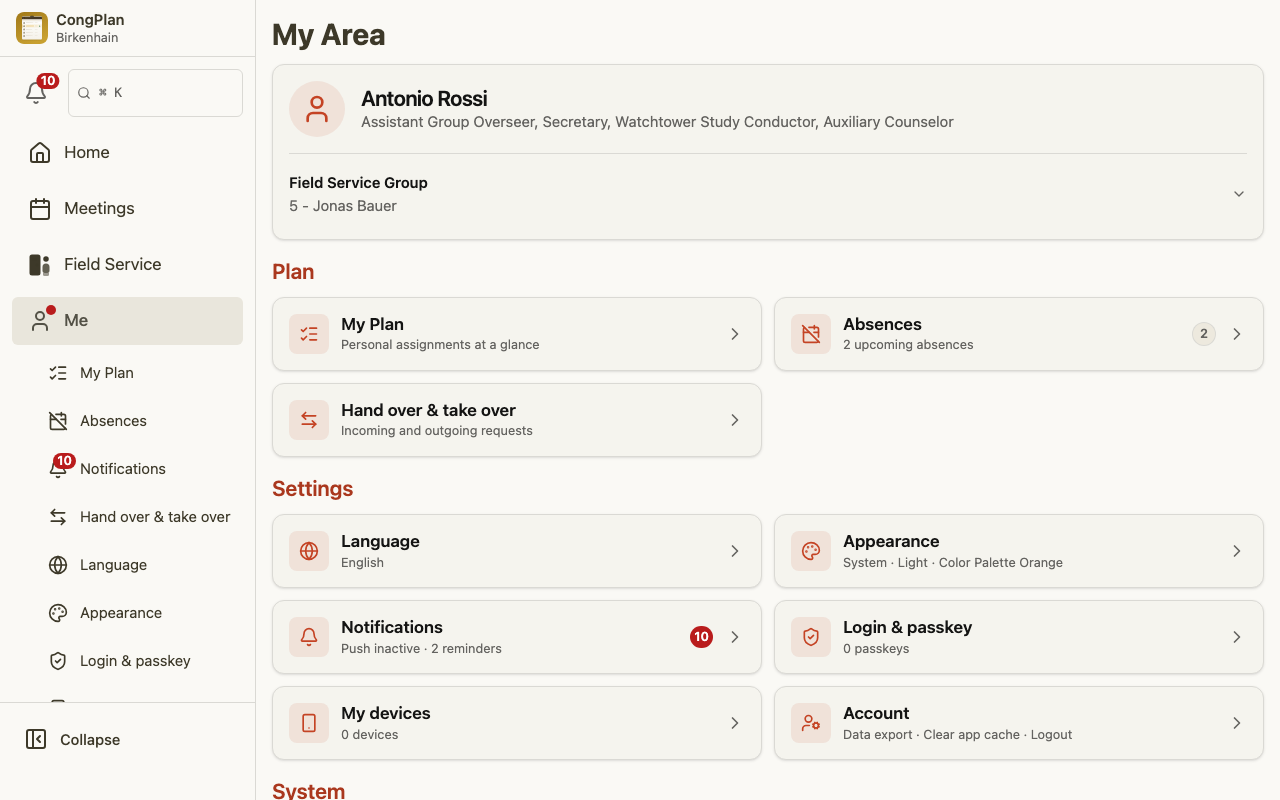
Once you have access, create a personal token in your account settings:
- Open Me > Integrations.
- Choose Create token.
- Give the token a name, select the scopes it may use, and choose an expiry (up to 90 days).
- Copy the token immediately — it is shown only once and cannot be retrieved again.
Use a token in the MCP-capable assistant of your choice to connect it to your congregation.
Scopes
Scopes control exactly what a token may do. They are split into read and write per area, for example:
- Read — congregation profile, publishers, field service groups, meetings, assignments (including technical assignments), field service meetings, tasks, public witnessing, outgoing public talks, and (sensitive) absences.
- Write — tasks, field service meetings, assignments, meetings, public witnessing, and your own hand-over requests or sign-ups.
Grant only the scopes you actually need. A token can be revoked at any time.
Name-Based Requests
When you ask the assistant to act on named publishers, for example "record an absence for Linda and Tim", it must resolve those names to CongPlan's internal publisher IDs first. Grant the Publishers read scope together with the matching write scope, such as Absences write, so the assistant can look up the people it should update.
If the publisher read scope is missing, the assistant cannot safely find the right person. It should ask you to add that scope or provide the exact IDs. If a name is missing or matches more than one publisher, it should ask for clarification instead of guessing.
Example Requests
What you say depends on the assistant, but typical requests look like this:
- "Who is assigned in next week's midweek meeting?"
- "Which parts are still unassigned for the weekend meeting on July 14?"
- "What meetings are scheduled next week?"
- "Put Brother Miller down as the speaker for the public talk on July 14."
- "Create a task: check the microphones for the weekend meeting on Saturday."
- "Show me all field service meetings this week with leader and meeting point."
- "Who has mic or audio/video duty for this weekend's meeting?"
- "Which of our speakers have an outgoing talk scheduled next month?"
- "Create the weekend meeting for August 16."
The assistant proposes the action; it is saved through the same paths as a manual entry, including eligibility and conflict checks. When you ask it to create a new meeting, CongPlan automatically applies the matching program template — the same one you would get creating it by hand — so the meeting does not start out empty. If no template matches (or you ask for an empty meeting), it is created without a program instead.
Anonymized by Default
The MCP interface hands your assistant internal publisher IDs, not names. Planning, statistics, and eligibility checks all run on those IDs. When the assistant reviews who was assigned recently in order to balance the load, it evaluates that history anonymized, without seeing who the people are.
Names are resolved only at the very end, for the answer shown to you, and only for the few people that answer actually mentions. This lookup is a separate step that requires the Publishers read scope, and it returns nothing but the display names for the IDs it asked about, with no roster and no further details. Without that scope the assistant keeps working on IDs, it just cannot put names to them.
Permissions and Safety
- The assistant can only do what your role and your OAuth or token scopes allow — the same congregation isolation and permission rules as the app apply.
- Every action is recorded in the audit log.
- Tokens are personal. Treat a token like a password and revoke it if it is no longer needed.