Absences
An absence is a period in which you are not available — a holiday, a trip, a stay in hospital. Recording it is the single most useful thing you can do to avoid being scheduled while you are away: CongPlan takes absences into account wherever it suggests, assigns, or displays people.
Where to find them
Open Me > Absences. The personal hub already tells you how many upcoming absences you have, and the command palette offers My absences and Add absence as direct shortcuts.
Recording your own absence
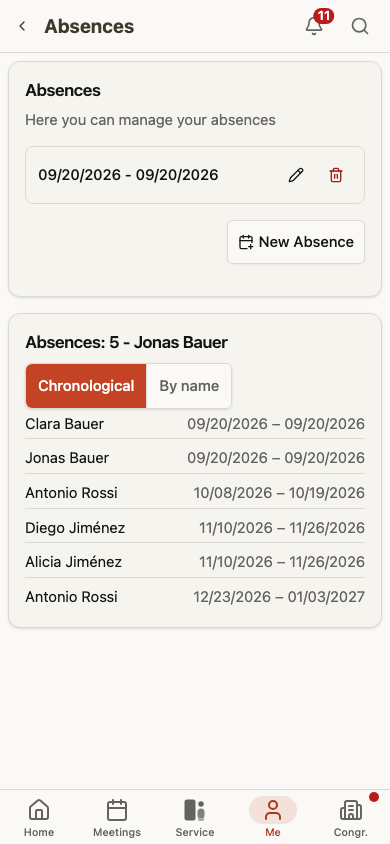
- Choose New Absence.
- Pick the period with From and To. For a single day, choose the same date twice.
- Save.
A few things are worth knowing:
- An absence is only a period. There is no reason or note field — you never have to explain why you are away.
- If the new period overlaps an entry you already have, CongPlan says so instead of creating a duplicate.
- Every entry in the list can be edited or deleted afterwards.
- An empty list simply reads No absences planned.
What an absence changes
Automatic suggestions
For technical assignments, CongPlan proposes candidates itself. An absent person is excluded from those suggestions — they are not scored and not offered, neither by the rule-based suggestion nor by the AI-assisted one.
One case works the other way round. If a long absence is coming up — roughly four weeks or more, starting within the next two months — candidates receive a bonus for the dates before it begins. The suggestion deliberately nudges the planner to use that person once more before the long gap.
Manual planning
Where a human makes the final choice, CongPlan warns instead of blocking. In the person pickers for meeting parts, technical assignments, and field service meetings, an absent candidate is shown struck through and dimmed with an absent (until …) badge — but the entry stays selectable. The same badge appears in the technical assignment matrix next to the other conflict warnings.
That is intentional: a coordinator sometimes knows more than the calendar does, and a return flight that arrives the morning before the meeting is not something the app can judge.
Hand-over requests
Hand-over requests are stricter. Anyone who is absent on the date in question is not asked at all, and if a recipient becomes absent while the request is still open, taking it over fails. See Hand over & take over.
Your own views
Your own absences are shown as a hatched period in your personal plan. The planning calendar does not show absences. They are also part of the calendar subscription, where each absence appears as its own busy entry.
Who can see an absence
Absences are personal data, so visibility is deliberately narrow:
- You always see your own.
- Planners see every absence in the congregation — that is, holders of Users (full details), Technical Assignments, Field Service Meetings, or one of the meeting-edit permissions. They need it, because those are exactly the surfaces where an absence is a conflict.
- If the congregation enables contextual editing for chairmen, anyone assigned as chairman of at least one meeting also sees every absence in the congregation. This visibility is not limited to their meeting or its date.
- The basic Users (names only) permission that every publisher has is not enough. Ordinary publishers do not see each other's absences.
Recording an absence for someone else
Not everyone reports an absence themselves. Someone tells the technical planner in passing that they will be away in July, and the planner should be able to write that down. There are five ways to manage absences, and they are independent of one another:
| Who | May manage the absences of |
|---|---|
| Every user | Their own absences |
| Users edit permission | Everyone in the congregation |
| Absences edit permission | Everyone they can already see |
| Field service group overseer, group servant, or their assistant | Active publishers of their own group, if the congregation has switched that on |
| Active representative | The person they currently represent |
With a user-edit or absence-edit permission, open the person under Congregation > Organisation > Users and use the Absences card on their page. The card appears exactly when you are allowed to manage that person's absences.
An active representation also lets the representative read, add, change, and delete the represented person's absences. It does not transfer general user or congregation permissions, and it stops when the representation expires or is revoked.
The group way
If a congregation enables Group overseers or group servants can manage group absences in its settings, the Absences page gains a second card, Absences in your field service group. The group's overseer or servant and their assistant can pick an active publisher there and manage that person's absences. It covers only the leader's own field service group and does not make those absences visible in unrelated calendars or congregation lists.
The Absences permission
The Absences edit permission exists for exactly the case above: a planner who is simply told about an absence can record it without being handed full person editing along with it.
It is deliberately narrow, and one property is easy to misread:
- It is a write permission only. There is no matching view permission, and granting it adds nothing at all to what you see — no extra rows in lists, calendars, plans, or exports. Whether you see absences still depends on your other permissions.
- It only reaches people you can already see. If someone's basic user view is taken away from you, their absences are out of reach too — and switching off Users (names only) switches this permission off with it.
- It adds to the other three ways and never takes anything away. A group overseer who also holds it keeps the group way as well.
- The Editor, Midweek planner, and Weekend planner presets carry it. Publisher and Elder do not — they are reading roles. Anyone else, such as a technical planner, gets it as a single checkbox.
- History entries about absences stay behind the Users edit permission. A person who only holds Absences can record an absence but cannot read the history entry for it afterwards.
Recurring unavailability
Recurring unavailability differs from an absence: instead of blocking whole days, it repeats on a fixed rhythm — every week, every two, three, or four weeks, or once a month on a given weekday — for a fixed time window.
Planners enter it for someone else under Congregation > Organisation > Users, on that person's page, using the Recurring unavailability card.
If a congregation enables Publishers can maintain their own recurring unavailability in its settings, publishers can also maintain their own under Me > Recurring unavailability. The setting is off by default.
The effect matches an absence: person pickers and the technical assignment matrix show the person as unavailable for the affected time window, and automatic suggestions — rule-based and AI-assisted alike — skip the person for that slot.