First Steps
This guide walks a new administrator through setting up a congregation for planning, in the order a good setup should follow. If you joined an existing congregation, skip ahead to Your Personal Area — an administrator already handled the congregation-wide steps below.
Your Dashboard
The dashboard is the personal starting point. It combines several data sources:
- My Plan — Your upcoming meeting assignments, technical assignments, tasks, field service meetings, and public-witnessing shifts
- What's Next — Upcoming field service meetings and other near-term items
- Quick navigation — Links into meetings, your personal area, and Congregation where your permissions allow it
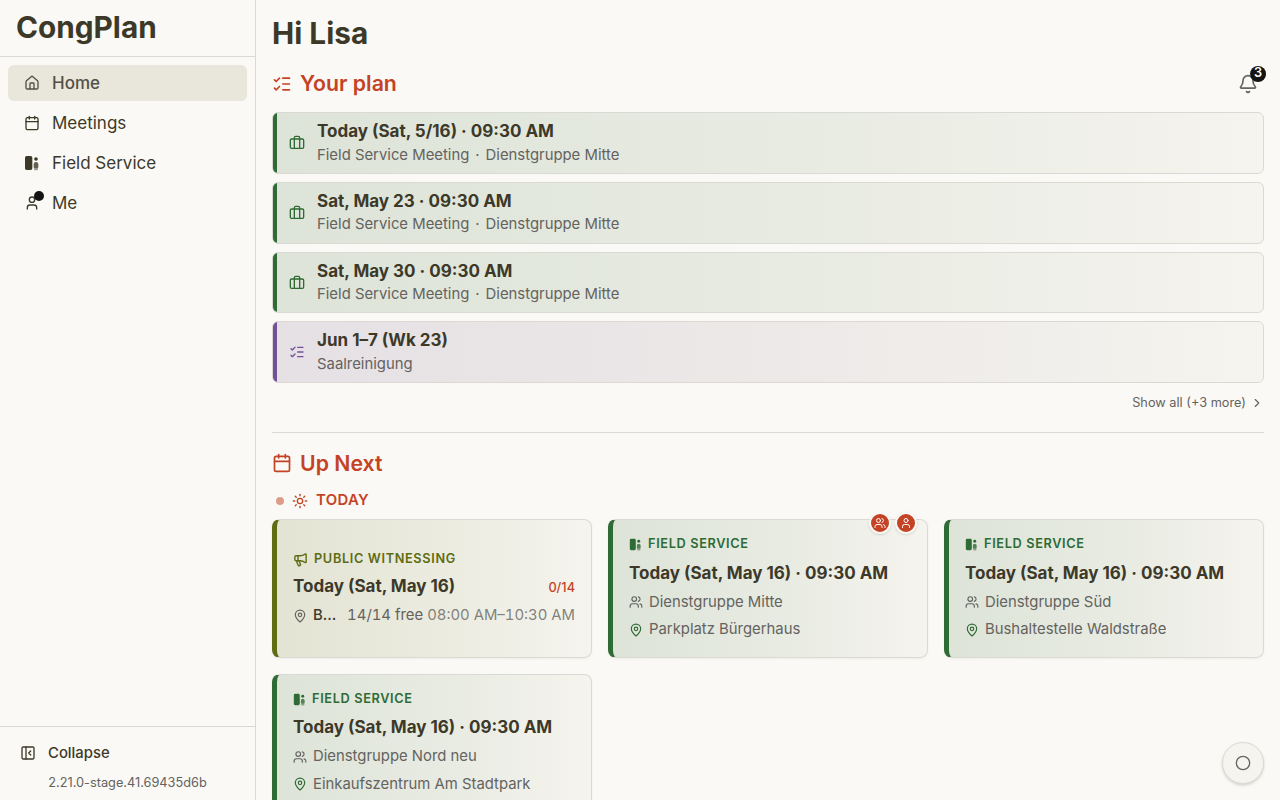
After the first login, the setup assistant offers the two device steps that are still open: enable notifications and set up a passkey. You can skip it and return from the dashboard while either step is unfinished.
For a new administrator, set up the passkey before starting the congregation steps below. Full administration requires the current session to be confirmed with that passkey; normal planning does not.
More: Dashboard
Navigation
The main navigation contains:
- Home — Your personal overview
- Calendar — For planners: meetings, meeting points, public witnessing, events and tasks in one month or week grid. See Calendar
- Meetings — Midweek and weekend meetings as a list
- Field Service — Field service meetings and public-witnessing day views
- Me — My Plan, absences, hand over & take over, language, appearance, notifications, security, devices, account, integrations, and sync status
- Congregation — General information, planning tools, organisation settings, and system tools, depending on permissions
Your Personal Area
Open Me in the navigation. It is split into Planning, Settings, and System, with direct entries instead of a second settings overview:
- My Plan — Your future personal timeline, with more blocks loaded on demand
- Absences — Dates when you are not available
- Hand over & take over — Requests to you and from you, open and in the history
- Language, Appearance, Notifications, Login & passkey, My Devices, and Account — One direct page for each personal setting
- Sync and Integrations — Sync state and MCP access
More: Personal Hub
1. Check Meeting Times
Meeting times drive almost everything else in CongPlan — the planning range, when meetings and parts exist to assign, and which dates a data import can use. Confirm them before creating publishers or planning anything else.
- Open Congregation > Organisation > Settings and select Meetings & calendar
- Set the day of week, start time, and valid-from date for the midweek and weekend meeting
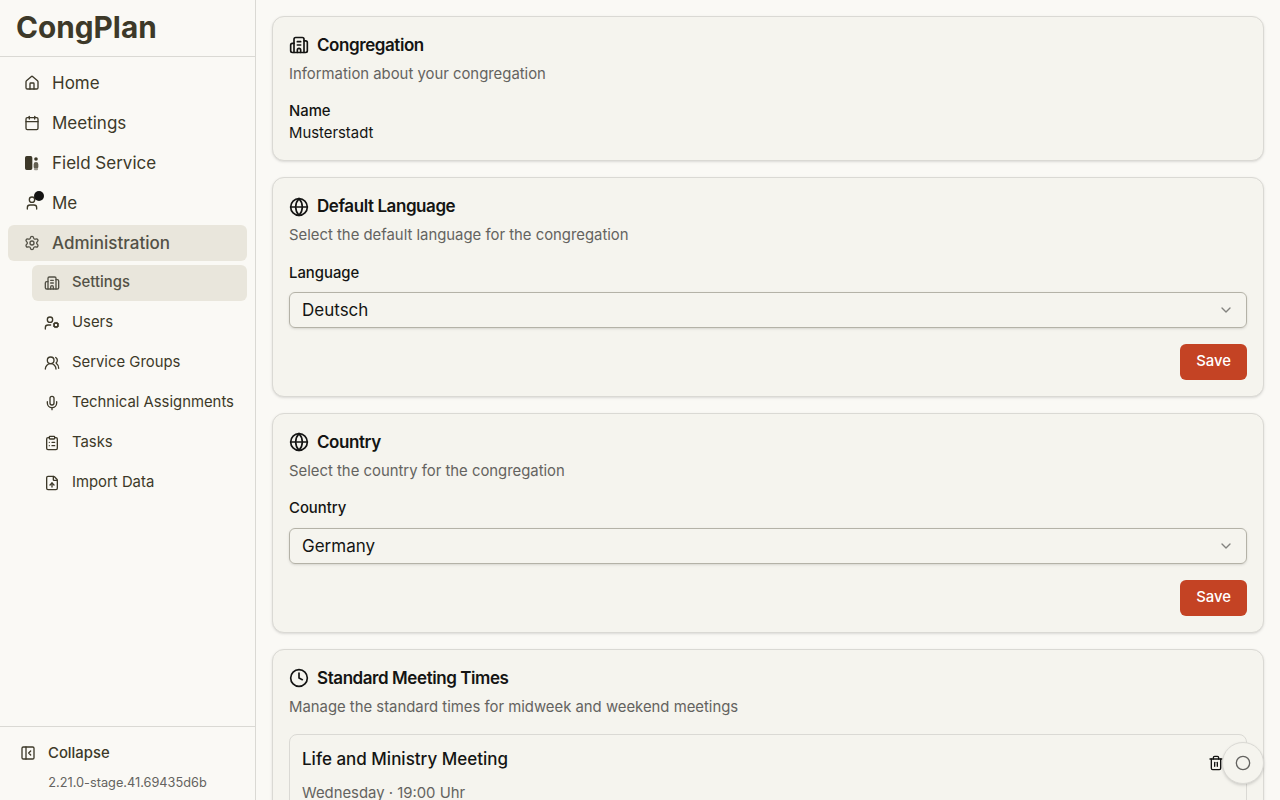
If meeting times are about to change, add a new entry with a future valid-from date instead of editing the current one. Past meetings keep their original time.
More: Congregation Settings
2. Check Core Settings (Language, Country)
The congregation's default language drives congregation-wide notifications and meeting terminology; the country affects available fields and formatting. Both are easiest to get right before other publishers join, since they shape what everyone else sees.
- Open Congregation > Organisation > Settings and select Congregation
- Confirm the congregation name, default language, and country
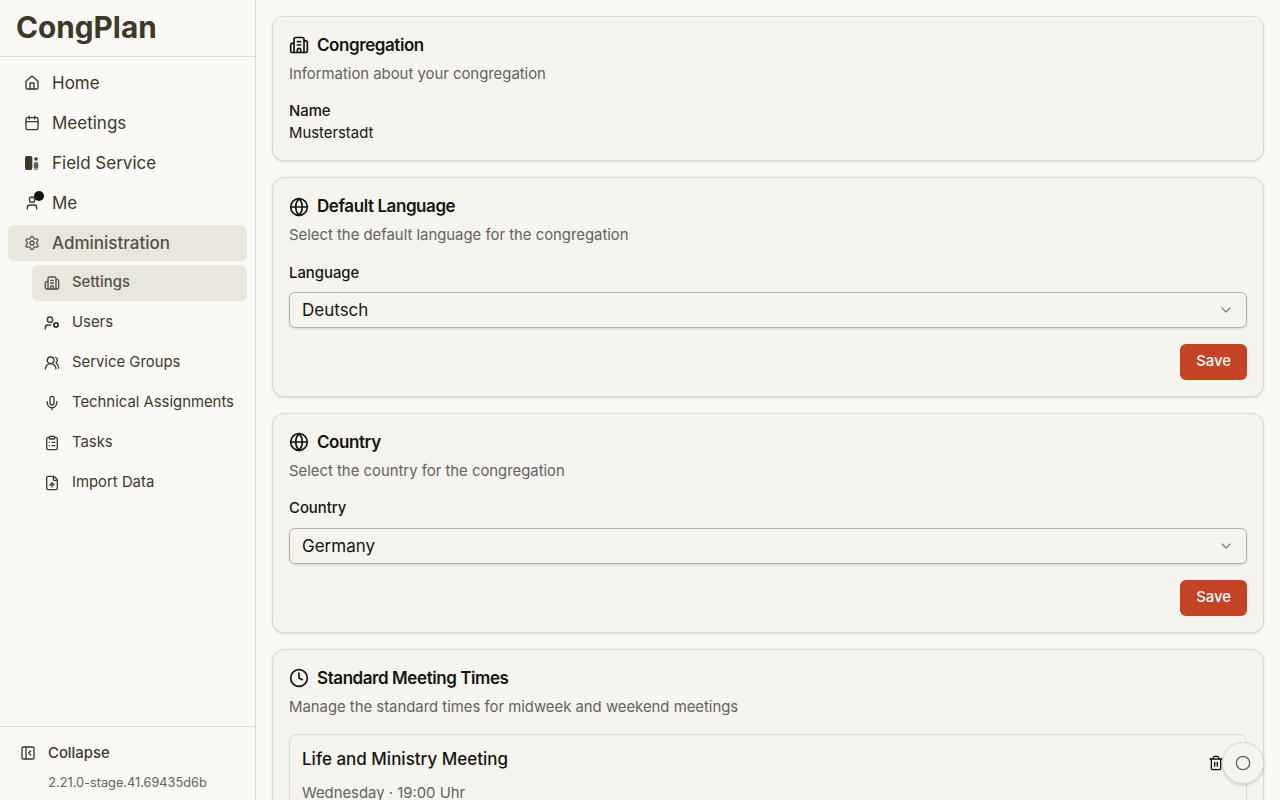
The settings hub has five groups: Congregation, Meetings & calendar, Who can do what, Sharing & printing, and Additional features. If you are unsure where a setting lives, type its name into the Search settings … field at the top of the hub, or into the app-wide search (the magnifier, or ⌘K / Ctrl+K). A result opens the right page and highlights the setting.
Publishers can still choose their own available UI language under Me > Language. The congregation default applies to shared congregation content; notifications for a foreign-language group's meetings use that group's language.
More: Congregation Settings
3. Create or Import Publishers
Publishers need a user record before they can be assigned to a field service group, a meeting part, or a task — so this comes before setting up groups and permissions.
There are two ways to get there:
- Manual — best for a handful of users or ongoing additions. Open Congregation > Organisation > Users and add each publisher.
- Import from New World Scheduler — best when migrating an existing congregation. The Data Import wizard reads the regular NWS CSV exports and creates publishers, plus optionally the midweek and weekend schedules. It needs the meeting schedules from step 1 already configured, and re-running it later updates matched records instead of duplicating them.
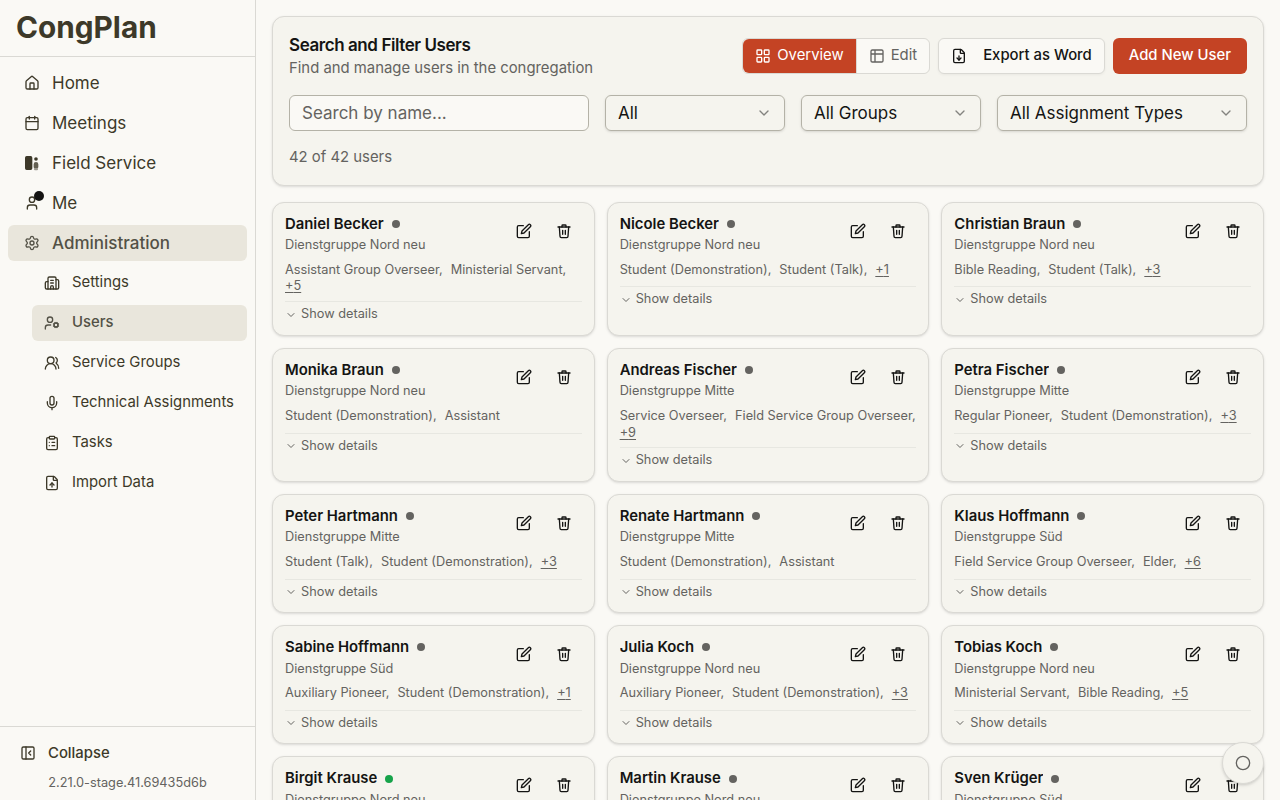
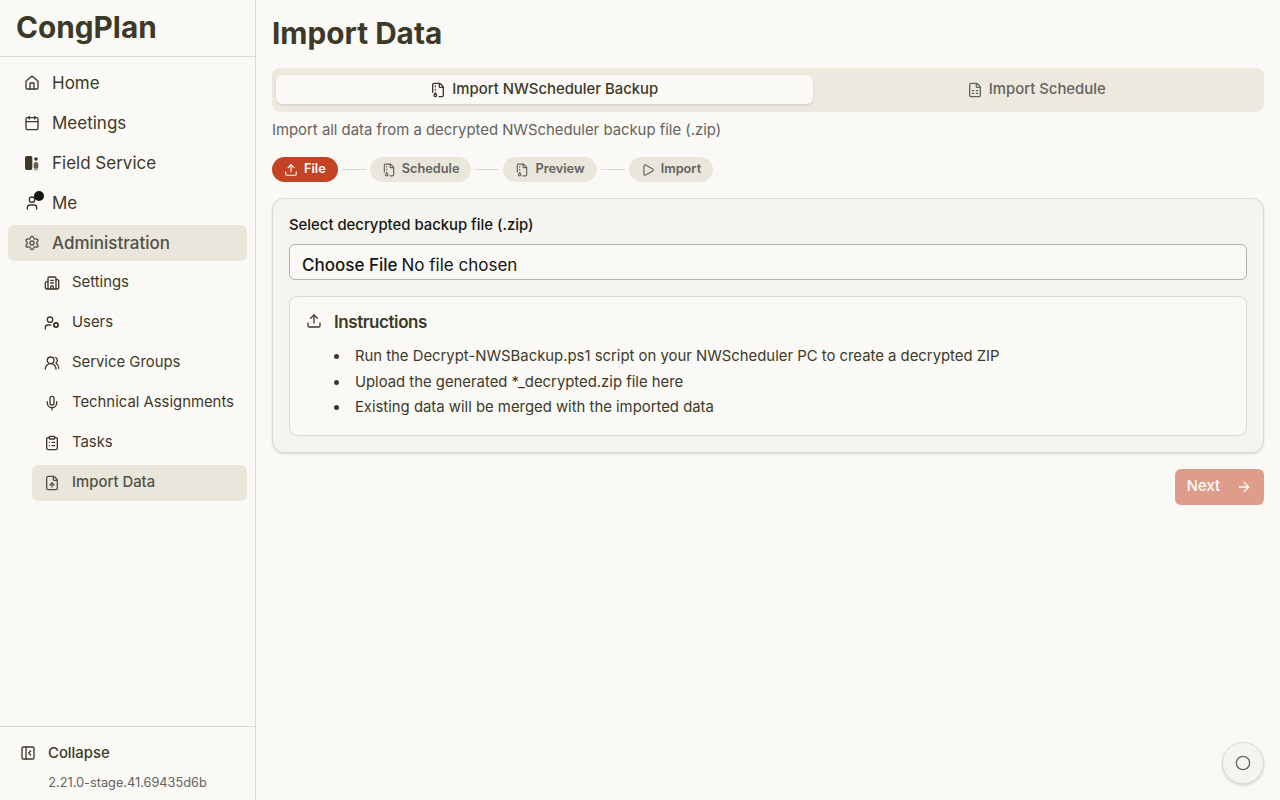
More: User Management · Data Import
4. Set Up Field Service Groups
Field service groups organize publishers for field ministry coordination and show up throughout the app — field service meetings, public-witnessing eligibility, printed group lists. Set them up once publishers exist, before fine-tuning individual permissions.
- Open Congregation > Organisation > Field Service Groups and click Add New Group
- Name the group and assign a group overseer (an elder) and, optionally, an assistant
- Assign publishers to the group from the user edit sheet or directly from the group view
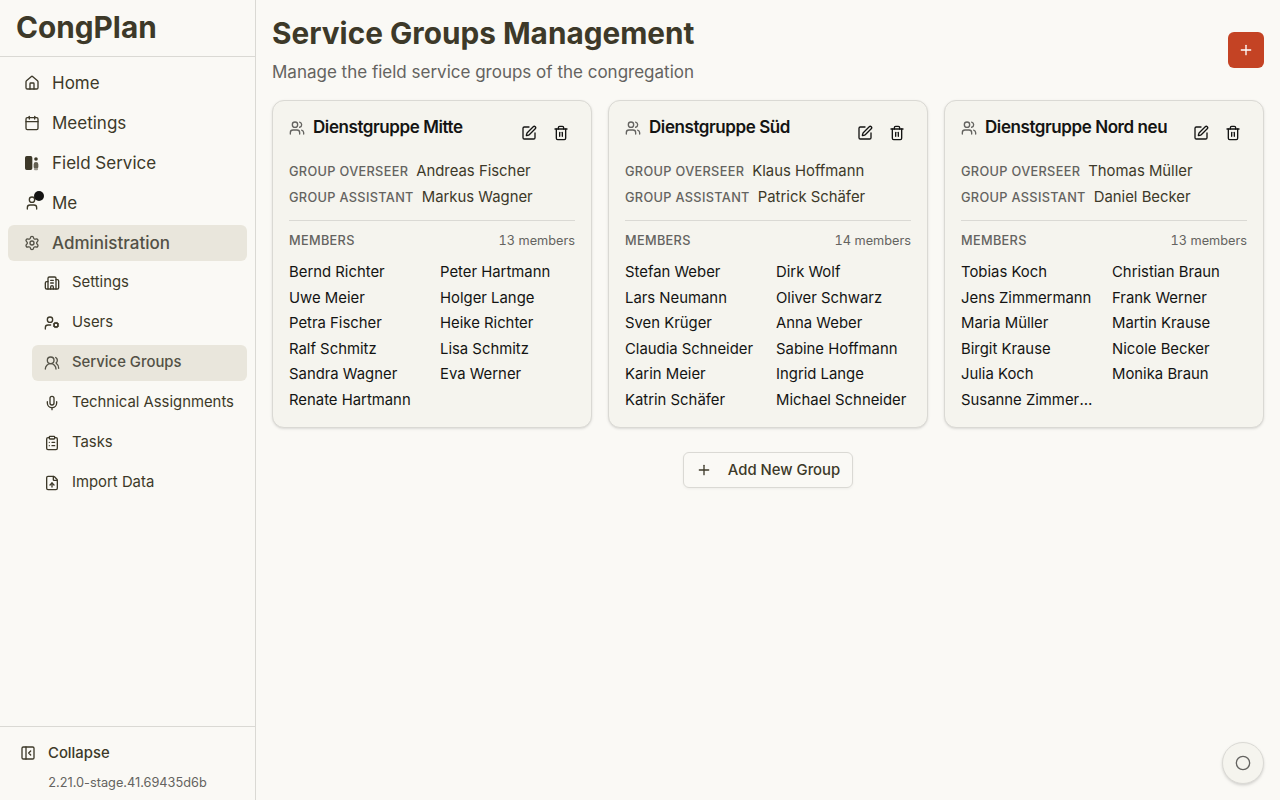
New publishers are not in any group by default. Remember to add them to a group after creating their account.
More: Field Service Groups
5. Delegate Permissions
Decide who plans what before regular use starts. A scheduler who only plans the midweek meeting does not need full administration, and a chairman who should correct their own meeting can get a delegation switch under Who can do what instead of a broad edit permission.
- Open a user and apply a role preset — Publisher, Elder, Editor, Midweek planner, Weekend planner, or Admin
- Fine-tune individual permissions if the preset does not match exactly
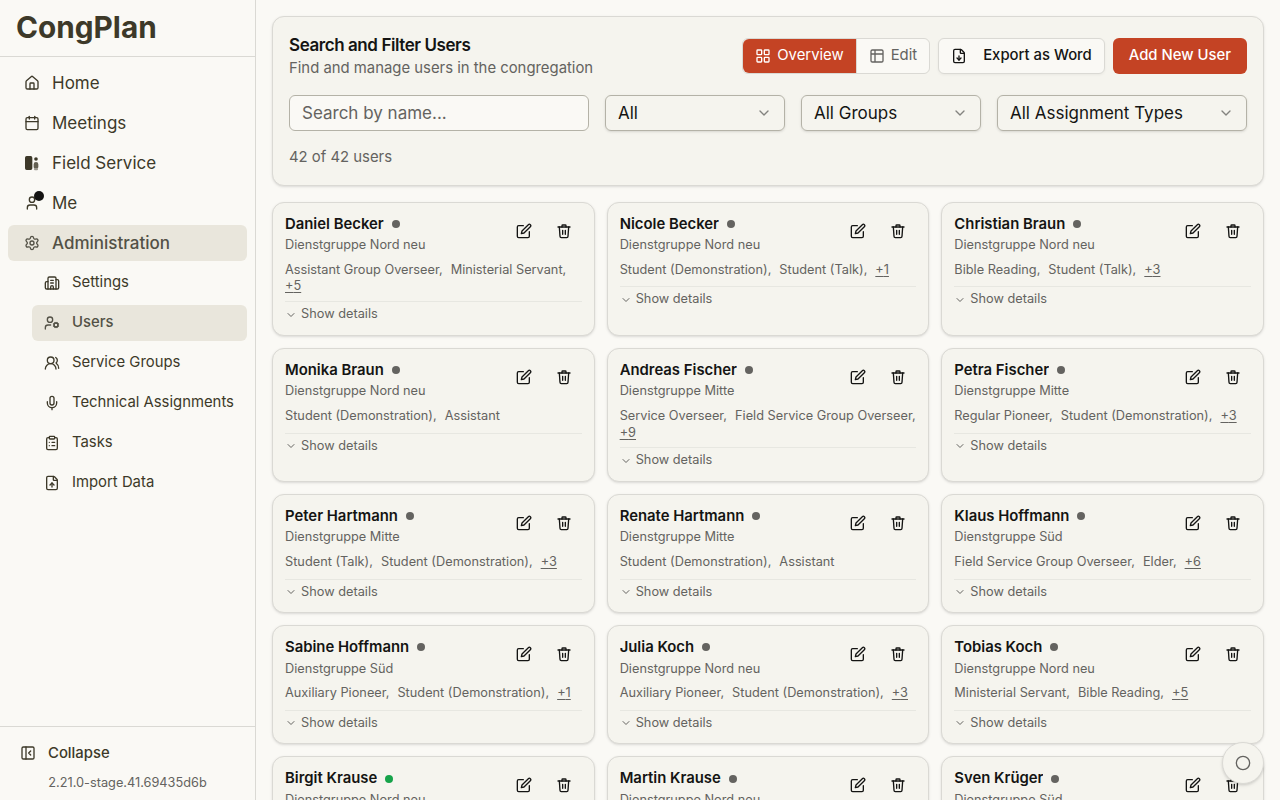
Presets are starting points: Editor covers most schedulers and secretaries, while Midweek planner and Weekend planner limit editing to a single meeting type. Full details — every view/edit permission and the delegation switches — are in Permissions.
6. Plan Your First Meeting
With meeting times, publishers, groups, and permissions in place, the first planned meeting is where the new setup becomes visible to everyone else.
- Open Meetings and select the upcoming midweek or weekend meeting
- Switch into edit mode and assign the parts — CongPlan suggests eligible publishers based on qualifications, history, absences, and planning context
- Review warnings and conflicts. Inline assignments save immediately; changes in Edit Meeting use explicit Save and Cancel buttons
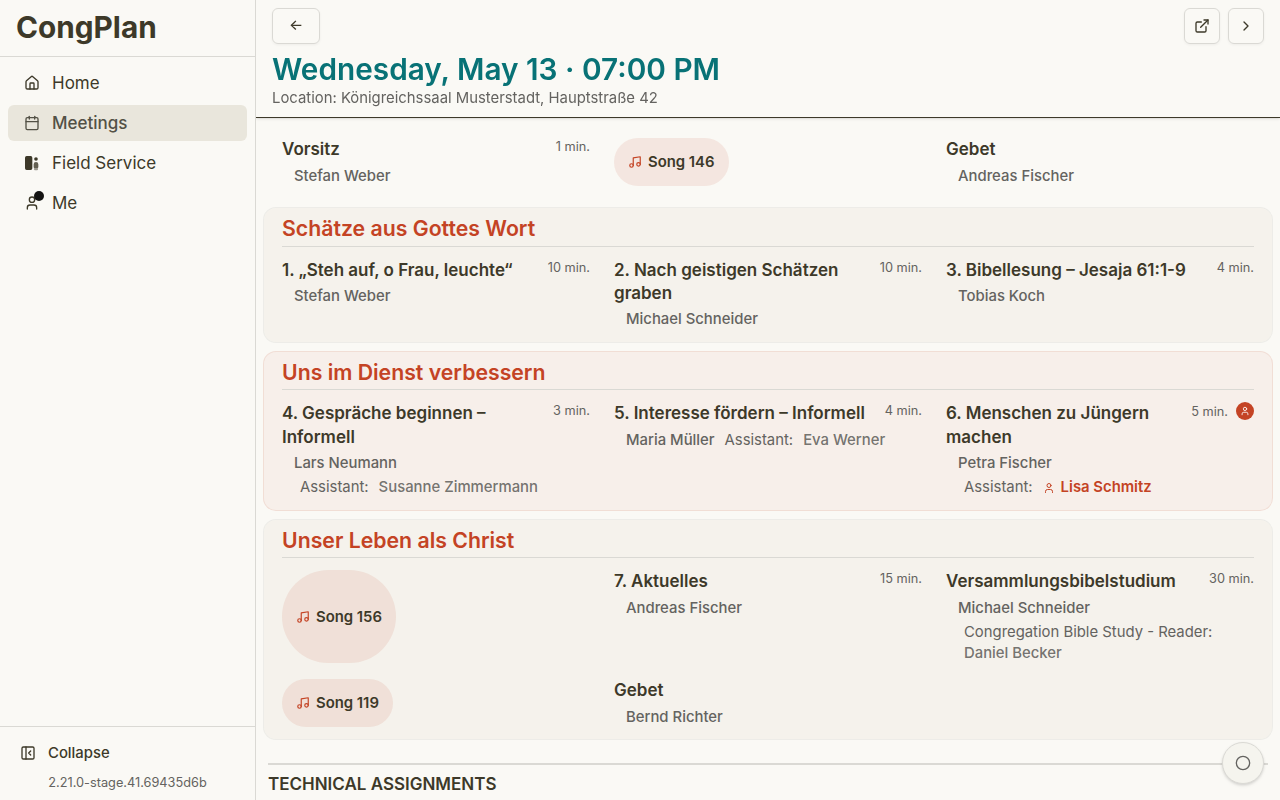
If assignment suggestions look empty, check qualifications, filters, absences, and the active planning context from steps 3 and 4.
For the weekend public talk specifically, Public Talk Planning offers a dedicated workspace to fill in title and speaker across upcoming weeks in one continuous list, instead of opening every meeting individually.
More: Meeting Details · Meetings
7. Invite Publishers
Send invites last, once there is something to see. An empty app with no meetings or assignments is a confusing first impression.
- Open a user
- Generate an invite link, QR code, or device setup code
- Share it directly with the person, or let them scan the QR code
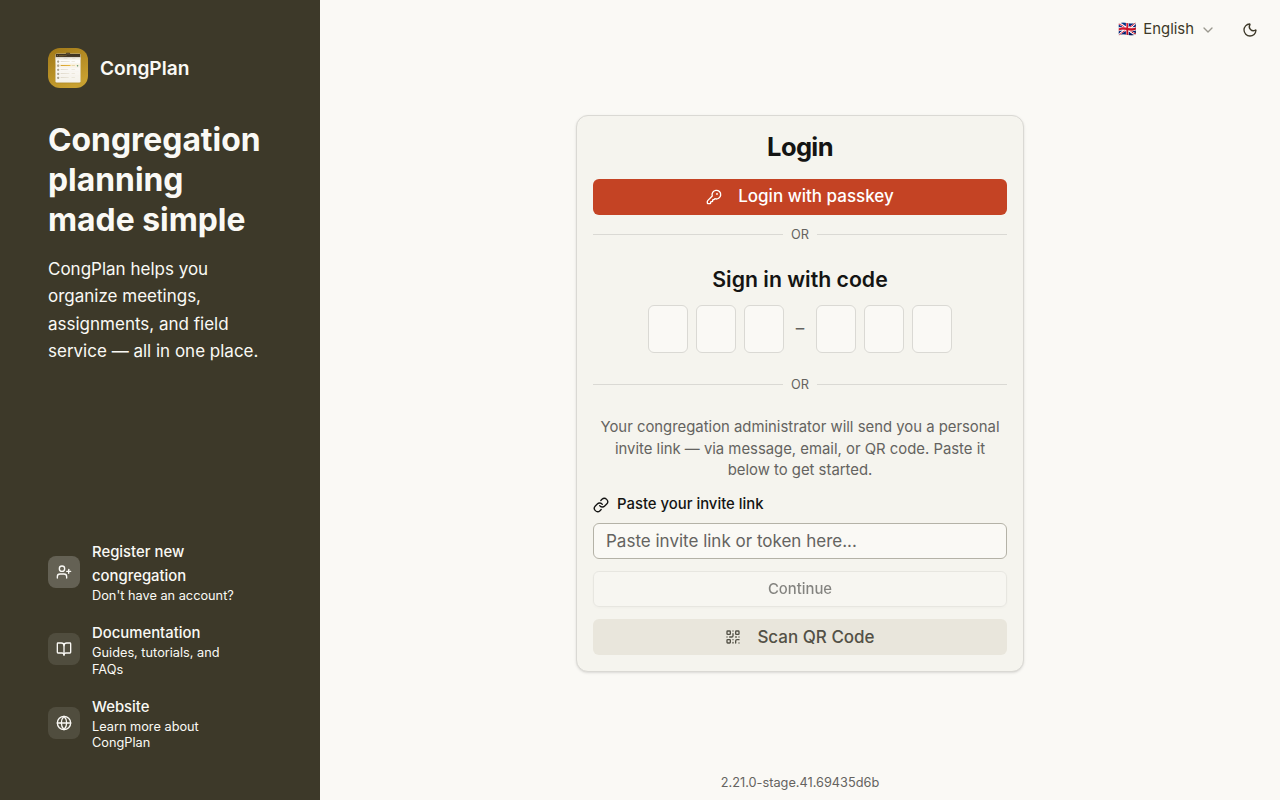
The invited person opens the link, confirms that the displayed name and congregation are correct, and continues straight into the app. The setup assistant then offers notifications and passkey setup; both can be completed later.
Invite and setup links are personal. Do not forward them to another person.
More: User Management
What to Set Up Next
The 7 steps above get a congregation ready to plan its first meeting. A few more areas are worth setting up once regular use begins:
- Technical Assignments — Stage, microphones, attendants, sound, and video duties are planned separately from meeting parts, using the qualifications and field service groups from the steps above. Open Congregation > Plan > Technical Assignments; see Technical Assignments for the full scheduler workflow.
- Tasks — Recurring or one-time duties such as cleaning, maintenance, security, and garden work can be assigned to a publisher, a field service group, or the whole congregation. Open Congregation > Plan > Tasks; see Tasks for categories and frequencies.
- Public Witnessing — If the congregation does public witnessing, set up the recurring plans, locations, and shifts so eligible publishers can see and sign up for them. This needs the Manage public witnessing permission; see Public Witnessing Planning for the full planning model.
- Public Schedule Page — If you want to place a QR code on the bulletin board, enable the anonymous week-plan page under Congregation > Organisation > Settings > Sharing & printing. See Public Schedule Page for the privacy checklist and link-renewal workflow.
- Foreign-Language Groups — If part of the congregation meets and serves in another language, turn on foreign-language groups (internally still called congregation groups) so that group can plan its own program. Optional, off by default; the switch is under Settings > Additional features. See Congregation Groups for the full picture, including how this differs from field service groups.
- Circuit overseer visits — Open it under Congregation > Plan. Recording a visit rewrites the affected week's program automatically instead of leaving every planner to edit parts by hand. Needs the Circuit overseer visit (manage) permission; see Circuit Overseer Visit for the step-by-step wizard.
- Activity Log — See who changed what and when across the congregation's data, filterable per area and searchable. Open Congregation > System and select Activity Log; see Activity Log for what is recorded and who may read it.
Continue Planning
Continue with: