Print Center
The Print Center is the single place to turn your planning into something on paper or a PDF — a program for the chairman, a schedule for the notice board, a list of field service groups, and more. You choose a template, adjust a few options, see a live preview, and then print or download.
Opening the Print Center
Open Congregation > Plan > Print Center (/print). It is shown to
anyone who is allowed to print at least one template; the available templates
depend on your permissions.
You can also reach it straight from a meeting: the Print action on a meeting opens the Print Center with that meeting already selected, ready to print.
Choosing a Template
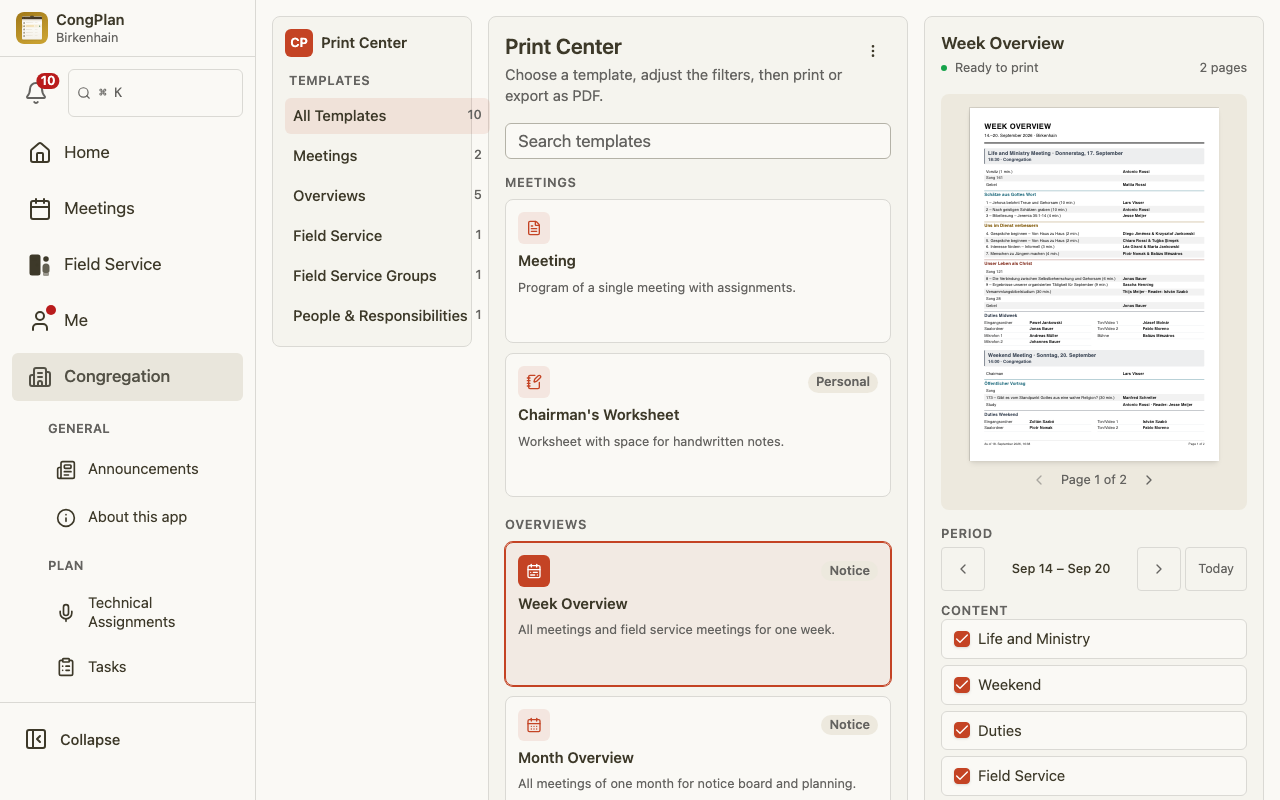
Templates are grouped into categories — Meetings, Overviews, Field Service, Field Service Groups, and People & Roles — and you can search by name. Frequently used ones appear under Recently printed. Available templates include:
- Meeting — the program of a single meeting as a handout with its assignments.
- Chairman's Worksheet — the same program with space for handwritten notes.
- Week Overview — all meetings of one week on a single page.
- Month Overview — all meetings of one month at a glance, ideal for the notice board.
- Field Service Meetings — the field service meetings of a week or month.
- Field Service Groups — groups with their overseers, assistants, and members.
- Positions of Responsibility — an overview of who holds which position of responsibility in the congregation.
- My plan: outgoing talks — your own outgoing public talks as a personal plan.
Adjusting the Output
Depending on the template you can fine-tune how it looks before printing:
- Style — Black & white (toner-saving), Subtle colour, or Full colour for a representative notice.
- Paper — A4 or A5.
- Orientation — portrait or landscape.
- Period — the week or month to include, or the specific meeting.
- Persons (Field Service Groups only) — by default, only active persons who submit a field service report are listed. If you can edit users, you can switch to All active persons to include everyone assigned to the group instead. This choice applies only to the current printout; it is not saved as a preference.
- Density (Month Overview only) — One week per page (the default) keeps every week on its own sheet. Continuous (compact) flows the weeks together instead, so more of them fit on fewer pages — handy for a compact notice-board plan.
The preview updates as you change these options, so you always see exactly what will come out.
Printing or Saving as PDF
When the preview is ready, print it directly or choose Download as PDF to save or share the file. If the PDF service is temporarily unavailable, CongPlan tells you so you can try again shortly.
You only see the templates you are permitted to print. If a template needs a meeting to work with, open the Print Center from that meeting first.