Command Palette
The Command Palette is a single action-and-search bar for the whole app. Instead of navigating through menus, you open it, start typing, and jump straight to a person, a meeting, a meeting point, or a feature.
Opening It
- Desktop — Press ⌘K (macOS) or Ctrl+K (Windows/Linux).
- Mobile — Tap the magnifier on the Home screen; the palette opens full-screen.
Searching
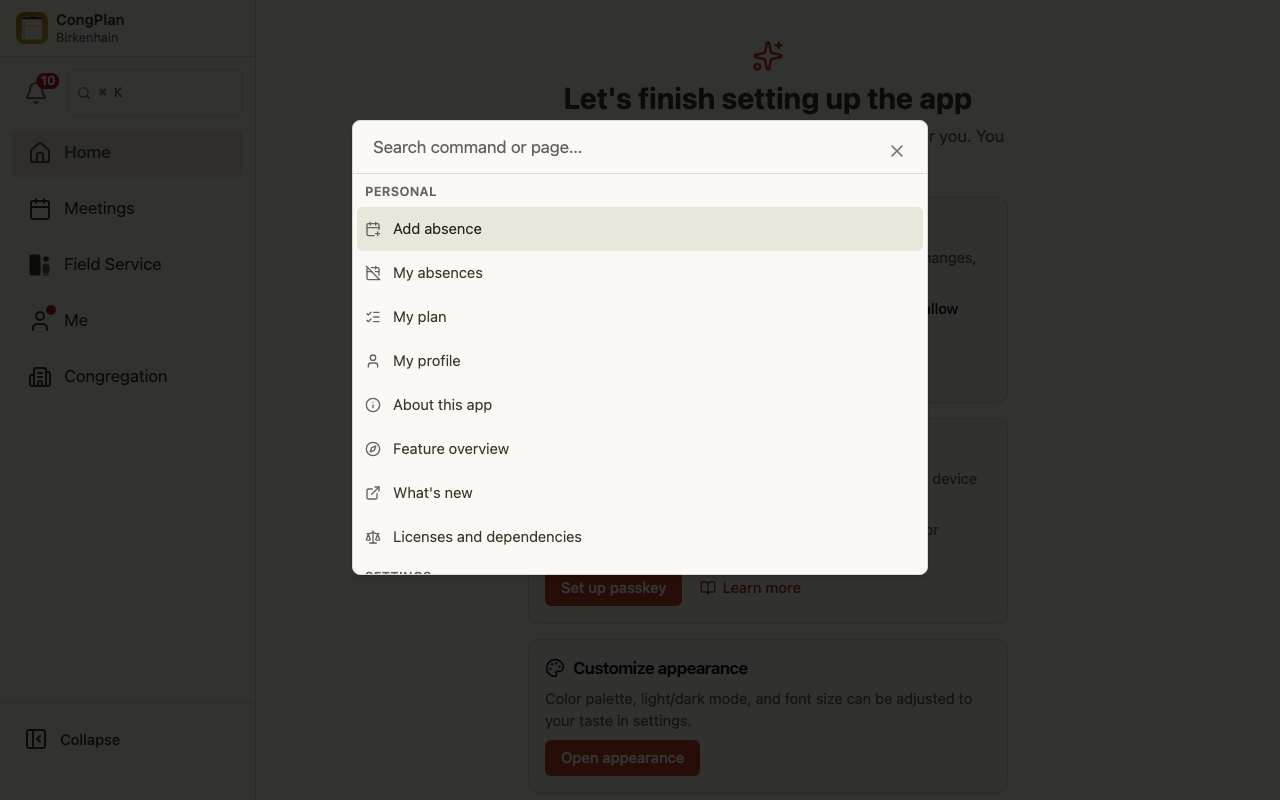
Type what you are looking for. The search understands fuzzy input and synonyms and shows useful suggestions even before you type, such as recently used items or entries that fit your current context:
- A date (for example
14.07) takes you to the meeting. - A name takes you to the person.
- A place takes you to the meeting point.
- A feature name (such as "print" or "change language") runs the action.
Only results your permissions allow are shown.
Keyboard Shortcuts
If you plan a lot, the keyboard is the fastest way to work:
- ⌘S / Ctrl+S — Save the current form (when there is something to save).
- Esc — Close or cancel.
- ⌘Enter / Ctrl+Enter — Confirm.
- g then a letter — Quick navigation between areas (for example home, meetings, field service).
- ? — Open the overview of all available shortcuts, grouped by general, form, and navigation.
Tips
- Use synonyms freely — the palette maps common terms to the right action.
- On touch devices the palette fills the screen so it stays easy to use with one thumb.