Data Import
Use Congregation > System > Data Import to migrate a congregation from New World Scheduler (NWS, desktop) into CongPlan. The import reads the regular CSV exports that NWS produces — there is no separate backup file and nothing has to be installed or decrypted.
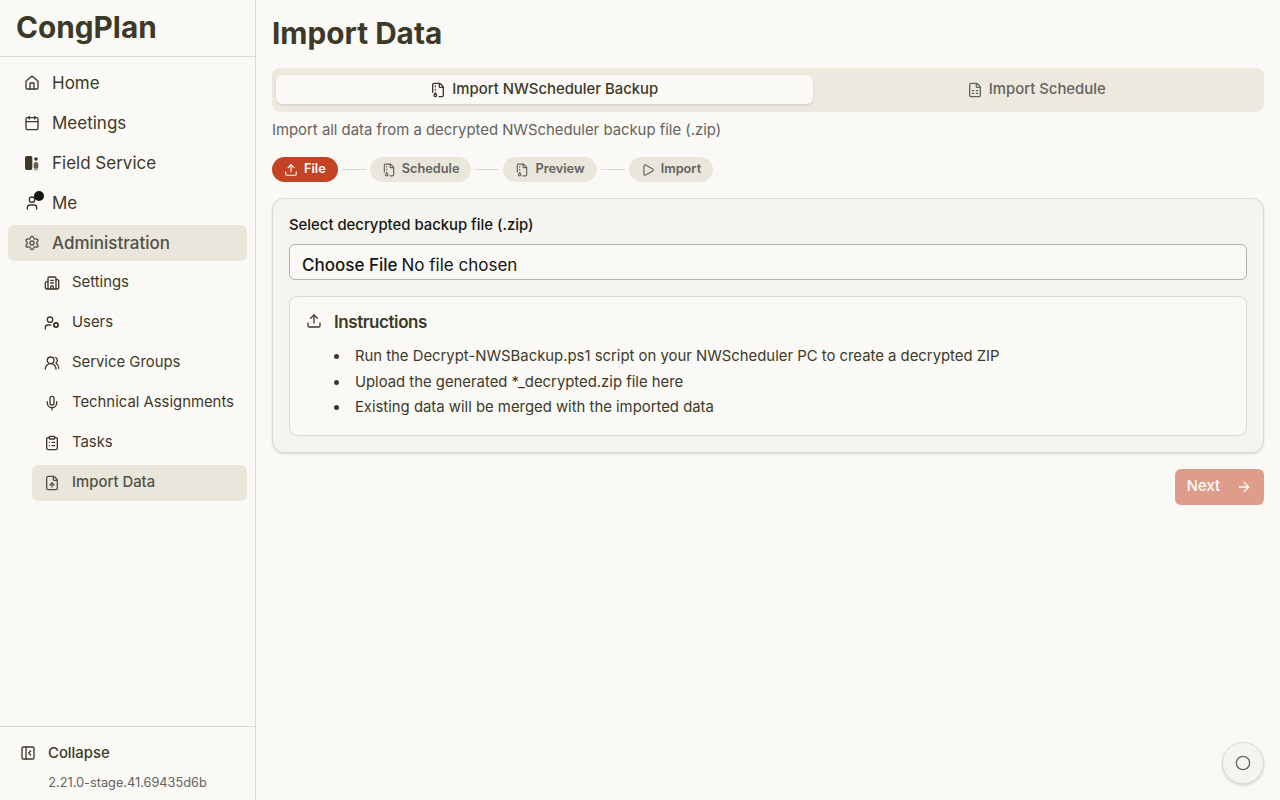
The import is a single guided wizard. You select all of the exported CSV files together; CongPlan detects what each file contains and walks you through the matching steps. You can repeat the import at any time — existing data is updated, not duplicated.
Before you start
- You need the Administration permission.
- Set up your meeting schedules first, under Congregation > Organisation > Settings. A midweek schedule is required to import the Life and Ministry program; a weekend schedule is required to import the public talks. The wizard tells you if a schedule is still missing.
- If the import range reaches into a new year, make sure the meeting times for that year are already configured, so the imported meetings get the correct date and time.
Step 1 — Export the four lists from New World Scheduler
In New World Scheduler (desktop), open Congregation > Import or Export, and under Export save each of these lists as a separate CSV file:
| Export | Brings into CongPlan |
|---|---|
| Persons | Publishers, field service groups, privileges and assignment types |
| Public Talks Schedule | Weekend public talks (internal or external speakers) |
| Life and Ministry Meeting (Schedule) | Midweek Life and Ministry assignments |
| Duties | Technical duties (attendants, microphones, audio/video, stage, Zoom) |
NWS writes the column names and option values in English regardless of the program language, so CongPlan recognizes each file by its content. You can rename the files or select them in any order; the wizard always imports persons first and the schedules afterwards. You can also import only some of the lists.
CongPlan reads each person's name and NWS ID, gender, active status
(Active), whether they left the congregation (Moved, Removed),
baptism status, privilege and pioneer status, their field service group and
role in it, and which meeting parts, technical duties and field service
assignments they are qualified for (the UseFor* columns). Column names
are NWS-internal identifiers and stay in English no matter which language
New World Scheduler runs in.
Step 2 — Upload the files
Open Congregation > System > Data Import and select (or drag in) all the CSV files at once. For every file the wizard shows:
- a type badge (Persons, Public talks, Life and Ministry, Duties), and
- the detected date format, which you can override per file.
A live export checklist shows which of the four lists are already covered and which are still missing. Files that are not NWS exports — or files CongPlan does not import, such as publisher reports and emergency contacts — are clearly marked as not imported and ignored.
A second file of the same type replaces the first one. Up to 12 CSV files (max. 5 MB each) can be uploaded.
Step 3 — Map the duty numbers
This step appears only when you uploaded a Duties file. NWS duty numbers are configured per congregation, so CongPlan cannot guess them. Assign each number to the matching CongPlan technical assignment type:
- The first selection applies to slot 1, the second to slot 2.
- Leave a number unselected to skip it — skipped numbers are listed afterwards as not imported.
The wizard pre-fills sensible defaults (for example attendants, microphones, audio/video, stage) which you can adjust.
Step 4 — Import the persons
CongPlan previews the persons it will create or update, then imports them. Existing members are matched first by their NWS person ID, then by name, so re-imports update the same records instead of creating duplicates. The preview counts are an estimate based on names; the final result is authoritative.
Imported persons are created as member records without a login or permissions — you invite them and assign permissions separately. Existing permissions are never changed by an import.
NWS also marks people who left the congregation; persons marked moved or removed are skipped entirely and listed on the result screen instead of being imported.
The "Active" column decides who can sign in
The Persons export's Active column decides whether an imported person can
sign in and appears in selection lists:
- Only an explicit
False,No, or0deactivates a person. - A blank cell — or an export where the
Activecolumn is missing entirely — always means active.
This also applies on every re-import: if you deactivated someone directly in
CongPlan and their Active cell in New World Scheduler is empty, the next
import reactivates them and restores their login. Nothing about this
happens silently — the result screen (step 7) always states how many persons
were created inactive, set to inactive, or reactivated.
An inactive person keeps their record but disappears from every selection list and can no longer sign in.
Step 5 — Confirm the name matches
CongPlan matches every name in the schedule files against your members. You confirm or correct the matches, and can skip individual entries. Speakers have their own list and are treated as external by default; turn that off to assign a speaker to a member of your own congregation.
Step 6 — Review the preview and set the import horizon
The preview lists the meetings per week; missing meetings are created from your templates.
Here you also choose the import horizon — how far into the future the import should reach:
- The default (and recommendation) is 12 months ahead, so a normal export brings its full future program along instead of being cut off after a couple of months.
- You can narrow it to 2, 3, or 6 months, or widen it to 18 months or to all future entries.
- Entries older than 24 months are always excluded. That is the history CongPlan keeps, so a re-import can restore up to two full years.
- Entries beyond the chosen horizon are not imported and are reported on the result screen.
Weeks that contain only duties and no meeting program (for example a convention or Memorial week) do not create empty meetings; their duties are skipped and reported.
Step 7 — Start the import and review the result
Start the import. When it finishes, the result screen summarizes what was
created and updated — including, separately, how many persons were
created inactive, set to inactive, or reactivated by the
Active column (see step 4) — and, importantly, a "Not imported" panel
lists everything that was deliberately left out, so nothing disappears
silently:
- unsupported or unrecognized files,
- unsupported NWS attributes (for example hospitality, cleaning, garden care, custom field-service assignments),
- unmapped duty numbers,
- persons NWS marks as moved or removed,
- entries beyond the import horizon, and
- duties in weeks without a meeting program.
What is not imported — by design
To protect personal data, CongPlan never reads the following from the NWS exports:
- dates of birth,
- phone numbers and e-mail addresses,
- postal addresses,
- emergency contacts,
- publisher reports,
- the exact date of baptism — only whether a person is baptized is imported, and
- absences and family relationships.
NWS also does not export some planning details. After the import, add these manually in CongPlan:
- absences,
- families, and
- any custom weekend assignments.
Importing only technical assignments
To refresh technical duties without importing the other lists, open the same central wizard and upload only the Duties CSV. The wizard shows the duty mapping and name-matching steps that apply to that file and leaves the omitted lists untouched. The Technical Assignments page has no separate import action. See Technical Assignments for the planning workspace itself.
After the import
Check that everything landed as expected:
- members, field service groups and assignment types,
- meeting times and meeting detail pages,
- technical assignment templates and assignments, and
- the "Not imported" panel from the result screen for anything you need to add by hand.
Troubleshooting
| Problem | What to check |
|---|---|
| A file is marked not imported | Only Persons, Public Talks, Life and Ministry and Duties are imported. Re-export the file from NWS if its content was not recognized. |
| "Meeting schedule required" | Configure the midweek and/or weekend schedule under Congregation > Organisation > Settings before importing the program. |
| Duplicate members after a re-import | Avoid renaming field service groups in NWS between imports — groups are matched by name. Persons are matched by NWS ID and stay unique. |
| Wrong dates | Check the per-file date format on the upload step, and the meeting times for the imported year. |
| Future entries missing | Widen the import horizon in the preview step. |
| A person landed inactive unexpectedly | Check that person's Active column in the NWS export — only an explicit False, No, or 0 deactivates. An empty cell always means active. |
| A previously deactivated person is active again after a re-import | Expected: an empty Active cell always means active, even on a re-import. Deactivate the person again in CongPlan, or set an explicit False/No/0 in New World Scheduler before the next export. |