Hand over & take over
If you cannot serve one of your assignments, you do not have to chase a replacement yourself. You hand the assignment over in the app: CongPlan asks the people who may take it over, and whoever says yes first is in the program instead of you.
This works for:
- Technical assignments, always.
- Meeting parts, once the congregation has switched on the setting Hand over meeting parts and allows it for that part (see Setting: hand over meeting parts).
Handing an assignment over
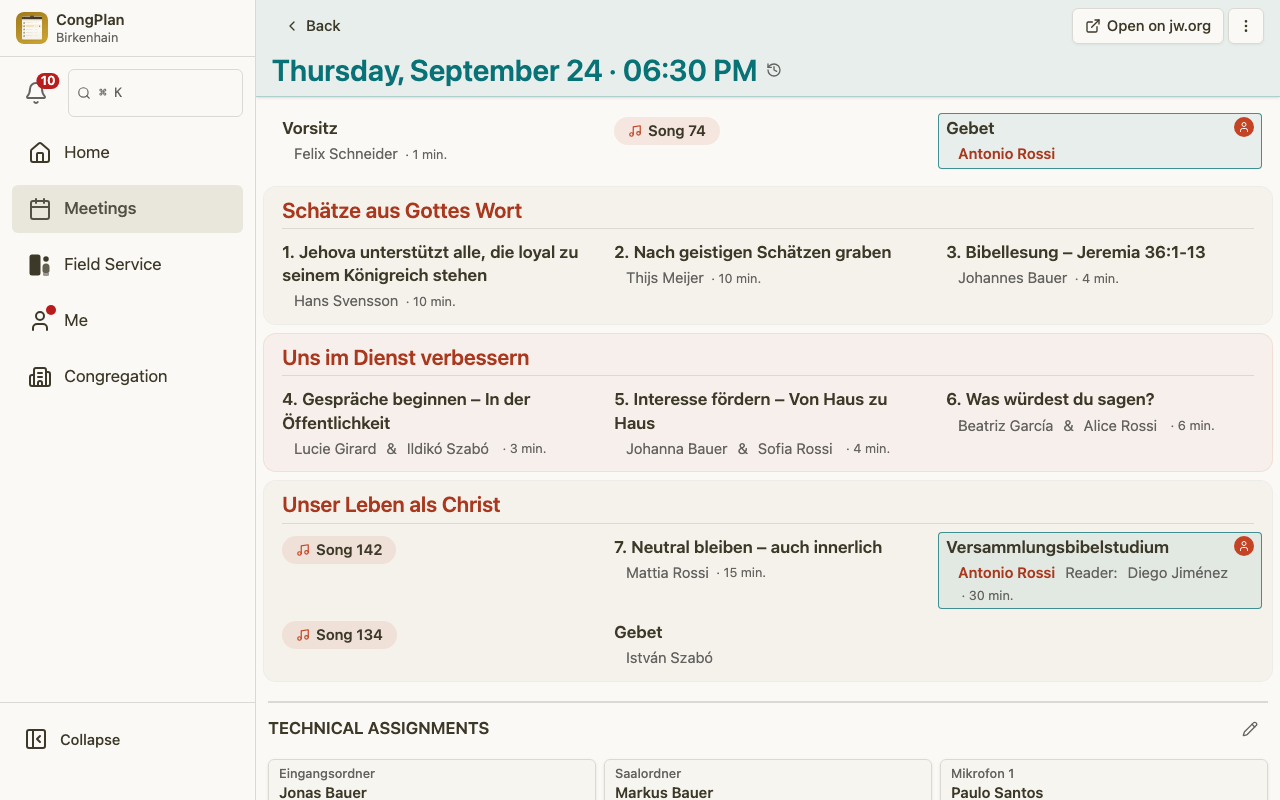
Open the meeting program. Next to your assignment you see Hand over. If you have several assignments in the same meeting, the button carries the name, for example Hand over “Bible Reading”.
Under Who do you want to ask? you choose:
- Everyone who may take over this assignment — the number in brackets
says how many people that is, and Show who will be asked lists the
names.
- For a technical assignment, that is everyone listed for this assignment who is not absent that day and has no other technical assignment at this meeting.
- For a meeting part, that is everyone who can be assigned to this part, is not absent that day and is not already on this part.
- One specific person — you pick the person from a list. The list notes if someone already has assignments that day or declined last time.
Before you send, a summary repeats what happens, for example You hand over “Bible Reading” on 12 March. 8 people will be asked. Then tap Send request to everyone or Send request to ….
The request runs until the meeting starts. Once the meeting has started, it can no longer be answered, and a new request can no longer be sent.
On the assignment, the button now shows the state of your request:
- Hand-over pending — nobody has said yes yet.
- Nobody said yes – ask again — everyone asked has declined.
- Waiting for approval — someone said yes, and the take-over still has to be approved.
Tap it to see the status, who was asked and who declined.
Taking an assignment in return
If you ask one specific person, you can tick Take over one of …'s assignments in return. CongPlan then offers upcoming assignments of that person of the same kind at other meetings, and you pick one.
- The other person has to say yes. Only then do both assignments move.
- The request then runs until the start of the earlier of the two meetings.
- If the part needs approval, the approval covers both assignments together.
When nobody says yes
- Ask again — appears once everyone asked has declined. You choose again whom to ask; people who declined last time are marked. The previous request ends, and a return assignment from it is dropped.
- Ask everyone else too — appears while a request to one specific person is still open. If you had agreed on a return assignment, it is dropped.
- Cancel request — ends the request after you confirm with Yes, withdraw. Everyone asked learns about it, and the assignment stays with you. You can withdraw a request even while a take-over is waiting for approval.
If something prevents the request, for example nobody qualifies, the meeting has already started or the congregation does not allow handing over this part, CongPlan tells you the reason instead of sending it.
Taking an assignment over
When someone asks you, you get a notification and see a banner on the meeting, for example You are asked to take over an assignment – answer. The Hand-over request shows the assignment, the date and whether others were asked too.
- Take over — you say yes. Without approval, the assignment moves to you right away and you are in the program.
- Decline — you cannot help. As long as the request is open, you can still change your mind with Take over after all.
Whoever says yes first takes the assignment over; the request then closes for everyone else. If you take over a part together with a person of the other gender, CongPlan points this out before you answer.
When the take-over needs approval
For meeting parts, the congregation can require an approval. Then:
- After your yes, the previous name stays in the program until the take-over is approved. You cannot withdraw your yes.
- The request names who may approve.
- If the take-over is rejected or not approved before the meeting starts, the assignment stays with the person who handed it over, and both of you get a message.
Approving a take-over
Who may approve depends on the meeting:
- Our Christian Life and Ministry Meeting: the overseer of this meeting, his deputy and anyone who may edit this meeting.
- Weekend meeting: the Coordinator of the Body of Elders, his assistant and anyone who may edit this meeting.
Waiting take-overs appear under For approval, both on Hand over & take over and in the congregation overview. Each card says who wants to take over from whom and, for a return assignment, what moves the other way. Tap Approve or Reject and confirm. Both people involved get a message. Once the meeting has started, nobody can decide on the request any more.
Your page: Hand over & take over
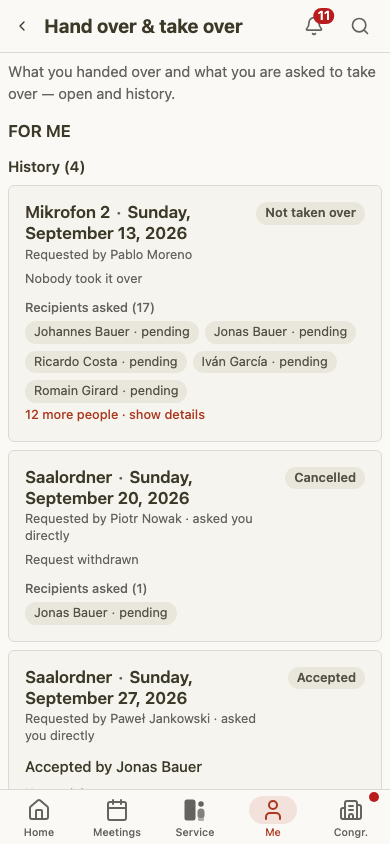
Open Me > Hand over & take over. The page lists every request you are involved in, even after you deleted the notification about it. Deleting a notification never deletes the request.
- Open requests has two sections: To me (you are asked) and From me (you handed over).
- History holds the finished requests in the same two sections plus Decided by you for take-overs you approved or rejected. Each card says how it ended, for example You took it over, Taken over by someone else or Not answered in time, and when it last changed. Older entries are folded away behind Show older requests.
- If you may plan meetings or technical assignments, the button All hand-overs of the congregation opens the overview below.
To hand something over, go to your assignment in the program; the page itself has no button for it.
Counters
A number on Me, on the menu entry Hand over & take over and on the home page shows how many requests are waiting for you. It counts:
- requests you have not answered yet,
- your own requests that everyone declined,
- take-overs waiting for your approval.
Overview of the congregation
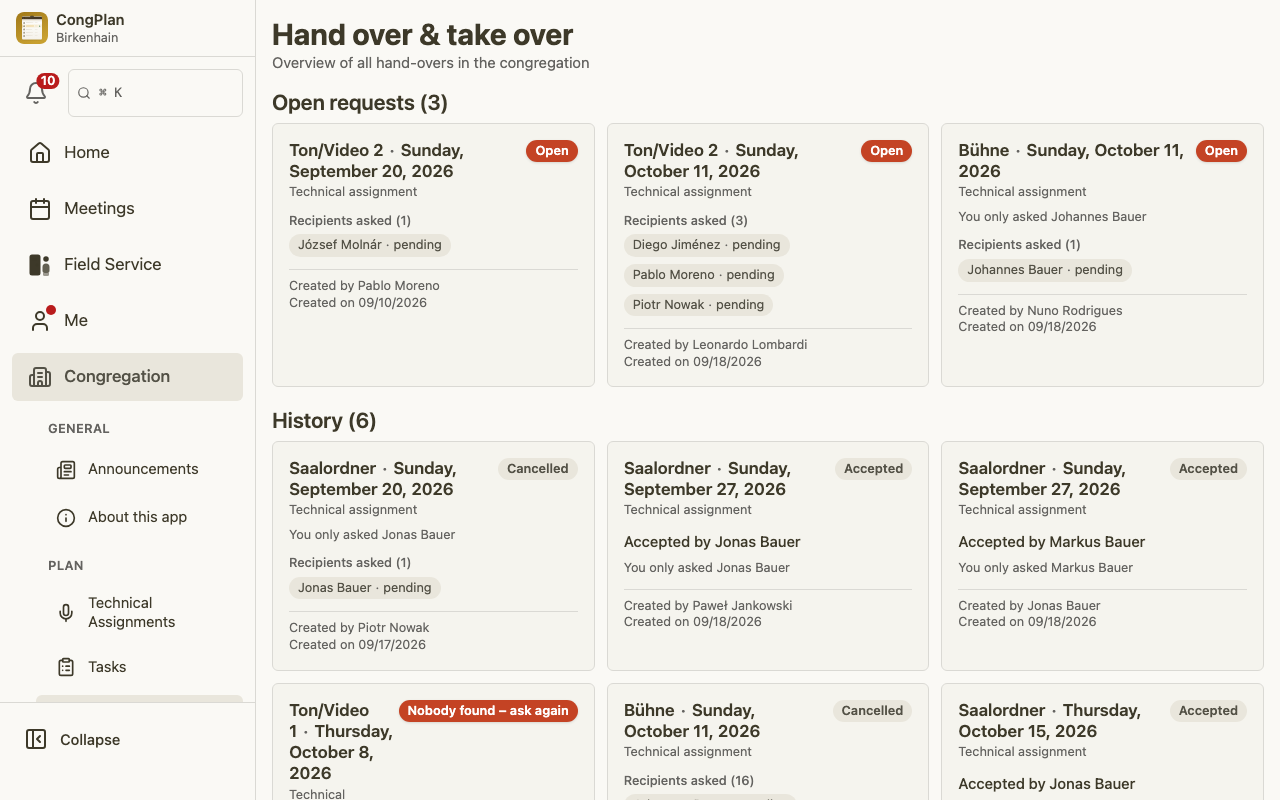
Congregation > Plan > All hand-overs of the congregation lists the hand-overs for meetings from today on that you may plan. You see the page with the Technical Assignments edit permission or a permission to edit meetings. Older hand-overs are visible only to the people involved, on their own page.
- For approval comes first, then Open requests and History.
- Each card shows the assignment, the meeting date, who asked and when.
- Recipients asked lists every person asked with their answer. The first five names are visible; the rest open with … more people · show details.
The menu entry shows how many take-overs are waiting for your approval. See Permissions for how the permissions are granted.
Setting: hand over meeting parts
Under Congregation > Organisation > Settings > Meetings & calendar, the card Hand over meeting parts decides how meeting parts can be handed over. Technical assignments and field service assignments are not affected by this setting. Anyone with permission to view settings sees the card; changing it needs the permission to edit settings.
- Hand over meeting parts in the app — the main switch.
- A table for each meeting lists the meeting parts with three columns:
- Can be handed over — only parts switched on here show Hand over.
- Approval needed — whoever says yes is only in the program once the take-over is approved. Who may approve is shown under each table.
- Info to — these people get an info as soon as someone has taken over a part, with approval only after the approval. You choose Chairman and positions from Positions of Responsibility. Whoever hands over, takes over or approves gets no info.
- Also inform assistants and deputies — if a position under Info to has an assistant or deputy, they get the info too, for example while the overseer is on vacation.
The setting applies to the whole congregation, including the meetings of foreign-language groups.
What happens when you save a change:
- Switching a part off under Can be handed over ends its open hand-over requests.
- Switching the main switch off ends all open hand-over requests, including those waiting for approval.
- Switching Approval needed off approves the waiting take-overs of those parts.