Meeting Details
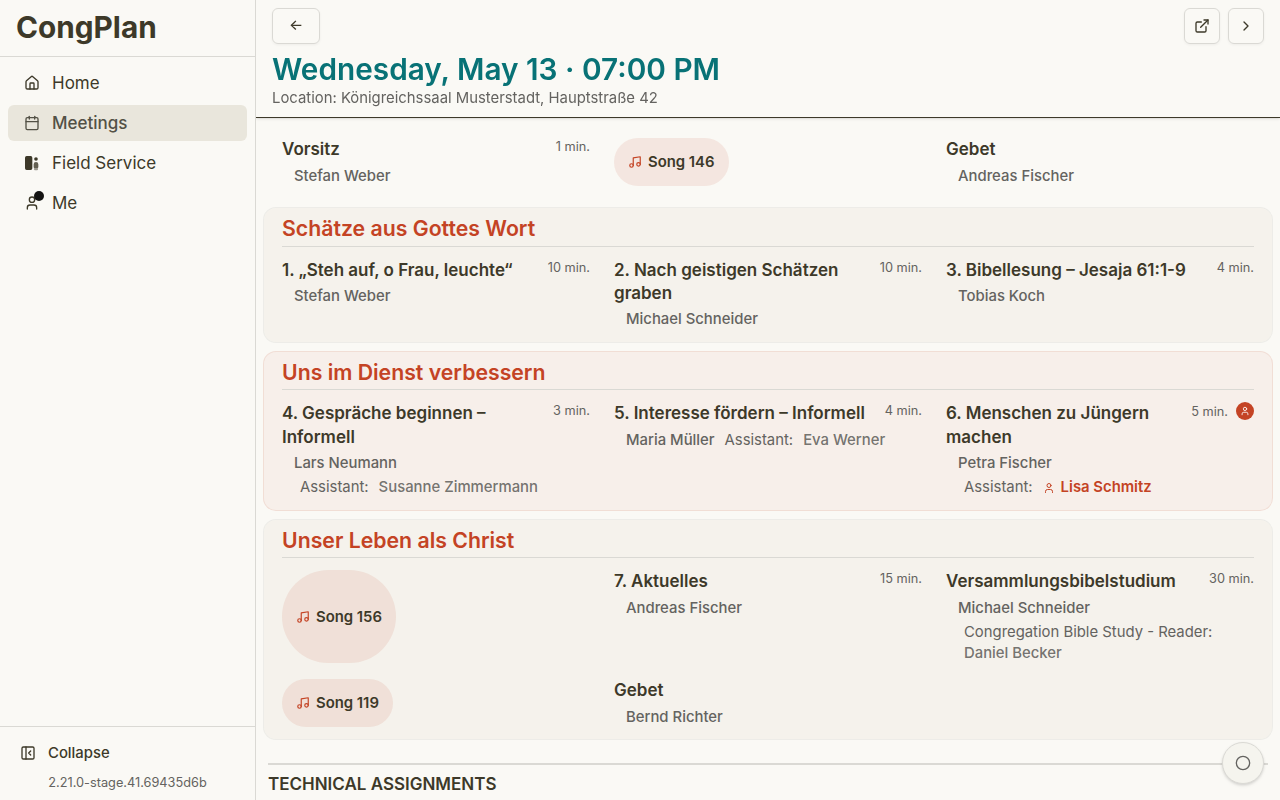
The meeting detail view shows the program, assignments, technical assignments, and linked tasks for one meeting, behind a single header and action bar shared by every meeting type.
Header
The header always shows the meeting's date and time, and — when the meeting has them — its own title, location, and description. Depending on the meeting, it can also show:
- Back, and previous/next meeting navigation
- A Draft badge while the meeting is still unpublished (editors only — tap it for an explanation)
- A group badge naming the foreign-language group the meeting belongs to; a congregation meeting stays unbadged
- A "This week also: …" pill when a sibling meeting exists — see "Sibling Meetings" below
- A Service week label under the date during a circuit overseer's visit
Action Bar
Every action for the meeting sits behind one action bar: your most relevant tools are promoted as buttons, and the full list is always available behind the ⋮ menu. An action you cannot use right now still appears there, just disabled with a short reason (for example "Missing permission" or "Chairman only") — a missing entry always means it does not apply to this meeting, not that something is broken.
- Edit Program — turns on the shared edit mode for program parts and technical assignments below
- Edit Meeting — opens the meeting's own properties: title, location, date, classes, and program structure
- Publish / Unpublish — while draft mode is on for the congregation; see Meetings for the full draft-and-publish model
- Print — opens the Print Center for this meeting
- Notes — opens the Conducting a Meeting view, home of the chairman's notes described in Chairman Notes. Only the chairman can take notes there, so anyone else sees the entry disabled
- Open on jw.org — only when the meeting is linked to a source document
- Delete Meeting
Sibling Meetings
A congregation running a foreign-language group can end up with two meetings of the same type in one ISO week — one for the congregation, one for the group. When that happens, a "This week also: …" pill under the title lets you jump straight to the other one, in either direction. The choice you make there is remembered as your preferred reading context, so lists, the calendar, and "My Plan" keep opening meetings in the context you last picked. See Foreign-Language Groups for how groups themselves are set up.
Midweek Meeting Parts
The Life and Ministry Meeting is displayed in the S-38 section order:
- Treasures From God's Word
- Apply Yourself to the Field Ministry
- Living as Christians
Parts show title, duration, assignment type, and assigned publishers. Student assignments can include an assistant.
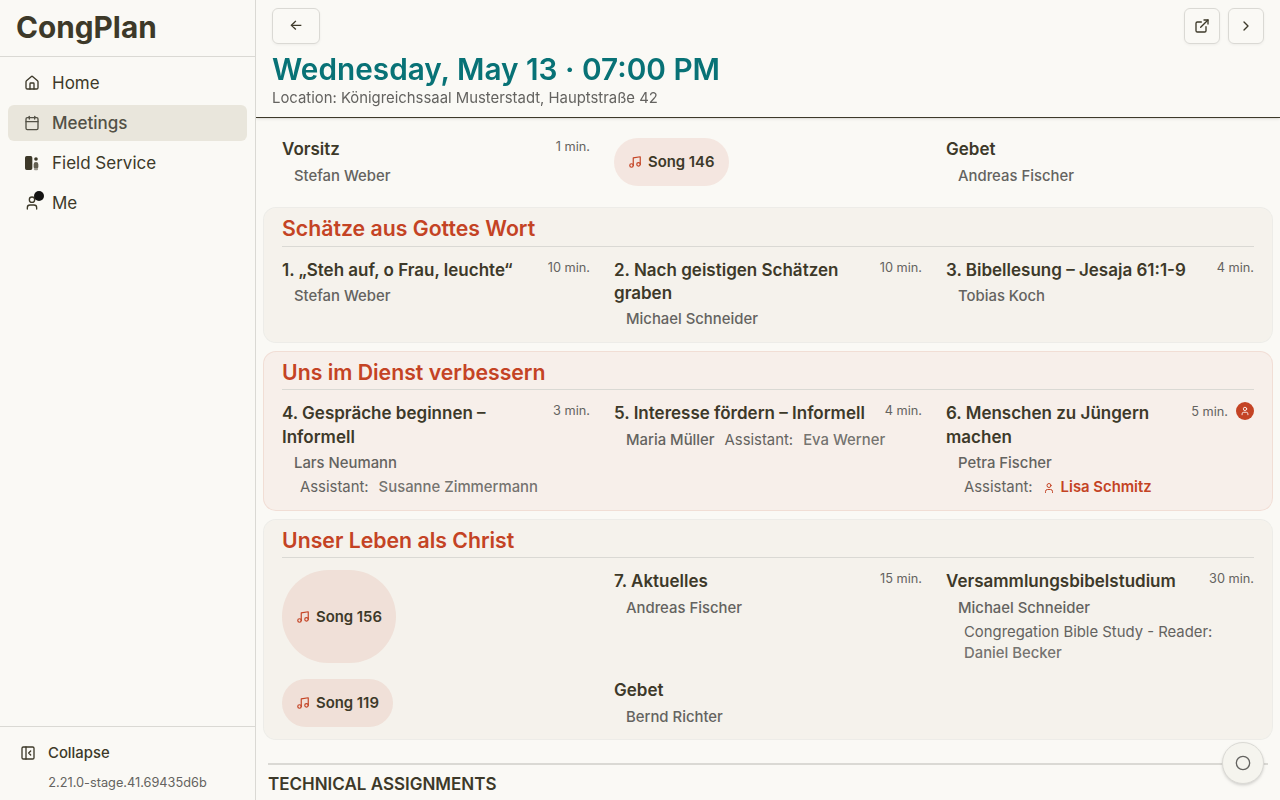
Technical Assignments
Technical assignments are shown separately from meeting parts, each with its full role name (not an abbreviation) next to the person assigned. The exact roles depend on the congregation's templates, for example stage, microphones, attendants, sound, or video.
Keeping technical assignments in the same detail view helps chairmen, technical coordinators, and publishers understand the full meeting context without treating sound, stage, or attendant work as a separate spreadsheet.
Tasks
Linked tasks can appear on the meeting detail page. A task may be assigned to a publisher, a field service group, or the whole congregation.
Editing Workflow
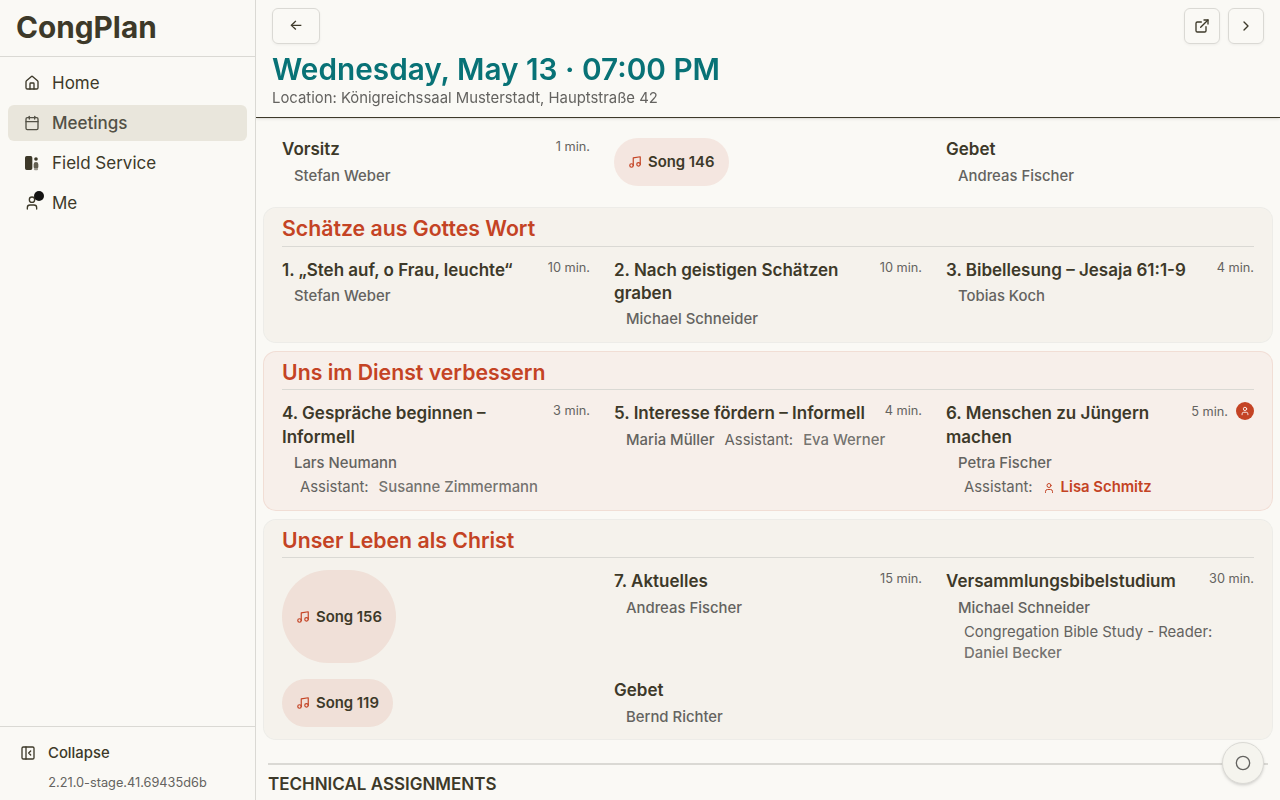
With Edit Program turned on from the action bar, assignments save immediately:
- Tap a program part to assign it inline, or open its detail sheet for more options.
- A short Undo notice appears right after each assignment so a mis-click is easy to reverse; a persistent Undo last change control in the program list reaches back further than just the latest pick.
- Watch for conflict markers and the conflict list, which jump you directly to the affected part.
- Editing the meeting itself opens a separate Edit Meeting form. Review its date, location, classes, and program structure, then choose Save or Cancel.
Turn Edit Program back off (or simply leave the page) once you are done; it is a session choice, not a lasting mode.
Choosing a Person
Program parts and technical duties use the same assignment picker. Search by name. Candidate pool switches between Designated, Designated, all groups, and All; where the role permits it, Gender and Sorting narrow or reorder the list. Each result keeps the planning evidence together: recent and upcoming assignments, absence and same-day conflict warnings, and the person's planning-context badge.
The picker stays open after an inline assignment so planners can fill the next slot without reopening it. On a phone it opens from the bottom; on desktop it opens at the right. A selection saves immediately, including each person in a two-person assignment.
The wider meeting editor keeps the program list on the left and the selected part on the right. On a narrow screen the editor uses one sheet with separate Edit and Sort modes, and Done leaves edit mode.
Planning Signals
While editing, CongPlan can surface signals that are easy to miss in a manual plan:
- Existing assignments for the same publisher
- Absences that overlap the selected date
- Qualifications for the selected role
- Recent assignment history
- Public-witnessing, field-service, or task context that also appears in the personal plan
These signals do not replace the coordinator's decision. They make the decision visible before a change is committed.
Change History
The footer shows when the meeting was last modified. A planner who may edit this meeting also sees who changed it and can open View all changes in a sheet without leaving the meeting. See Activity Log.