Home Screen Widgets
CongPlan comes with two widgets: Up Next and My Plan. Both show your plan on the home screen without opening the app.
Widgets belong to the iOS app and need iOS 17 or newer. The Android app and the browser version have no widgets.
Both widgets read the same file that CongPlan stores on the device. They fetch nothing from the network themselves: the content is refreshed when you open the app.
The screenshots on this page show a sample congregation with the app language set to German.
Up Next
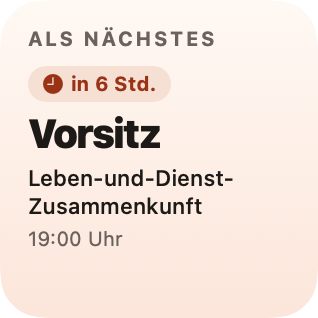
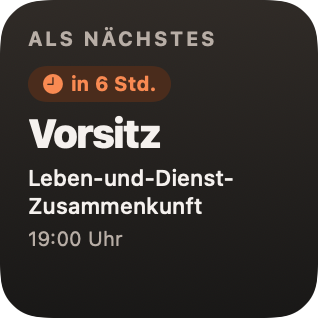
Up Next leads with one entry: your next own assignment if it falls within the coming 14 days, otherwise the next appointment — a meeting, a field service meeting point, a congregation-wide event, or a public-witnessing shift you are signed up for.
Above the entry sits a pill with the distance in time, for example "in 6 hrs" or "in 3 days". Below it follow the title, a subtitle, and the time.
Sizes
- Small — the header and the lead entry.
- Medium — the lead entry on the left, up to three further lines on the right, a footer below.
- Large — the same structure across the full width, with up to seven lines.
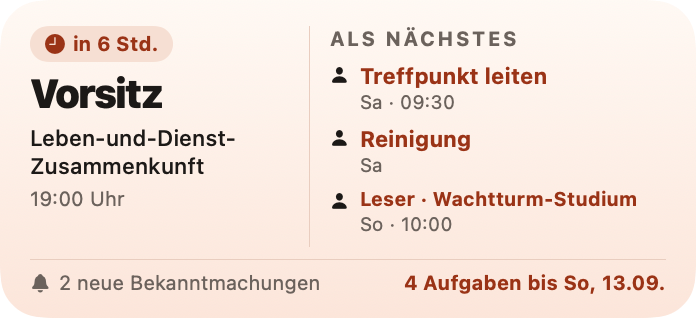
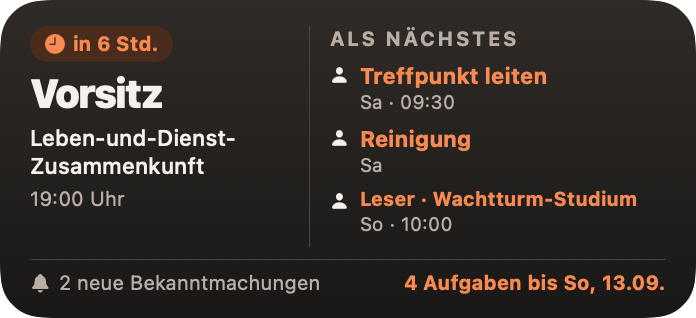
Lines within the next seven days name the weekday and the time, such as "Sat · 09:30". From seven days on they carry the date and the distance instead, because a weekday is no longer unambiguous by then. Your own assignments are highlighted in color, everything else stays grey.
Several meeting points on the same day are condensed into one line, so that a week full of meeting points does not take up every line.
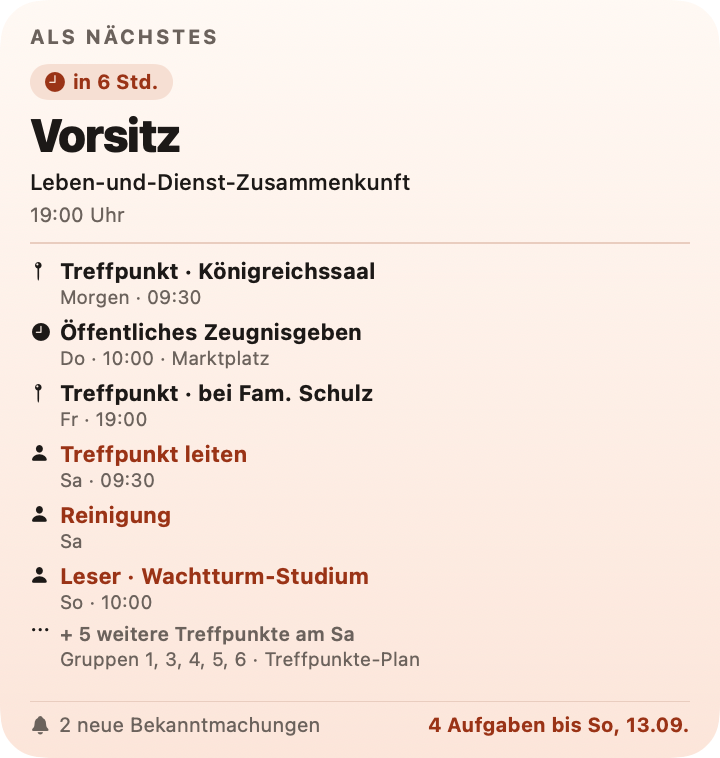
The footer carries a count on the right: how many assignments are left until a named date. On the left it shows the first item that applies: your next own assignment, an appointment today, your second own entry, unread announcements, or the balance for the week.
On the lock screen
Up Next is also available as a lock screen accessory, in three shapes: a rectangle with distance, title, and time, a single line above the clock, and a circle with a symbol and the date. The lock screen draws them without their own color, which is how iOS renders accessories.

My Plan
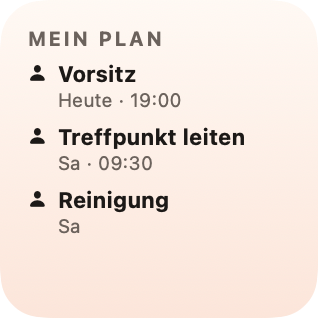
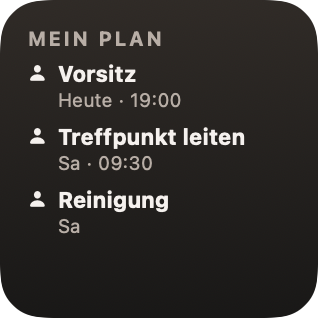
My Plan exists in the small size only. It lists your own entries, including the one that Up Next shows as its lead entry. The title names your own part only, for example "Chairman", "Reader", or "Lead meeting point"; the day and time sit below it.
How many lines fit is decided by the card itself. At the standard text size it is four lines, at a larger text size fewer.
The difference
Up Next answers "what comes now" — one entry large, its surroundings small. It also shows appointments where you have no assignment.
My Plan answers "what do I have" — your own assignments only, all the same size, without the context around them.
Adding a widget
- Touch and hold an empty area of the home screen until the icons jiggle.
- Tap + in the top left corner.
- Search for CongPlan.
- Choose Up Next or My Plan and swipe to the size you want.
- Tap Add Widget and then Done.
Both widgets appear as separate entries in the gallery. You can have them on the home screen at the same time.
Tapping the lead entry or a line opens the matching page in CongPlan.
When nothing is planned
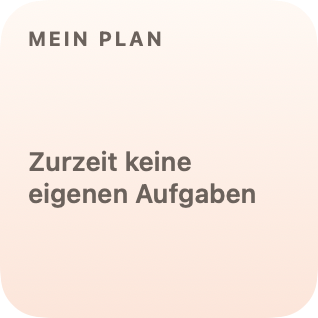
If you currently have no assignments of your own, My Plan shows the note "No tasks of your own right now". Up Next then shows the next appointment of your congregation.
When the plan is outdated
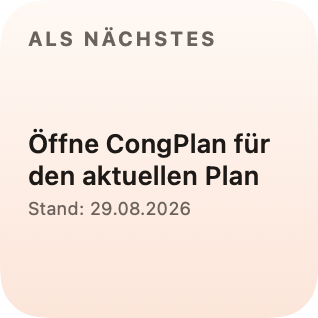
The widget only knows what was stored the last time you opened the app. Once every entry in it is in the past, it shows "Open CongPlan for the current plan" instead of an expired entry.
If the data is older than 48 hours but still holds valid entries, the card stays and its footer gets an "As of:" line with the date.
If you are signed out in the app, the widget reads "Sign in to CongPlan".