Circuit Overseer Visit
When the circuit overseer visits, the program of that week changes. CongPlan handles this as a service week: you record the visit once, and CongPlan rewrites the program of the whole calendar week from it — instead of leaving every planner to edit the affected parts by hand.
Because the changed program stays connected to the visit record, you can correct the data later and regenerate the week, and deleting the visit puts the previous program back.
Permission Needed
Two permissions carry the feature:
- Circuit overseer visit (view) — see a visit and open its detail page. Every signed-in user has this by default.
- Circuit overseer visit (manage) — create, edit, and delete a visit. It is part of the Editor and Admin presets.
Generating the week additionally requires edit access to Meetings and to Field Service Meetings, because the generation run writes those rows. A person who only holds the circuit overseer permission can save a visit, but the generation step will fail. The Editor and Admin presets cover all three. See Permissions.
Where to Start
Open Congregation > Plan > Circuit overseer visits.
The page lists the active visits with week start, the circuit overseer's name, and the home congregation; Edit opens that visit's detail page. With the manage permission it also shows New circuit overseer visit, which starts the wizard.
The Wizard, Step by Step
The wizard has four steps. Every step has Cancel and Next; steps 2 to 4 also have Back. Nothing is saved before the last step, and leaving the wizard with entries in it asks for confirmation first.
1. Visit week
Pick any date in the week of the visit. CongPlan snaps the field to the Monday of that calendar week and shows the resulting Monday-to-Sunday range, so it does not matter which weekday you click.
Only one active visit can exist per week. If the chosen week already has one, the wizard shows a warning with the recorded circuit overseer's name and a link to open that visit; Next stays disabled until another week is picked.
2. Circuit overseer data
- Circuit overseer's name — required.
- Home congregation — optional.
- Link Field Service Meetings from / through — pre-filled with Monday and Sunday of the selected week, adjustable inside that week.
The two dates only decide which field service meetings are linked to the visit. The service week itself is always the whole calendar week picked in step 1.
3. Notes
Optional free text, for example about accommodation or a meeting with the special pioneers. The notes appear on the detail page.
4. Review
The last step summarises week, name, congregation, link window, and notes. Create visit and generate week saves the visit and generates the week right away, then opens the visit's detail page.
If the visit is saved but generating the week fails, CongPlan keeps the visit and says so. Open the detail page and use Regenerate week.
What the Visit Does to the Program Week
The generation run rewrites the program of that week:
- Midweek meeting — the Congregation Bible Study, conductor and reader part together, is replaced by a 30-minute service talk held by the circuit overseer. The meeting switches to the circuit overseer program variant, and auxiliary classes are switched off for every part of that meeting, so the whole meeting runs in one class.
- Weekend meeting — the Watchtower Study is shortened to 30 minutes and the reader part is removed; the conductor and their assignment stay. A 30-minute closing talk by the circuit overseer is added at the end. If the week has no weekend meeting yet, CongPlan creates one, unpublished, on the congregation's usual weekend day.
- Additional meetings — a meeting with the pioneers and a meeting with the elders are created. CongPlan puts them on default evening slots in that week, 60 and 90 minutes long. These are placeholders, not the circuit overseer's actual schedule: check them and move them to the arranged times. The detail page marks them with a Placeholder badge and a matching hint.
- Field service meetings — every field service meeting inside the link window is connected to the visit. Who conducts them is not changed; enter that yourself.
Assignments
Where a part disappears — the two Congregation Bible Study parts and the Watchtower reader — its assignment disappears with it. Every other assignment in the week stays untouched.
The circuit overseer's own parts are external-person parts: they carry his name rather than a publisher, so they never occupy a member's assignment slot.
The two additional meetings are created empty. No parts and no technical assignments are generated for them.
How the Week Is Marked
- The meeting details page of an affected meeting shows a Service week label under the date.
- On the dashboard, the week heading in What's Next carries a Special week · Circuit overseer visit marker and a CO visit badge with the circuit overseer's name. The badge opens the visit.
- The midweek program carries the notes "Circuit overseer visit this week. Programme adjusted." and "No auxiliary classes during the circuit overseer visit."
My Plan
Assignments in a service week appear in My Plan like any other assignment, with a CO visit marker on every row that belongs to a meeting of the visit.
The two additional meetings work differently. Because they hold no personal parts, they are shown by enrolment instead: the pioneer meeting appears for regular, auxiliary, and special pioneers and for missionaries; the elders' meeting appears for elders and ministerial servants. For everyone else the two meetings stay hidden — even in a congregation that has switched draft mode off, where unpublished meetings are otherwise visible to all.
The Detail Page
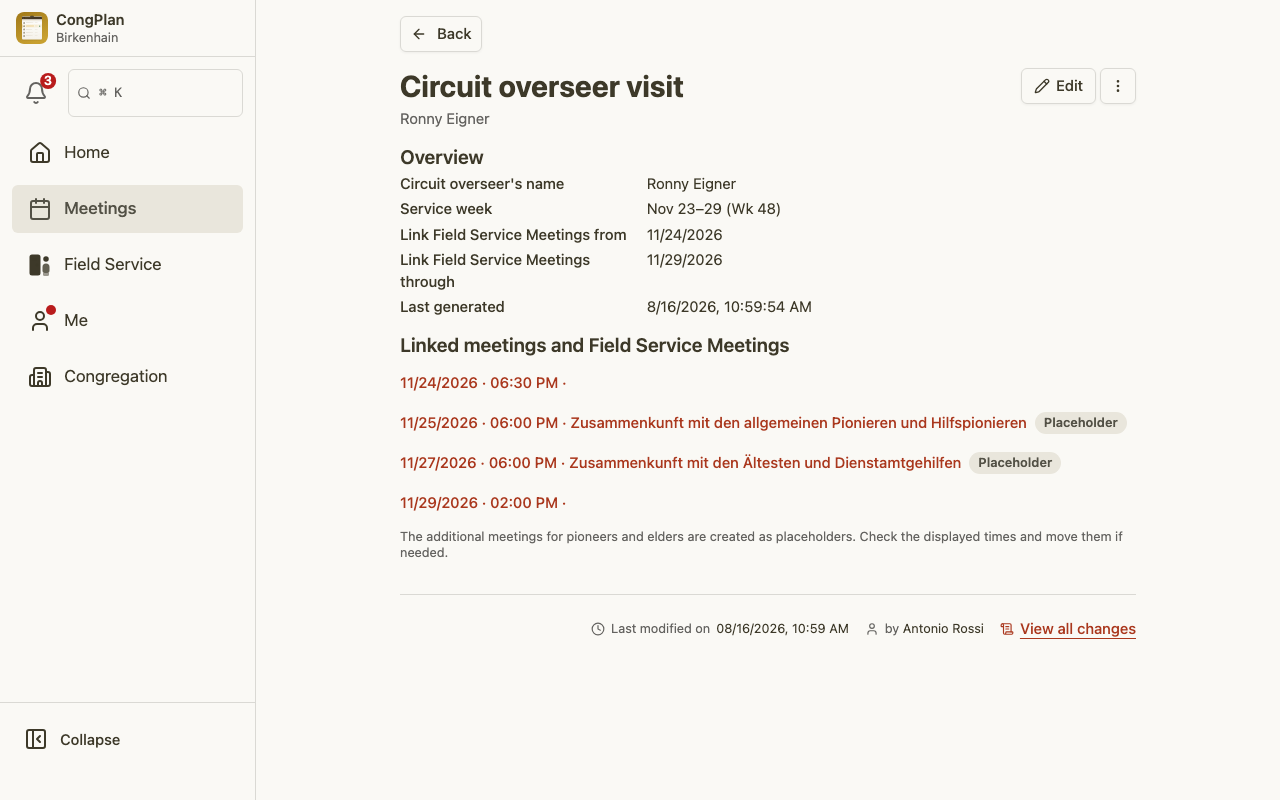
The detail page of a visit shows:
- Overview — name, congregation, service week, the field service meeting link window, and when the week was last generated.
- Notes, if any were entered.
- Linked meetings and Field Service Meetings — every row opens the meeting; the two additional meetings are marked Placeholder.
- Last run — after a generation run, how many meetings, program items, and field service meetings were updated, plus any warnings.
- Last modified — the date for every viewer; the editor name and View all changes sheet for users who may edit the visit.
With the manage permission the page also offers Regenerate week, Edit, and Delete.
Regenerating the Week
Regenerate week offers two ways out:
- Keep manual edits — everything a planner changed after the last generation run stays as it is; only untouched generated rows are rebuilt. This is the safe default and the same path the wizard uses after creating a visit.
- Overwrite everything — the week is rebuilt from the template. The confirmation dialog states how many manual edits would be overwritten; the step cannot be undone.
Switching off auxiliary classes for the midweek meeting happens in both cases — it belongs to the visit program itself, not to the generated assignments.
Use Regenerate week whenever visit data changed, and whenever a generation run failed.
Editing a Visit
Edit opens a form on the detail page for name, congregation, service week, link window, and notes. Two save buttons are offered: Save stores the data only; Regenerate now (keep manual edits) stores it and regenerates the week in one step.
Use the second one after changing the service week or the link window — otherwise the generated program still belongs to the old week.
Deleting a Visit
Delete removes the visit and undoes the visit program:
- The two placeholder meetings are deleted completely.
- The circuit overseer's service talk and closing talk are removed.
- The program before the visit is restored, so the Congregation Bible Study parts and the Watchtower reader come back, with the assignments they had.
- The links on meetings and field service meetings are cleared.
Visits that were generated by a much older version of CongPlan have no stored snapshot of the previous program. For those, deleting resets the meeting back to the regular program variant but does not bring the old parts back — check such a week afterwards.