Conducting a Meeting
The Conducting a Meeting view is the live companion for whoever leads a meeting. It brings the program, your notes, and the closing announcements together in a single running order, so you no longer have to switch between separate screens at the lectern.
It is the successor to the earlier chairman notepad: the notepad now lives inside this view, and the notepad entry on the meeting page opens it.
Opening the View
You reach the view from the meeting detail page of the meeting you are conducting. It is available to the roles that lead a meeting.
There is no time lock — you can open it days in advance to prepare, not only shortly before the meeting starts. It is meant as a preparation tool just as much as a live tool.
What You See
Everything follows the actual order of the meeting:
- The program, part by part, with the assigned person, any assistant, and the planned duration.
- Your notes for each part — the same notes as the chairman notepad, so anything you prepared is already here and stays in sync between your devices.
- Closing announcements in their place at the end, pulled from the congregation announcements.
- Documents open in the existing full-screen viewer when you tap them.
The next meeting's school assignments are available in a collapsible block (collapsed by default), with several classes listed one below another, so you can read them out without leaving the view.
The Per-Part Timer
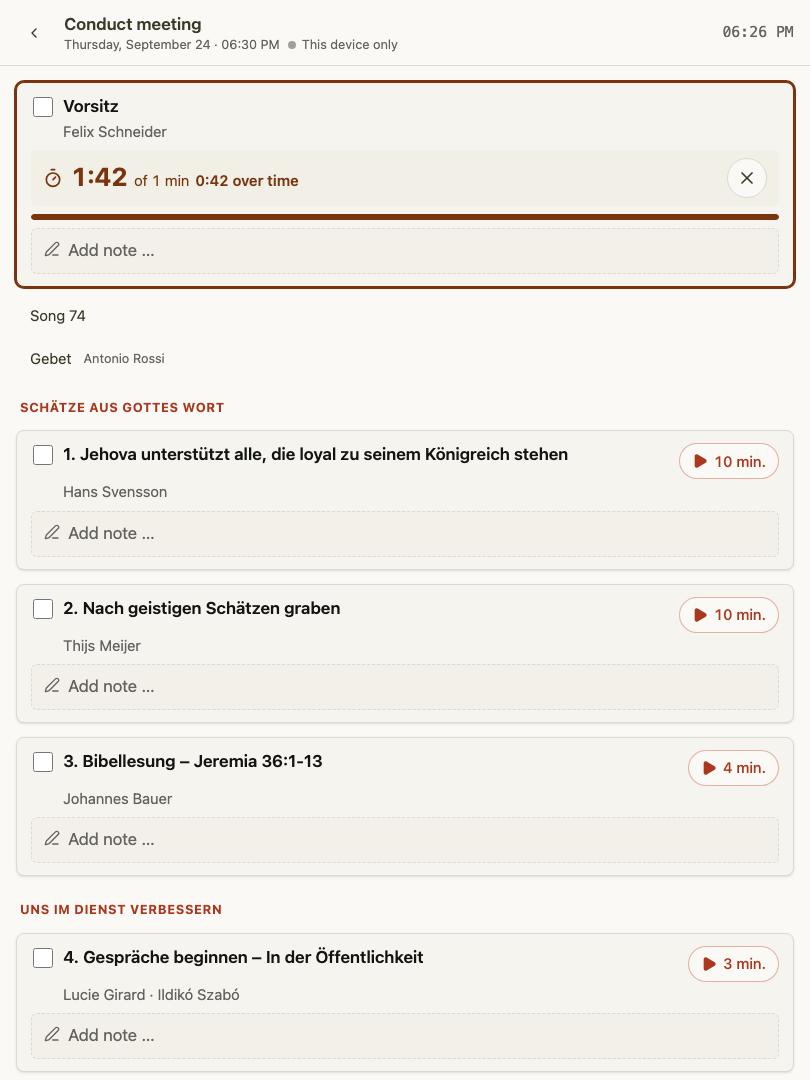
Each part has its own timer that you start by hand. It counts down from the planned duration. When it reaches zero it keeps running into the negative and turns amber, so you can see at a glance that a part is running over — but nothing advances automatically. Meetings rarely run exactly to plan, so you stay in control and move on when you decide to.
Reading, Not Editing
While you conduct, the view is read-only for the program: it shows the plan and lets you take notes, but it does not change assignments. Editing the program is a separate step in the meeting's edit mode. See Meetings for how editing, drafts, and publishing work.
Tips
- Open the view before the meeting so your notes are synced and ready.
- Prepare your notes in the same view days ahead — there is nothing extra to set up on the night.
- Use the timer as a gentle guide, not an alarm: an amber, over-running part is information, not a signal to rush.