Plan cleaning and other recurring tasks
Cleaning the Kingdom Hall, gardening, snow removal and similar work are planned under Congregation > Plan > Tasks. A task can rotate between field service groups week by week, so group 1 cleans this week, group 2 next week, and then it starts over.
Technical Assignments are for audio, video, microphones and similar duties at the meetings, and each one goes to a single person. Only a task can go to a whole field service group and rotate week by week, so plan cleaning under Tasks.
You need the right to edit tasks to see this page.
Two groups alternating, step by step
- Open Congregation > Plan > Tasks and choose Create Task.
- Leave Category on Cleaning and enter a Title, for example Cleaning after the meeting. The description is optional; it is a good place for what has to be done.
- Decide whether the task belongs to a meeting (see the two variants below) and set Linked meeting types (optional) accordingly.
- Leave Frequency on Weekly Rotation and pick the Start Week: the week in which the first group is due.
- Under Rotation Weeks, in the Week 1 box, choose Add assignee… and pick the first group from the Field service groups section of the list.
- Choose Add Week and pick the second group for Week 2.
- Choose Save.
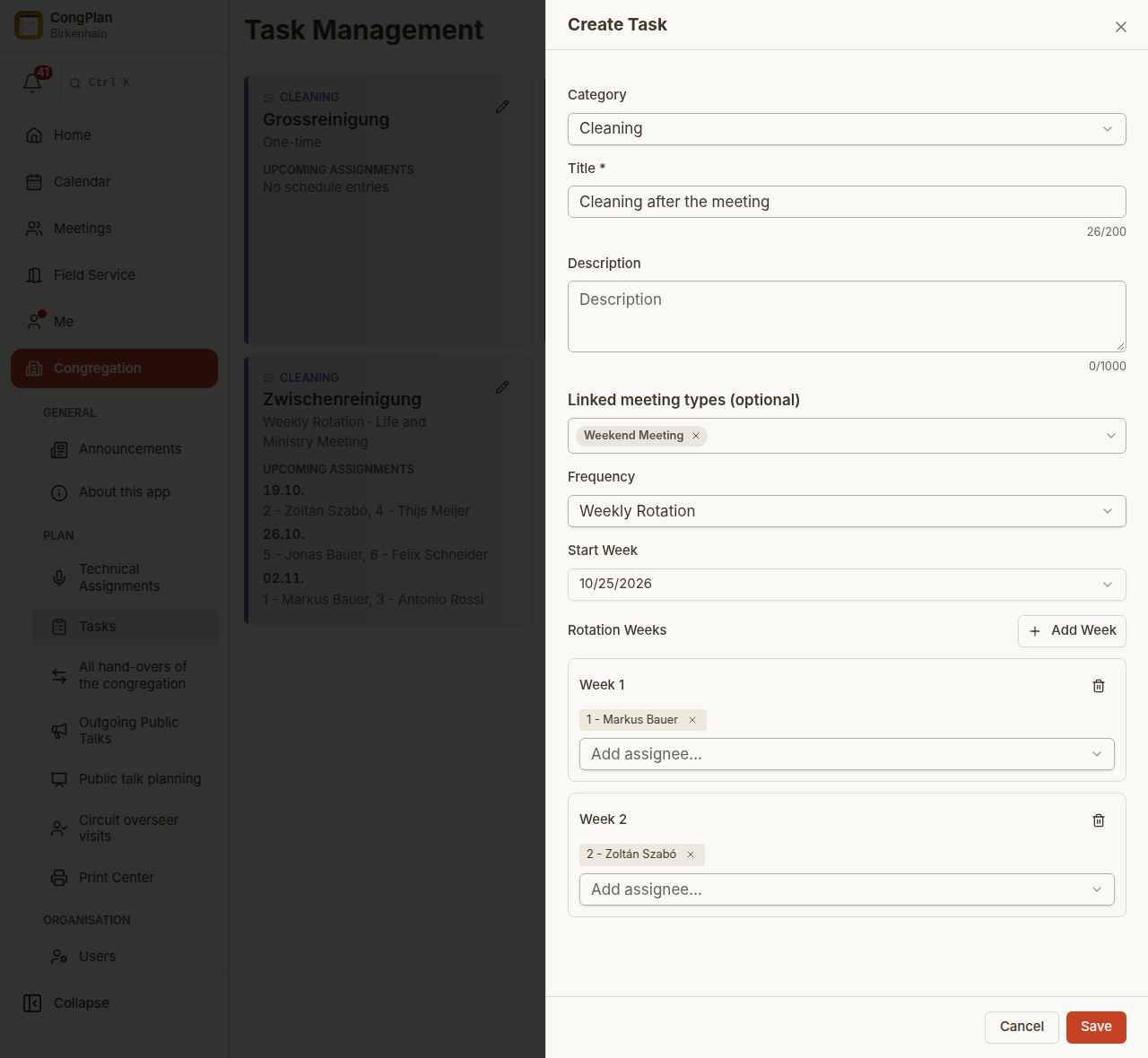
The rotation repeats on its own: week 3 is group 1 again, week 4 group 2. For three or more groups, add one week per group. If two groups clean together, put both into the same week. Instead of a group you can also pick single people or the whole congregation.
The card on the tasks page then lists the next dates under Upcoming assignments, so you can check the order right after saving.
Variant 1: tied to a meeting
Choose this when the cleaning happens after a particular meeting, for example after the weekend meeting.
- In Linked meeting types (optional), select exactly one meeting type, for example Weekend Meeting.
- The task then belongs to that week's meeting and is shown with it.
- No meeting, no cleaning: in a week in which this meeting does not take place, for example during a convention, the task does not exist for that week. Nobody is asked to clean a hall that was not used.
- The rotation counts calendar weeks. The group whose week was dropped has no cleaning that week, and the next week continues as planned.
If your congregation cleans after both meetings, create two tasks, one for the midweek meeting and one for the weekend meeting. With several meeting types in one task, CongPlan cannot tell which meeting a week belongs to, so the task stays in weeks without a meeting.
Variant 2: independent of the meetings
Choose this for work that is due every week no matter which meetings take place, for example mowing the lawn or a weekly cleaning outside the meetings.
- Leave Linked meeting types (optional) empty.
- The task appears every week, including convention weeks, and rotates the same way as described above.
What the groups see
Everyone in the group whose week it is sees the task in their personal plan for that week. Planners see all tasks on the tasks page and can open a card to change the rotation later. All fields of a task are described under Tasks.