Calendar Subscription (ICS)
You can subscribe to your personal CongPlan plan as an ICS feed and see it in the calendar app you already use — on iPhone, Android, Google Calendar, or Outlook. Your assignments, field service meetings, public-witnessing shifts, tasks, and absences then appear alongside your other appointments and stay up to date automatically. If you actively represent another person, their plan entries appear in the same feed.
Setting Up the Subscription
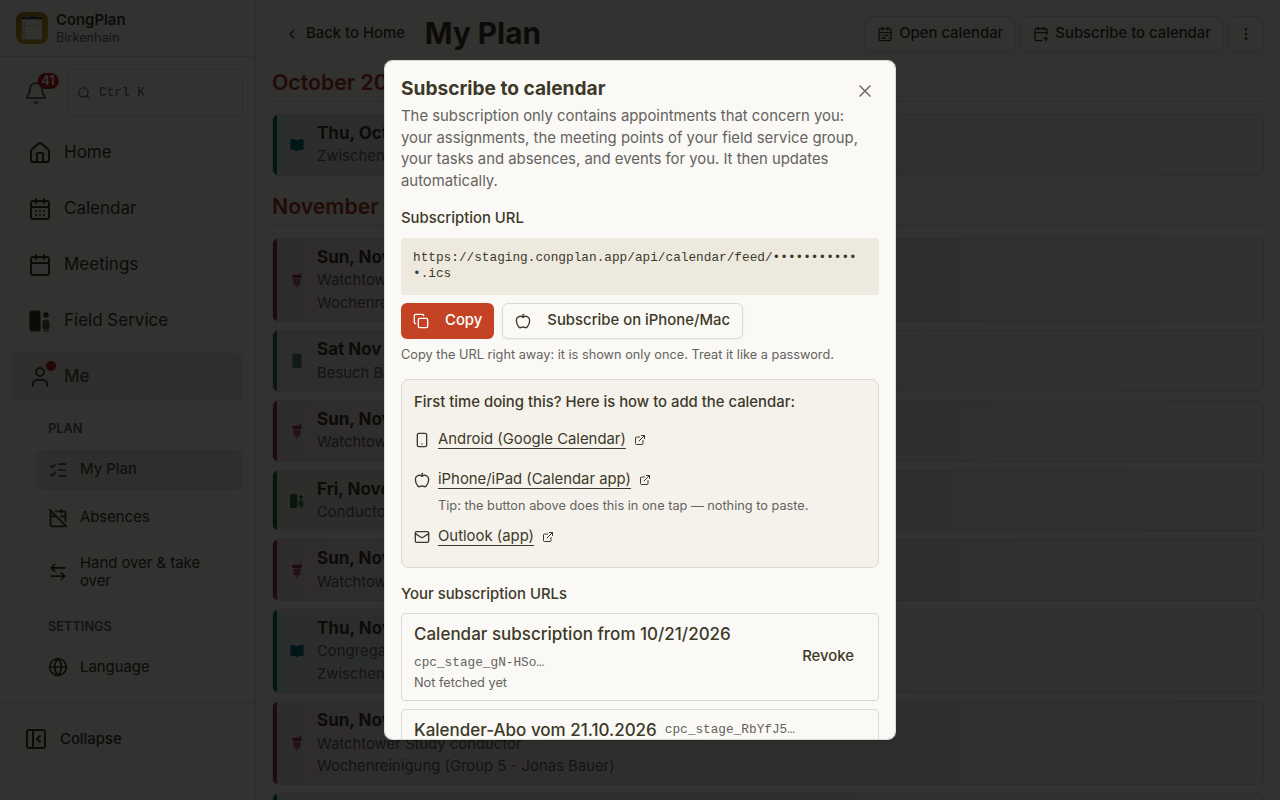
The entry point is on your personal plan:
- Open Me > My Plan.
- Choose Subscribe to calendar.
- The first time you open it, CongPlan creates your personal subscription address and shows it once. Choose Copy and add the address once to your calendar app (usually "Subscribe to calendar" / "Add by URL"). Step by step: Set up the calendar subscription.
After that, the calendar refreshes on its own. New assignments and changes appear automatically — there is nothing to export or re-import.
Add the Feed to Your Calendar App
Use the subscription address as a calendar URL, not as a one-time imported file:
- Apple Calendar / iPhone / iPad — add a subscribed calendar from the calendar account settings and paste the CongPlan address.
- Google Calendar — add the calendar by URL in Google Calendar on the web. The subscription then syncs to devices that use the same Google account.
- Outlook — add a calendar from the web or subscribe from the web calendar settings, then paste the CongPlan address.
Calendar apps decide how often they refresh subscribed calendars. If a change does not appear immediately, wait for the app's next refresh or remove and add the subscription again with a freshly created address.
Not the Public Schedule Page
The ICS feed is personal. It uses your private subscription address and contains your own plan plus the plan entries of anyone you actively represent.
The public schedule page is different: it is one congregation-wide QR link for the current week and the next two weeks, does not require login, and is controlled by administrators in congregation settings.
Times and Time Zones
- Timed events such as meetings show the correct time regardless of the time zone your device is in.
- All-day entries such as field service meetings or absences appear on the right day in your congregation's time zone.
The congregation time zone is derived from the congregation country and can be overridden by an administrator under the meeting-time settings if needed.
Entries for a Person You Represent
An active representative receives the represented person's meeting parts, technical assignments, field service meetings, tasks, outgoing public talks, and public-witnessing shifts through the existing subscription address. Each calendar title starts with For NAME: and carries a Representation category.
The represented person's absences and circuit-overseer-visit entries are not included. When the representation expires or is revoked, its entries disappear on the calendar app's next feed refresh. No second calendar address or feed setting is needed.
Privacy and Revoking
- The subscription address is personal and shows your own plan plus active represented plan entries.
- You can revoke an address at any time under Your subscription URLs and choose Create a new subscription URL — for example, to remove the subscription from a device you no longer use.
- Revoking takes effect immediately; the old address then returns nothing.
If you stop seeing updates, remove the subscription in your calendar app and add a freshly created address again.