Registration & Login
CongPlan uses passkeys and personal invite, approval, and device links. There is no email-and-password login.
Registering a New Congregation
If your congregation is not yet on CongPlan:
- Open my.congplan.app (opens in new tab)
- Select Register new congregation
- Enter your name, congregation name, country, and language
- Complete the setup shown in the app
Only one person needs to register the congregation. Other publishers join by invitation or by requesting access.
Logging In
The login page has one primary action and three entries for a device that is not signed in yet:
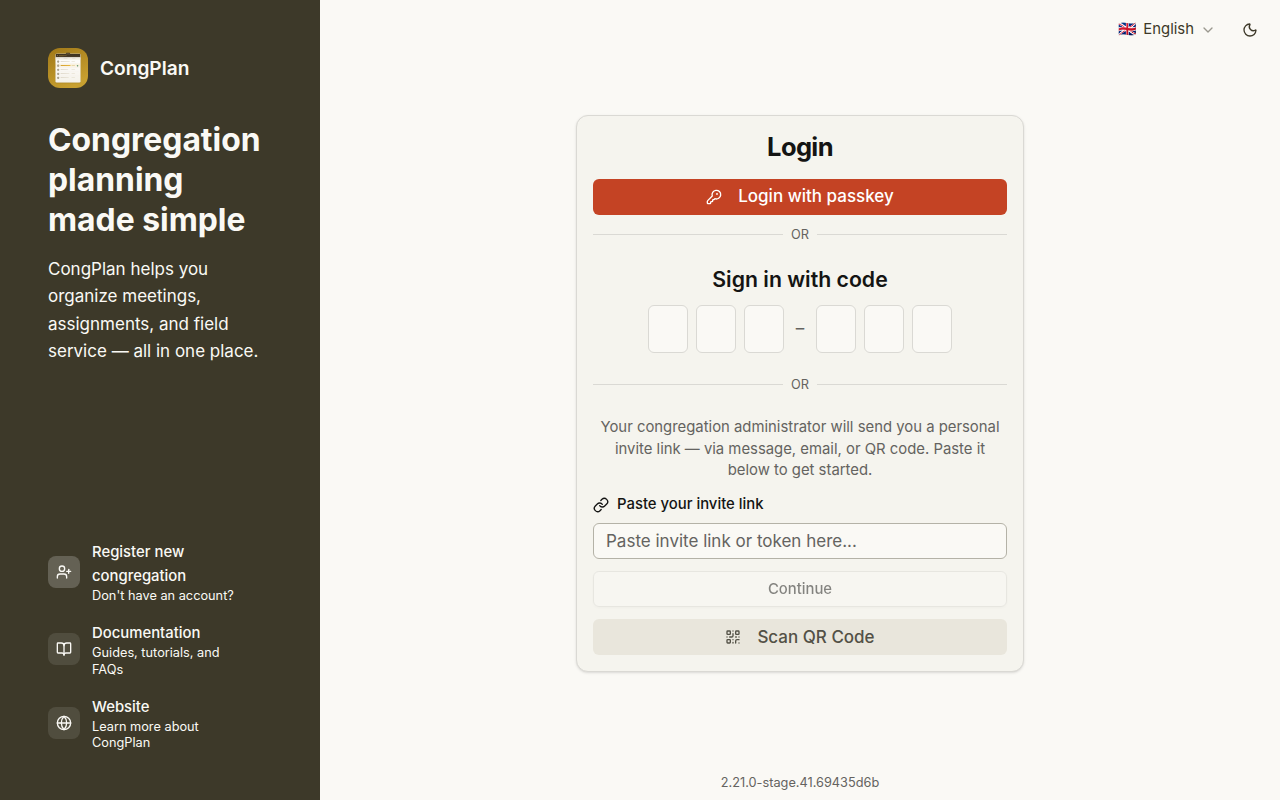
- Login with passkey — the normal sign-in. It works with the passkey on this device, in your password manager, or with a passkey that iCloud or Google synced over from your other device.
- New on this device? — three situations, each with its own page:
- I'm already signed in on another device — add this device to your account without an administrator. See Adding Another Device.
- I don't have access yet — request access from your congregation. See Requesting Access.
- I received an invitation — open the invitation: scan its QR code or paste the link. See Joining by Invite.
A login by link, code, or approval is enough for normal planning. Full administrative work asks you to confirm the current session with a passkey before the protected page or action opens.
Joining by Invite
If your congregation already uses CongPlan, an administrator creates your user record and sends a personal invite.
- Open the invite link. If you received the invitation as a QR code or as text, choose I received an invitation on the login page and scan or paste it
- Confirm that the displayed name and congregation are correct
- Confirm the invitation and continue into the app
- Use the setup assistant to enable notifications and, if wanted, set up a passkey
Invite, approval, and setup links are personal. Do not forward them to another person.
You can skip passkey setup and use normal planning features. An administrator needs a passkey-confirmed session for full administration and sensitive user master-data changes.
Requesting Access
If your congregation already uses CongPlan but nobody has sent you an invitation yet, request access from the device you want to use:
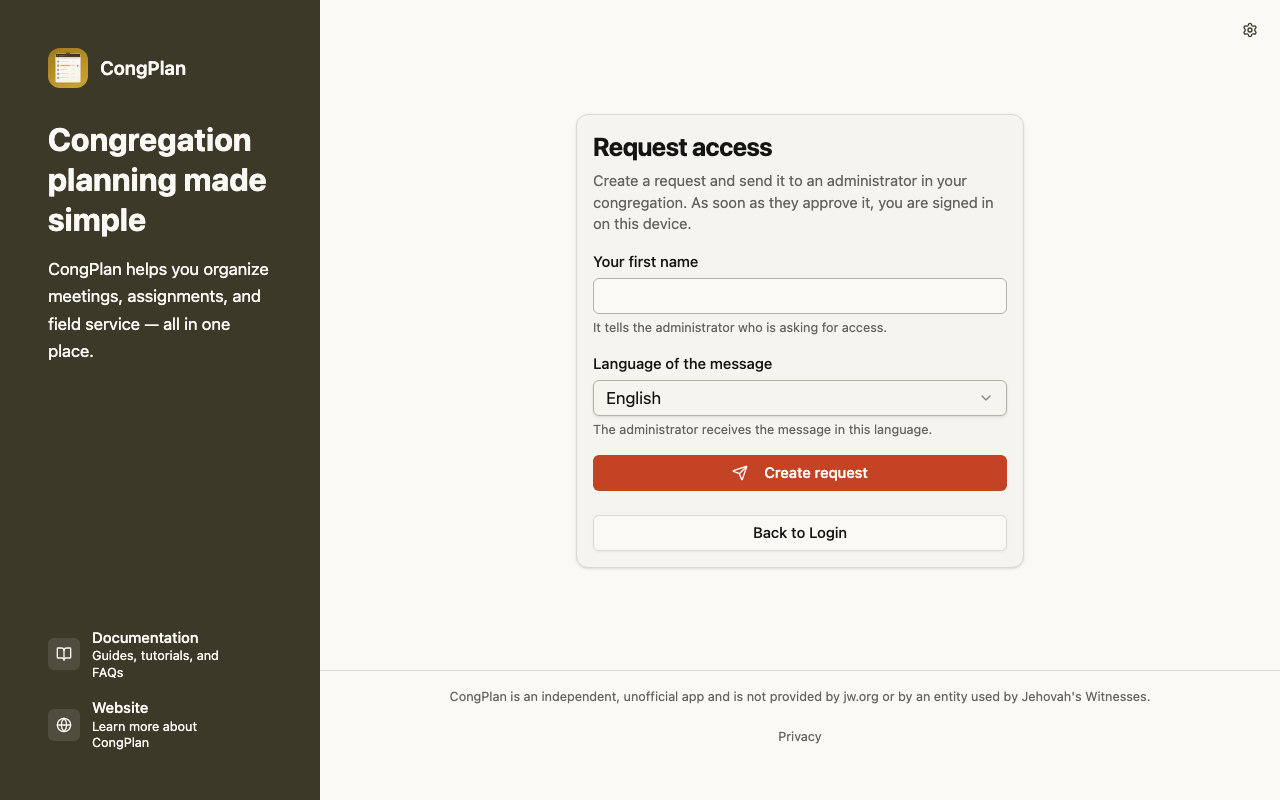
- On the login page, choose I don't have access yet
- Enter your first name and choose the language of the message the administrator receives
- Select Create request
- Send the message with Share message or Copy message to an administrator of your congregation, in any messenger
- Keep the page open. As soon as the administrator approves the request, you are signed in on this device
The link in the message is valid for 12 hours and only works on the device that created it. If the request is declined or expires, create a new one or talk to an administrator.
Install CongPlan first and request access from the installed app. Without installing, you are only signed in inside this browser tab. See Installation.
The administrator opens the link, assigns your person record, and approves the request. That side is described in Approving Access Requests.
Adding Another Device
If you are already signed in on one device, unlock the new phone, tablet, or desktop from there. No administrator is needed.
On the signed-in device:
- Open Me, then Settings → My Devices
- Select Setup New Device. The app shows a QR code, a six-digit code, and a setup link, together with their expiry
On the new device:
- On the login page, choose I'm already signed in on another device
- Enter the six-digit code or scan the QR code
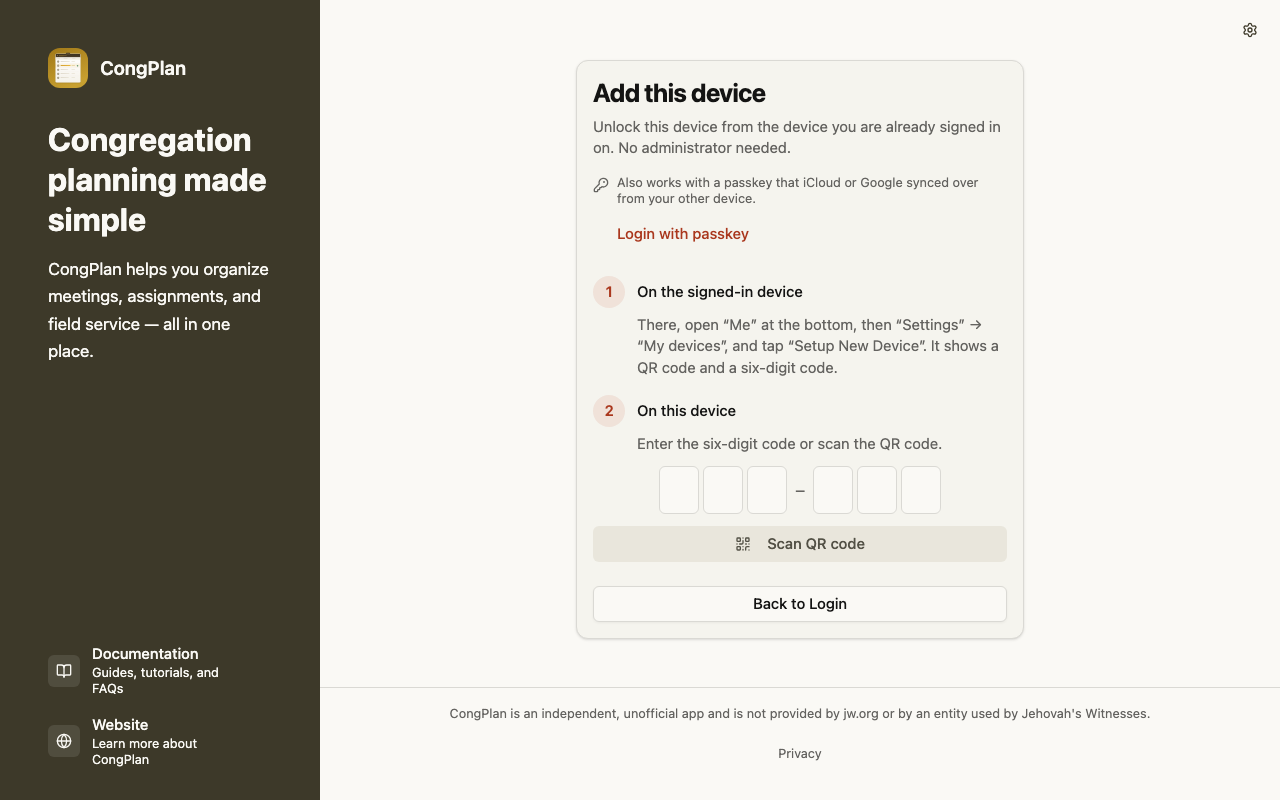
The setup link remains valid for seven days. The six-digit code is deliberately shorter-lived: it is valid for no more than 24 hours and works once. If the app reports the code as invalid, expired, or already used, create a new code on the signed-in device.
This is different from creating a new user: it only gives your existing account access on another device.
Lost Device or Passkey
If you can no longer sign in on any device, either request access from the new device (see Requesting Access) or ask an administrator to create a new invite or device setup link for your account.
Next Steps
After login, continue with Installation and First Steps.