Set up the calendar subscription
CongPlan can hand your personal plan to the calendar app you already use. You add one address once. After that your assignments, field service meetings, public-witnessing shifts, tasks, and absences appear next to your other appointments and stay up to date on their own.
This guide is written for readers who have never subscribed to a calendar before. It covers Google Calendar on Android, the built-in Calendar app on iPhone and iPad, and the Outlook apps on both systems. What the subscription contains, how time zones are handled, and how to revoke an address is described on Calendar Subscription (ICS).
Copy your subscription address
- Open Me > My Plan.
- Choose Subscribe to calendar. On a computer this is a button at the top of the page. On a phone it is the calendar icon at the top right, without a label. The same entry is also in the ⋮ menu of My Plan and of the calendar.
- The first time you open it, CongPlan creates your address straight away and shows it under Subscription URL. There is nothing to fill in or name.
- Choose Copy.
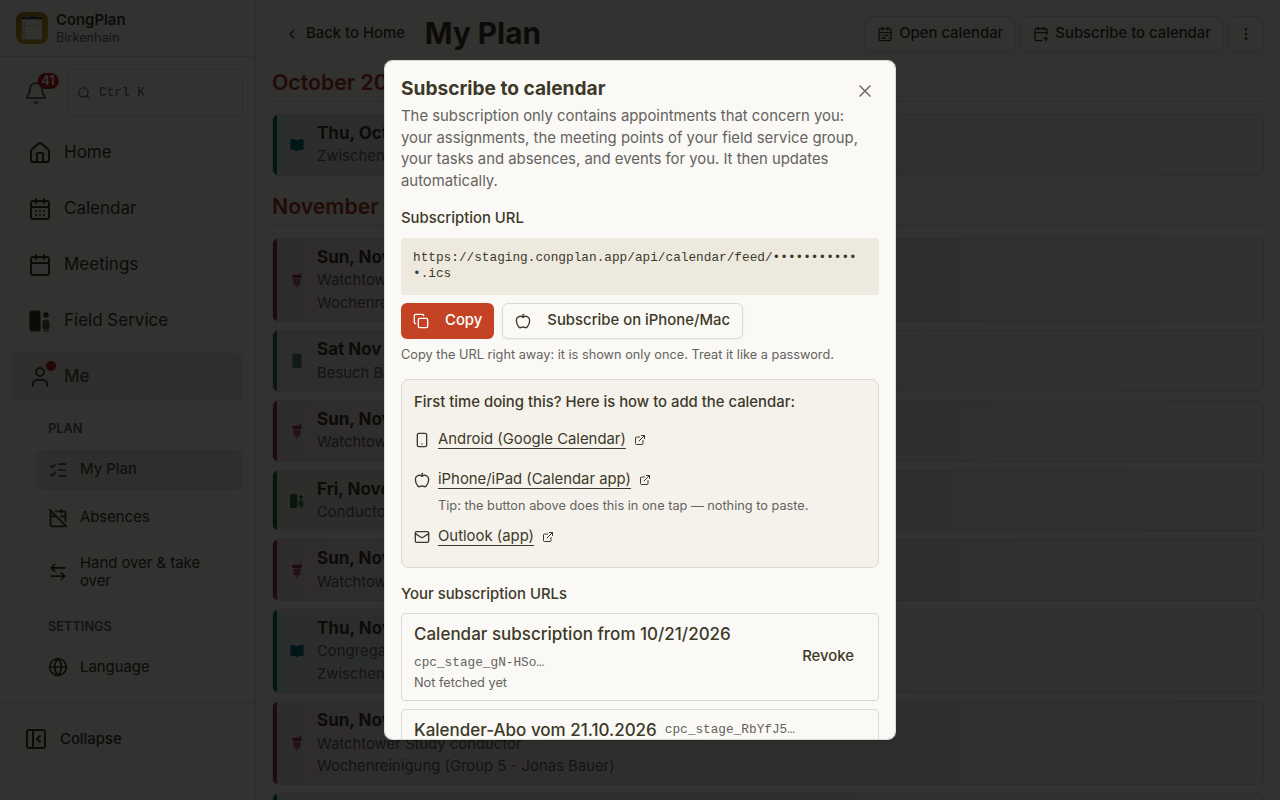
CongPlan shows the address exactly once. If you open the window again later, it says that you already have an address and offers Create a new subscription URL instead. So if you lose the address, nothing is broken: create a new one and use that. Every address is listed under Your subscription URLs with the date it was created, and you can revoke each one there.
On an iPhone or Mac, you can skip the copy step: choose Subscribe on iPhone/Mac next to Copy instead. It opens the Calendar app directly and asks you to confirm the subscription — see iPhone, iPad, and Mac below.
The address is personal and works like a password. Anyone who has it can read your plan without logging in. Do not post it in a group chat.
Whichever route you take below, you are adding a subscription by URL, never a downloaded file. A downloaded file is a one-time copy that never updates again.
Android with Google Calendar
The Google Calendar app on Android cannot add a calendar by URL. Google offers that only in a browser, and the subscription then syncs down to the phone. You therefore do this once on a computer, or in the phone browser using the desktop version of the page.
- Open calendar.google.com (opens in new tab) in a browser and sign in with the same Google account your phone uses.
- In the left column, next to Other calendars, choose + and then From URL.
- Paste your address and choose Add calendar.
- Open the Google Calendar app on your phone.
- Open the menu, choose Settings, and switch the new calendar on under its name. New subscribed calendars are not always visible on the phone straight away.
Google decides for itself how often it refreshes a subscribed calendar, and it is not immediate. A new entry can take several hours to appear on the phone. This is Google's behaviour, not a CongPlan setting.
iPhone, iPad, and Mac with the Calendar app
Tap Subscribe on iPhone/Mac next to Copy in the app. It opens the Calendar app directly on that device and asks you to confirm the subscription.
To add it manually instead: open Settings > Apps > Calendar > Calendar Accounts (iOS 17 and older: Settings > Calendar > Accounts) > Add Account > Other > Add Subscribed Calendar, and paste your address into Server.
Outlook app on iPhone
The Outlook app on iPhone cannot add a calendar by URL. Microsoft support answers state this plainly and point to Outlook on the web or the desktop program instead. You subscribe once in the browser, and the calendar then appears in the app on your phone.
- Open outlook.com (opens in new tab) in a browser and sign in with the same account your Outlook app uses.
- Switch to Calendar.
- Choose Add calendar, then Subscribe from web.
- Paste your address, give the calendar a name, and choose Import.
- Open the Outlook app on your phone. The calendar arrives with the next sync of that account and can be switched on in the calendar list.
Do not use Open Calendar > From Internet in the classic Outlook program on Windows for this. That creates a calendar that lives only on that computer and never reaches your phone. Subscribe on outlook.com instead.
Outlook app on Android
Same situation and same route as on iPhone: the Android app has no field for a calendar URL. Subscribe on outlook.com (opens in new tab) exactly as described above, using the same account the app is signed in to. Microsoft's own instructions note that a calendar subscribed in Outlook on the web then syncs to the Outlook app on Android.
When something does not show up
| What you see | What to do |
|---|---|
| Nothing appears on the phone after adding it in the browser | Switch the calendar on in the app's settings, then give the app time to sync. |
| Entries stop updating | Remove the subscription in the calendar app, choose Create a new subscription URL in CongPlan, and add that one. |
| You lost the address | Choose Create a new subscription URL. The old one keeps working until you revoke it. |
| Someone should no longer see your plan | Open Me > My Plan > Subscribe to calendar and choose Revoke next to that address under Your subscription URLs. It stops working immediately. |
Calendar apps decide for themselves how often they refresh a subscribed calendar. A change made in CongPlan is in the feed straight away, but the app shows it only after its next refresh.
Sources
The vendor instructions this guide follows, all checked on 11 September 2026:
- Google Calendar, adding a calendar from a URL: Subscribe to someone else's calendar (opens in new tab)
- iPhone and iPad, adding a subscribed calendar: Set up mail, contacts, and calendar accounts on iPhone (opens in new tab)
- Outlook on the web, Subscribe from web: Import or subscribe to a calendar in Outlook.com or Outlook on the web (opens in new tab)
- Outlook for iOS, no URL subscription in the app: Microsoft Q&A, How to add Internet Calendar Subscription to Outlook iOS (opens in new tab)
- Outlook for Android, no URL subscription in the app, syncs from Outlook on the web: Microsoft Q&A, Outlook for Android URL Calendar Sync (opens in new tab)